

 Posted by
 If you own both an iPhone and a Mac, AirDrop is a useful tool to transfer files wirelessly. However, if you are one of the Mac users who also use an Android device, you can still receive files wirelessly by using Android Nearby Share on your Mac. Here’s how.
If you’re an Android user, you can use Nearby Share to easily share photos, videos, or other files between devices without relying on a physical connection or pre-uploading content. This feature uses both Bluetooth and Wi-Fi, and includes security measures to protect your device from malicious content or unwanted requests.
But what if you’re an Android and Mac user? Although it’s not a common scenario, there is a way to use Nearby Share on your Mac to receive files. This method is not officially endorsed by Apple or Google, but it has been developed by a Grishka, who has shared the app on GitHub.
If you’re willing to install unofficial software from GitHub, you can use this app to wirelessly receive content from your Android smartphone on your Mac. Although it lacks an official seal of approval, we’ve used it frequently without any issues thus far.
To use NearDrop, you will need a Mac that has Wi-Fi functionality and an active internet connection. Additionally, you will need an Android smartphone to share content with. Make sure to download the NearDrop app to get started.
To send files from your Android to your Mac, follow these simple steps.
1. Visit GitHub.
2. Download the NearDrop application.
3. Install NearDrop on your Mac.
4. Turn on Wi-Fi on your Mac.
5. Activate Nearby Share on your Android device.
To access Grishka’s unofficial Nearby Share app, NearDrop, simply head to his GitHub page on your Mac. Follow this link and get started right away.
https://github.com/grishka/NearDrop
To begin with, you need to download and install the NearDrop app from Grishka’s GitHub page. Although it may not be obvious, you can find the latest version of the app by clicking on the Release tab on the right-hand side and then selecting “NearDrop app.ZIP” to initiate the download.
https://github.com/grishka/NearDrop/releases
Once the ZIP file is downloaded, locate it in your Downloads folder and double-click to unzip. After that, move the NearDrop app to your Mac’s Applications folder, which can be easily found in the Finder sidebar. To open the app, double-click its icon and confirm that you understand it is not an official app from Apple.

In order to transfer files using NearDrop, you need to turn on Wi-Fi on your Mac. Unlike the official Nearby Share function, which uses a combination of Bluetooth, Wi-Fi direct and other connection methods, NearDrop relies solely on Wi-Fi connectivity.

It’s also important to note that your Mac and Android smartphone need to be connected to the same Wi-Fi network in order to be detected.
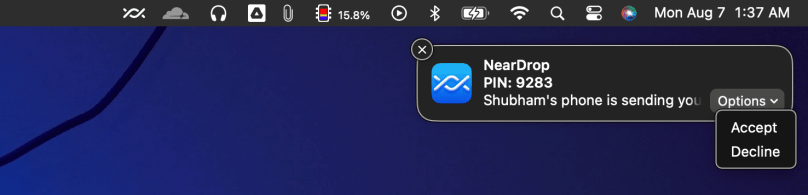
To share files from your Android to your Mac, simply select the files you want to share from apps like Gallery, Photos, or Files, and tap Nearby Share. Your laptop should appear as an available option. Confirm the transfer on your Mac when prompted, and the transfer will begin.

 Spyboy blog