

 Posted by
 Few things are more frustrating than plugging in your memory card, USB drive, or external hard drive and realizing it’s corrupted, unreadable, or inaccessible. Whether it contains precious photos, important work documents, or backups, a corrupted storage device can feel like a disaster.
The good news? In many cases, you can repair and recover data from corrupted drives using built-in system tools, third-party utilities, or formatting methods.
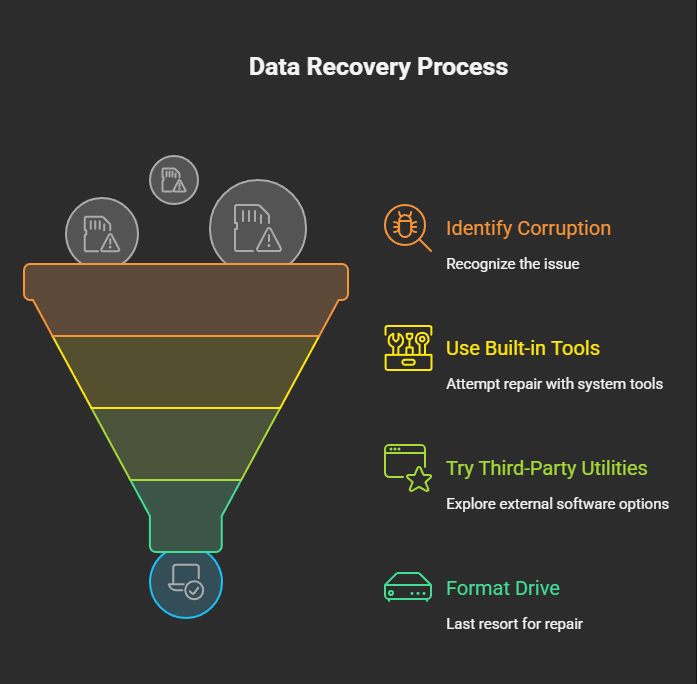
This post will cover:
- Causes of drive corruption
- Signs your USB or memory card is corrupted
- Different methods to repair (Windows, macOS, Linux)
- Recovery tools and useful commands
- When to attempt DIY repair vs. professional help
⚠️ What Causes Memory Card/USB/Hard Drive Corruption?
Storage devices can become corrupted for several reasons:
- Improper Ejection – Removing the drive without safely ejecting can damage file system structures.
- Power Failure – Sudden shutdowns or surges during read/write operations.
- Virus/Malware – Malicious software that overwrites boot records or partitions.
- File System Errors – NTFS, FAT32, or exFAT file system corruption due to bad sectors.
- Physical Damage – Hardware-level issues (water damage, broken connectors, worn-out flash memory).
- Overuse – Flash memory has limited read/write cycles; over time, it may fail.
🔍 Signs of a Corrupted Drive
- Device is not detected or shows “Insert disk” error
- Windows asks: “You need to format the disk before you can use it”
- File or folder names appear as gibberish
- Files can’t be copied, deleted, or accessed
- Disk space shows incorrect values
- Frequent crashes or “Disk not accessible” messages
🛠️ Methods to Repair a Corrupted Memory Card/USB/Hard Drive
✅ 1. Try a Different USB Port, Card Reader, or PC
Before diving into repair, rule out simple issues:
- Plug into a different USB port or computer.
- Use a different card reader for SD/microSD cards.
- Check for loose or damaged connectors.
✅ 2. Use Windows Built-in Tools
A. Run CHKDSK Command
Windows includes CHKDSK (Check Disk) to scan and fix errors.
Steps:
- Connect the drive
- Open Command Prompt as Administrator
- Type:
chkdsk X: /f /r /x
X:= your drive letter/f= fix errors/r= locate bad sectors/x= force unmount before fixing
If successful, CHKDSK repairs file system errors and restores access.
B. Use Windows Error Checking Tool
- Right-click on your corrupted drive → Properties
- Go to Tools → Error Checking → Click Check
- Let Windows scan and fix the errors
C. Assign a New Drive Letter
Sometimes the system can’t recognize the drive because of a missing drive letter.
- Press
Win + X→ Disk Management - Right-click your drive → Change Drive Letter and Paths
- Assign a new letter
✅ 3. Repair Using macOS
On Mac, use Disk Utility:
- Open Disk Utility (
Applications → Utilities) - Select the corrupted drive
- Click First Aid → Run repair
If First Aid fails, you may need to erase and reformat the drive (warning: this wipes data).
✅ 4. Repair Using Linux
Linux has powerful repair tools like fsck.
- Plug in the corrupted drive
- Open a terminal
- Unmount the drive:
sudo umount /dev/sdX1
- Run file system check:
sudo fsck -p /dev/sdX1
Replace sdX1 with your actual drive (use lsblk to check).
✅ 5. Format the Drive (Last Resort)
If repairs fail, formatting may be the only option.
- Windows: Right-click drive → Format → Choose NTFS/exFAT/FAT32
- Mac: Disk Utility → Erase → Select file system
- Linux:
sudo mkfs.vfat /dev/sdX1   # FAT32
sudo mkfs.ntfs /dev/sdX1   # NTFS
sudo mkfs.ext4 /dev/sdX1   # Linux EXT4
⚠️ Warning: Formatting erases all data. Consider recovery before doing this.
💾 Data Recovery Tools (If You Need Your Files Back)
If the drive is severely corrupted but you still want to recover files before formatting, use data recovery software:
- Recuva (Windows, Free/Paid)
👉 Download Recuva - TestDisk & PhotoRec (Windows/Mac/Linux, Free & Open Source)
👉 Download TestDisk - EaseUS Data Recovery Wizard (Windows/Mac, Paid with Free Trial)
👉 Download EaseUS - Stellar Data Recovery
👉 Download Stellar
These tools can recover deleted files, restore partitions, and rescue data from formatted drives.
📌 Best Practices to Avoid Future Corruption
- Always safely eject drives before unplugging
- Keep a regular backup of important files
- Use a reliable surge protector/UPS to prevent power-related corruption
- Scan drives regularly for malware
- Avoid using cheap, low-quality USB drives and SD cards
- Replace aging drives before they fail
📝 Final Thoughts
A corrupted memory card, USB stick, or hard drive doesn’t always mean permanent data loss. With the right tools and methods—CHKDSK, fsck, Disk Utility, TestDisk, or data recovery software—you can often restore access and save your files.
However, if the device is physically damaged (broken connector, burnt circuits, clicking sounds in hard drives), software fixes won’t help. In such cases, it’s best to consult professional data recovery services.
Remember: the best cure for drive corruption is prevention—regular backups, careful handling, and safe ejection practices will save you from headaches in the long run.
 Spyboy blog