
 Posted by
 Android phones are reliable — until they aren’t.
One day your phone suddenly:
- gets stuck on the Google / Android logo
- keeps restarting endlessly
- vibrates randomly
- lands in Fastboot or Android Recovery
- shows the terrifying message:
“Cannot load Android system. Your data may be corrupt.”
If you’re here, you’re likely panicking — especially if:
- your power button is broken
- nothing auto-selects in recovery
- ADB / Fastboot commands don’t work
- Windows doesn’t detect your phone properly
This article is a complete, real-world guide based on an actual recovery attempt and covers most Android phones (Pixel, Samsung, OnePlus, Xiaomi, etc.).
Symptoms This Guide Covers
This guide applies if your Android phone shows one or more of the following:
- Boot logo loop (Google / Samsung / Android logo)
- Random vibration during boot
- Phone stuck on Fastboot Mode
- Phone stuck on Android Recovery
- Error message:
Cannot load Android system. Your data may be corrupt. - Power button does NOT work
- Volume buttons work
adb devicesshows nothingfastboot devicessometimes works, sometimes not
Why This Happens (Root Cause)
In most real cases, this issue is not just software.
Common causes:
- Failing power button (very common on older phones)
- Repeated forced reboots → filesystem corruption
- Aging storage (eMMC / UFS wear)
- Sudden crash during update or heavy load
- Battery voltage drops during boot
What usually happens:
- Power button short → endless reboots
- Android fails to mount
/data - Encryption prevents recovery
- Device drops into Recovery permanently
First Rule: STOP Rebooting Repeatedly
If your phone:
- vibrates continuously
- loops between logo and restart
👉 Unplug charger and let the battery drain completely
Repeated rebooting makes corruption worse.
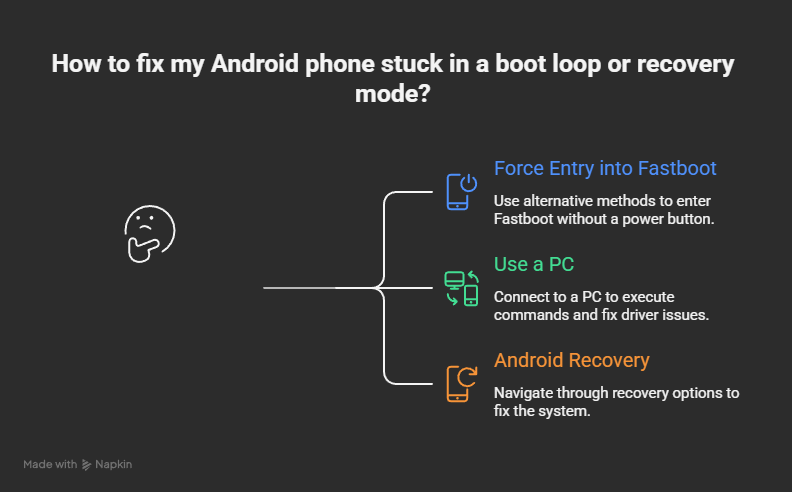
Step 1: Force Entry Into Fastboot (No Power Button)
This works on most Android phones.
- Disconnect charger
- Hold Volume Down
- While holding it, plug charger or USB cable
- Keep holding for 15–20 seconds
If successful, you’ll see:
FASTBOOT MODE
This is good news.
Step 2: Use a PC (Windows / macOS / Linux)
If the power button is broken, a PC is mandatory.
Install Android Platform Tools
Download from Google:
Android SDK Platform Tools
Extract to:
C:\platform-tools
Step 3: Fix Windows Driver Issues (Very Common)
Most failures happen here.
If Windows DOES NOT detect Fastboot:
- Change USB cable
- Use rear USB port
- Avoid USB hubs
Correct driver must be:
Android Bootloader Interface
If you see:
- ADB Interface
- APP Mode
- Pixel / Android Device
👉 Those are wrong drivers for Fastboot.
Fix:
Device Manager → Update Driver →
Let me pick → Have Disk → android_winusb.inf → Android Bootloader Interface
Step 4: Fastboot Commands (Power Button Not Needed)
In PowerShell / CMD (inside platform-tools):
.\fastboot devices
If detected:
.\fastboot reboot
Or reboot directly into recovery:
.\fastboot reboot recovery
Step 5: Android Recovery – The Critical Screen
If you see this message:
Cannot load Android system. Your data may be corrupt.
This means:
/datapartition cannot be mounted- Encryption prevents repair
- Bootloader is locked
- Data recovery is impossible
There are only two options:
- Try again (almost always fails)
- Factory data reset (this fixes the phone)
There is no third option.
Why ADB Stops Working in Recovery
On this screen:
adb devicesshows nothingfastbootno longer works
This is intentional Android security behavior.
ADB is disabled to prevent data theft.
The BIG Problem: Power Button Is Broken
Recovery says:
Use volume up/down and power
But if power button doesn’t work:
- You cannot confirm
- PC cannot override
- Commands will not help
At this point, many users think the phone is dead.
It’s not.
FINAL WORKING SOLUTION (No Repair Needed)
✅ Use USB-C OTG + Keyboard (Works on Most Android Phones)
This is the most important trick.
What you need:
- USB-C OTG adapter
- Any USB keyboard (or mouse)
Steps:
- Plug OTG adapter into phone
- Plug keyboard into OTG
- Use:
- Arrow keys → navigate
- Enter → acts as Power button
Now:
- Select Factory data reset
- Press Enter
- Confirm
- Phone wipes and reboots
🎉 Phone is saved (software-wise)
If You Don’t Have OTG
Your only remaining option:
🔧 Hardware Repair (Guaranteed Fix)
- Replace power button flex cable
- Cheap repair
- 30–45 minutes
- After repair, factory reset works normally
What Is NOT Possible (Important Truth)
Be careful of misinformation.
❌ Recover data
❌ Bypass encryption
❌ Flash ROM with locked bootloader
❌ Use ADB on corrupted recovery
❌ Software-only magic fix
Anyone claiming otherwise is lying.
After the Phone Boots
Immediately:
- Back up everything
- Disable forced restarts
- Replace power button if possible
Older Android phones will repeat this issue if hardware isn’t fixed.
Summary (TL;DR)
- Boot loop + recovery error = data corruption
- Broken power button makes it harder, not impossible
- PC helps only until recovery stage
- OTG + keyboard is the ultimate workaround
- Factory reset is unavoidable
- Phone can still be fully usable afterward
 Spyboy blog