

 Posted by
 In an increasingly digital world, cyber threats have become an unavoidable reality. From mobile devices to personal computers, no platform is immune to hacking attempts. Knowing the signs of a potential breach can help you act swiftly to minimize damage and secure your data. Here’s a comprehensive guide to help you identify if you’ve been hacked on Android, iPhone, PC, or Mac.
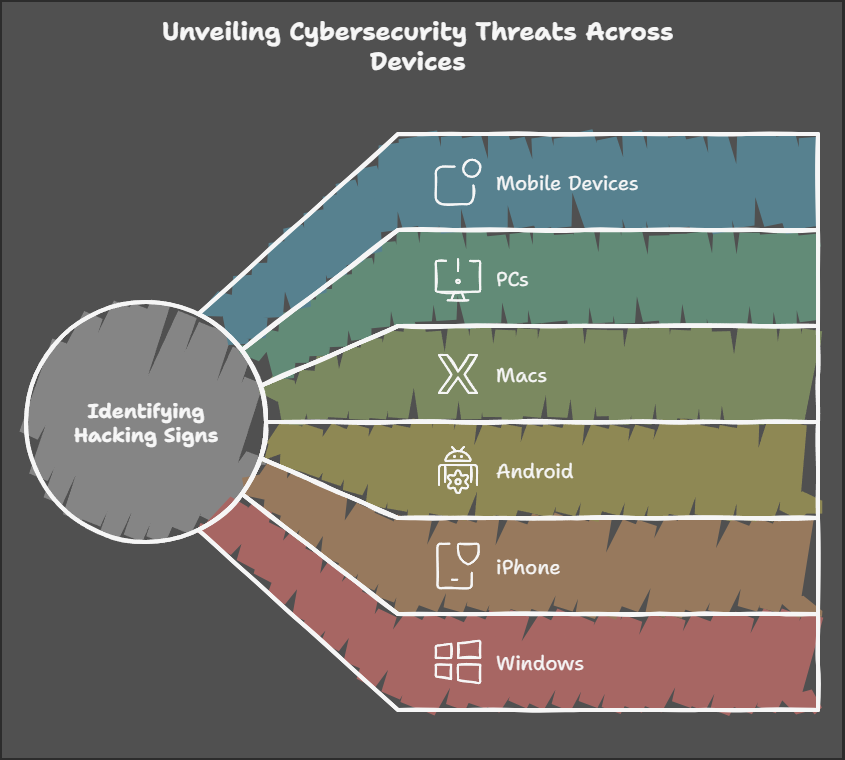
Signs Your Mobile Device Has Been Hacked
1. Unusual Battery Drain
If your phone’s battery is depleting faster than usual, it could indicate that malicious apps or processes are running in the background.
2. High Data Usage
Unexpected spikes in data usage might suggest that malware is sending data to external servers.
3. Overheating
While overheating can occur due to heavy usage, consistent overheating could be a sign of malware activity.
4. Strange Apps or Files
Unfamiliar apps appearing on your device or files you don’t recognize could be signs of unauthorized access.
5. Pop-Ups and Ads
Excessive pop-ups or ads, especially when you’re not using a browser, could indicate adware infection.
6. Unauthorized Charges
Unexplained charges on your phone bill or accounts could point to subscription scams or in-app purchases made by hackers.
7. Poor Performance
If your phone is lagging, crashing, or freezing frequently, malware might be overloading your system resources.
8. Suspicious Messages
If your contacts receive strange messages or emails from you, your phone might be compromised.
Signs Your PC or Mac Has Been Hacked
1. Slow Performance
If your computer’s performance has significantly slowed down, malware could be running resource-heavy tasks in the background.
2. Frequent Crashes or Freezes
Repeated system crashes or freezes can be a symptom of a compromised system.
3. Unknown Programs
Check for unfamiliar programs installed on your system. Hackers often install tools to maintain access or extract data.
4. Excessive Network Activity
Unusual network activity, even when your system is idle, could indicate data being transmitted to a hacker’s server.
5. Browser Redirects
If your browser frequently redirects you to unfamiliar websites, your system might be infected with malware or adware.
6. Disabled Antivirus
Hackers often disable antivirus or firewall settings to prevent detection. Check if your security tools are functioning as expected.
7. Unauthorized Account Access
If you’re locked out of your accounts or notice changes you didn’t make, it’s a clear sign of hacking.
8. Strange Emails Sent from Your Account
Your email account might be compromised if your contacts report receiving unusual emails from you.
What to Do if You Suspect a Hack
1. Disconnect from the Internet
Immediately disconnect your device from the internet to prevent further data transmission.
2. Scan for Malware
Use a trusted antivirus or anti-malware tool to scan and remove any malicious software.
3. Update Your Software
Ensure your operating system and all applications are up to date with the latest security patches.
4. Change Passwords
Update passwords for all accounts, starting with your email. Use strong, unique passwords for each account.
5. Enable Two-Factor Authentication (2FA)
Add an extra layer of security by enabling 2FA on all accounts that support it.
6. Monitor Financial Transactions
Check your bank statements and credit card transactions for unauthorized charges.
7. Restore from Backup
If the problem persists, restore your device to a previous state using a clean backup.
8. Consult a Professional
If you’re unable to resolve the issue, seek help from a cybersecurity professional.
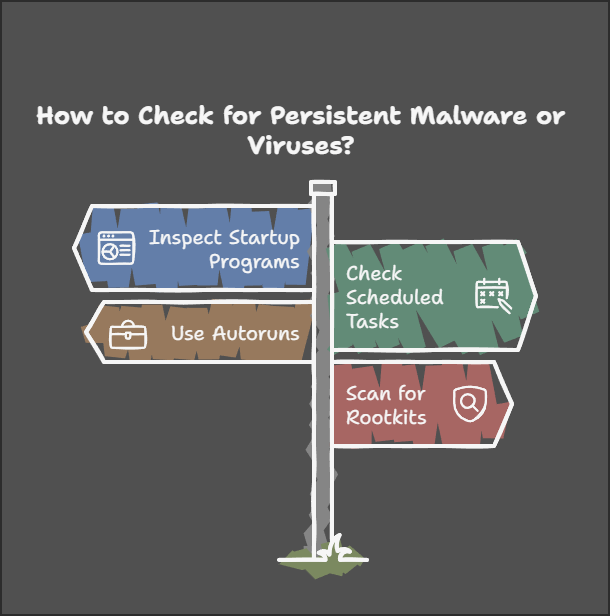
How to Check for Persistent Malware or Viruses
On Windows
- Inspect Startup Programs
- Open the Task Manager by pressing
Ctrl + Shift + Esc. - Navigate to the Startup tab.
- Look for unfamiliar programs that are set to run at startup. Disable anything suspicious.
- Open the Task Manager by pressing
- Check Scheduled Tasks
- Open the Task Scheduler by typing it into the Windows search bar.
- Review the tasks for any unauthorized or unfamiliar entries.
- Delete any tasks that you didn’t create or recognize.
- Use Autoruns
- Download and run the Autoruns tool from Microsoft.
- Review all startup entries and disable or delete suspicious ones.
- Scan for Rootkits
- Use advanced antivirus tools that specialize in detecting rootkits, such as Malwarebytes or Kaspersky.

On Android
- Review App Permissions
- Go to Settings > Apps.
- Check the permissions of installed apps.
- Revoke unnecessary permissions for apps that don’t need them, especially access to SMS, contacts, or location.
- Identify Device Administrators
- Navigate to Settings > Security > Device Admin Apps.
- Look for apps with admin privileges. Remove access for any unfamiliar or unnecessary apps.
- Check for Hidden Apps
- Use a file explorer app to search for hidden APK files in your device’s storage.
- Delete any unknown or suspicious files.
- Factory Reset
- If you’re unable to remove persistent malware, perform a factory reset. Ensure you back up important data first.

On Mac
- Review Login Items
- Open System Preferences > Users & Groups > Login Items.
- Look for and remove unfamiliar programs that launch at startup.
- Check Activity Monitor
- Open Activity Monitor from the Utilities folder.
- Look for processes consuming high CPU or memory that you don’t recognize.
- Scan for Malware
- Use a trusted antivirus solution for macOS, such as Malwarebytes or Intego, to scan your system.
- Inspect Launch Agents and Daemons
- Check the
/Library/LaunchAgentsand/Library/LaunchDaemonsfolders for suspicious files. - Remove unauthorized entries carefully.
- Check the
Preventive Measures
1. Use Strong Passwords
Avoid using common or easily guessable passwords. Consider using a password manager.
2. Keep Software Updated
Regularly update your operating system and apps to patch vulnerabilities.
3. Be Cautious with Links and Attachments
Avoid clicking on suspicious links or downloading attachments from unknown sources.
4. Install Apps from Trusted Sources
Only download apps from official stores like Google Play or the Apple App Store.
5. Use Security Software
Install reputable antivirus and anti-malware tools on all devices.
6. Avoid Public Wi-Fi
Use a VPN when connecting to public Wi-Fi networks to encrypt your data.
7. Regularly Monitor Accounts
Check your accounts and devices for any signs of unauthorized access.
8. Educate Yourself
Stay informed about the latest cybersecurity threats and best practices.
Conclusion
Identifying the signs of a hack is crucial to protecting your personal information and devices. By staying vigilant and taking preventive measures, you can significantly reduce your risk of being hacked. If you suspect that your device has been compromised, act quickly to mitigate the damage and secure your accounts. Regularly inspecting your device for persistent threats and keeping security measures in place will ensure long-term safety.
 Spyboy blog
Thanks for this. I have a quick question regarding adware, prevention and cookies. You see, so many websites demand ‘3rd party’ cookies and not only that, even if you turn them off in browser settings, they will have a naughty ‘on’ switch with ‘legitimate interest’ next to it. I have been having problems with popups since I clicked ‘accept’ without turning off the 3rd party ‘legitimate interest’ thing. What is the motive of some website owners? Greed? Power? The thing is I suspect that some of these ‘vendors’ & ‘3rd party tracking cookies’ are just an excuse for adware. The only symptom I’ve had is a large amount of popups appearing, none of the other symptoms mentioned above have manifest. If I notice any other symptoms appearing. I am suspicious that a lot of these ‘3rd party tracking’ cookies are excuses for adware and spyware. I’ll be vigilant. Thanks for your help.
LikeLike
Your suspicions aren’t entirely off-base. While not all third-party tracking cookies are outright adware, many do serve an invasive purpose—tracking users across the web to build advertising profiles. Here’s a breakdown of what’s likely happening and how you can protect yourself:
### **1. Why Do Websites Push Third-Party Cookies?**
– **Money & Advertising** – Many websites rely on advertising revenue, and third-party cookies help target users more effectively, making ads more profitable.
– **User Profiling & Data Collection** – Some companies build extensive profiles based on your browsing habits, which they then sell to advertisers.
– **‘Legitimate Interest’ Loophole** – This is a sneaky way of saying, *”We believe we have the right to track you, whether you like it or not.”* Many sites make it difficult to opt out of tracking by hiding settings or using deceptive UI designs.
### **2. Are These Cookies Actually Adware?**
Not all third-party cookies are outright adware, but **some ad networks and shady vendors can serve malicious ads** (known as malvertising), which can lead to pop-ups, redirects, and even malware infections. If you’ve been seeing an unusual number of pop-ups since clicking “accept,” one of these vendors may have exposed you to aggressive advertising techniques.
### **3. What Can You Do to Protect Yourself?**
✅ **Clear Cookies Regularly** – Delete cookies from your browser settings frequently.
✅ **Use an Ad Blocker** – Extensions like uBlock Origin can prevent many third-party trackers.
✅ **Enable Enhanced Privacy Settings** – Use browsers like Brave or Firefox with strict privacy settings.
✅ **Disable JavaScript for Untrusted Sites** – NoScript (for Firefox) or uMatrix can help.
✅ **Run a Malware Scan** – Just in case, use Malwarebytes or another trusted anti-malware tool.
### **4. How to Remove Popups If You’re Already Affected**
– **Check Installed Extensions** – Some shady pop-ups come from malicious browser extensions.
– **Scan for Malware** – Run a malware scan to ensure nothing sneaky got installed.
– **Reset Browser Settings** – If all else fails, reset your browser to default settings.
### **Final Thoughts**
Your instinct is right—many websites push **intrusive tracking under the guise of ‘legitimate interest’** to make money. Some third-party vendors **are shady and can serve adware-like popups**. Stay vigilant, use privacy tools, and avoid clicking “accept all” when visiting new sites.
LikeLike
Contextual ads vs. behavioural (targetted) ads. I’m sure ‘legitimate interest’ excuse is illegal under the data protection act. It’s a myth sites needs to track users to make money. For a start, you don’t even have to be a business, and if so, use ‘contextual ads’ rather than ‘behavioural (targetted)’ ads. It makes me question why websites need to know more than analytic data. Corporate greed? Lust for power? Anyway, thanks for your help. I’ve taken note of the actions to take. I don’t click ‘accept all’ anymore. Thanks for your help. Much appreciated.
LikeLike