
 Posted by
 Most people think their PC is secure because they have:
- A Windows login password
- Maybe even a PIN or fingerprint
And that’s it.
They feel protected.
But here’s the uncomfortable truth:
Your Windows password protects your account — not your system.
If someone has physical access to your device, they can often bypass Windows entirely… without knowing your password.
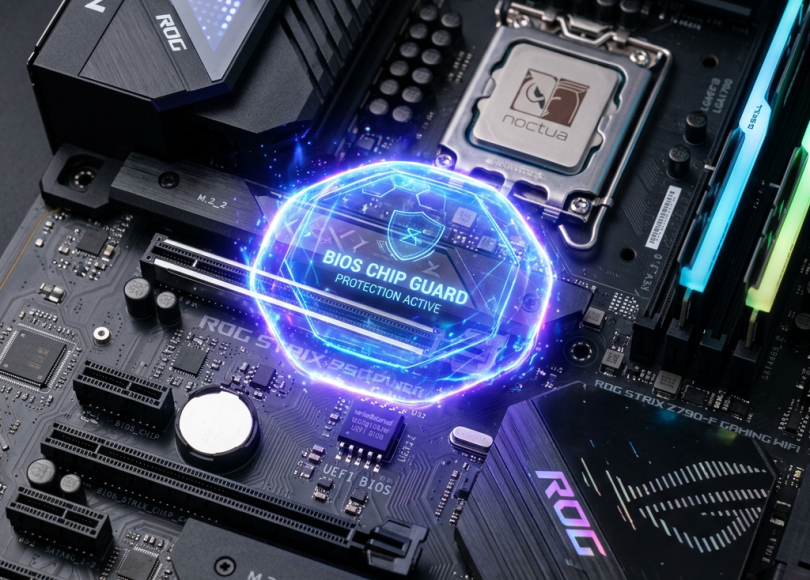
And that’s where BIOS/UEFI security comes in.
🧠 What Is BIOS/UEFI (In Simple Terms)?
BIOS (or modern UEFI) is the first thing your computer runs when you power it on.
It controls:
- Boot process (what loads first)
- Hardware access
- System-level security settings
Think of it like:
The gatekeeper before Windows even starts.
If this gatekeeper is unlocked…
everything else becomes easier to bypass.
🚨 Why Windows Password Alone Is Not Enough
Let’s break this down clearly.
🔓 1. Windows Can Be Bypassed Without Logging In
If BIOS is not secured, an attacker can:
- Boot into recovery mode
- Boot from a USB drive
- Access system files offline
They don’t need:
- Your password
- Your PIN
- Your fingerprint
👉 Because they are not attacking Windows…
they are bypassing it completely.
💾 2. Your Data Can Be Accessed Directly
Without proper protection, someone can:
- Boot a live OS (like Linux from USB)
- Open your drive
- Copy your files
This includes:
- Documents
- Saved passwords
- Browser data
- Work files
Your Windows password?
Completely irrelevant in this situation.
⚙️ 3. Boot Order Manipulation = Full Access
If BIOS is unlocked:
- Anyone can change boot order
- Set USB as primary boot device
- Run external tools
This is how many “password bypass” tricks work.
🔐 4. Offline Password Reset Attacks
Attackers with physical access can:
- Modify system files
- Reset or replace account credentials
Again — not hacking Windows…
just going around it.
🔥 Real-World Scenario
Let’s make this practical.
You leave your laptop unattended for 10 minutes.
An attacker:
- Reboots your laptop
- Enters BIOS
- Boots from USB
- Accesses your files or modifies system
When you return:
- Everything looks normal
- You don’t even know it happened
That’s how silent these attacks are.
🛡️ What Locking BIOS/UEFI Actually Does
🔒 1. Prevents Unauthorized Boot Changes
- Stops attackers from using USB boot
- Blocks external OS loading
🔑 2. Requires Password Before System Changes
- BIOS settings become protected
- Boot configuration cannot be modified
🚫 3. Blocks Recovery Exploits
- Limits access to recovery environment abuse
🧠 4. Adds a Critical Security Layer
Think of it like:
| Layer | Protects Against |
|---|---|
| Windows Password | Unauthorized login |
| BIOS Password | System-level bypass attempts |
| Disk Encryption | Data theft even if accessed |
👉 You need all three, not just one.
⚠️ Why Most People Ignore This
Because:
- It’s not visible daily
- It feels “too technical”
- Windows login feels enough
But attackers don’t think like users.
They think:
“How do I avoid the password entirely?”
🧠 The Biggest Misconception
“If my laptop is locked, my data is safe.”
Not true.
If BIOS is unlocked and disk is not encrypted:
- Your data is exposed
- Your system can be modified
- Your account can be bypassed
🛡️ How to Properly Secure Your PC
✅ 1. Set a BIOS/UEFI Password
- Prevents unauthorized changes
- Required to access firmware settings
✅ 2. Disable External Boot (USB/CD)
- Stops booting from external devices
- Blocks common bypass techniques
✅ 3. Enable Secure Boot
- Ensures only trusted OS loads
- Prevents malicious bootkits
✅ 4. Enable Full Disk Encryption
- Windows: BitLocker
- Protects data even if drive is accessed
✅ 5. Lock Your Device Physically
- Never leave it unattended in public
- Use device locks when needed
📊 Security Comparison
| Protection Type | What It Stops | Enough Alone? |
|---|---|---|
| Windows Password | Login access | ❌ No |
| BIOS Lock | Boot-level attacks | ❌ No |
| Disk Encryption | Data theft | ❌ No |
| Combined Security | Full protection | ✅ Yes |
🔍 Signs Your System Might Be Vulnerable
- You can enter BIOS without password
- USB boot is enabled
- No disk encryption
- No Secure Boot
If any of these are true →
your system is easier to bypass than you think.
🧠 The Real Security Mindset
Most people protect:
- What they see (login screen)
But ignore:
- What happens before it
That’s the gap attackers exploit.
🔚 Final Thoughts
A Windows password locks the door.
BIOS/UEFI security locks the entire building.
If you skip BIOS security:
- You’re trusting that no one will ever access your device physically
And that’s a risky assumption.
📣 Final Call to Action
Take 5–10 minutes today:
- Enter your BIOS/UEFI settings
- Set a strong firmware password
- Disable USB boot
- Enable Secure Boot
- Turn on BitLocker
Because real security isn’t about convenience—
It’s about closing the gaps you didn’t know existed.
❓ FAQ
Is BIOS password really necessary?
Yes. It prevents attackers from bypassing your OS and changing boot settings.
Can someone access my data without my Windows password?
Yes, if BIOS is unlocked and disk encryption is disabled.
What is the difference between BIOS password and Windows password?
- Windows password protects login
- BIOS password protects system-level access
Is BitLocker enough without BIOS lock?
No. Both should be used together for full protection.
Can BIOS password be reset?
Sometimes yes (depending on hardware), but it adds a strong security barrier.
Discover more from Spyboy blog
Subscribe to get the latest posts sent to your email.
