
 Posted by
Few situations are as disruptive for an Outlook user as an inaccessible Outlook mailbox. When this happens, users cannot log in to their accounts or access their emails, contacts, or other items. When a user account is configured with Exchange, it creates an offline copy of the user’s Outlook mailbox data, the OST file, which works with the configured user profile in Outlook.
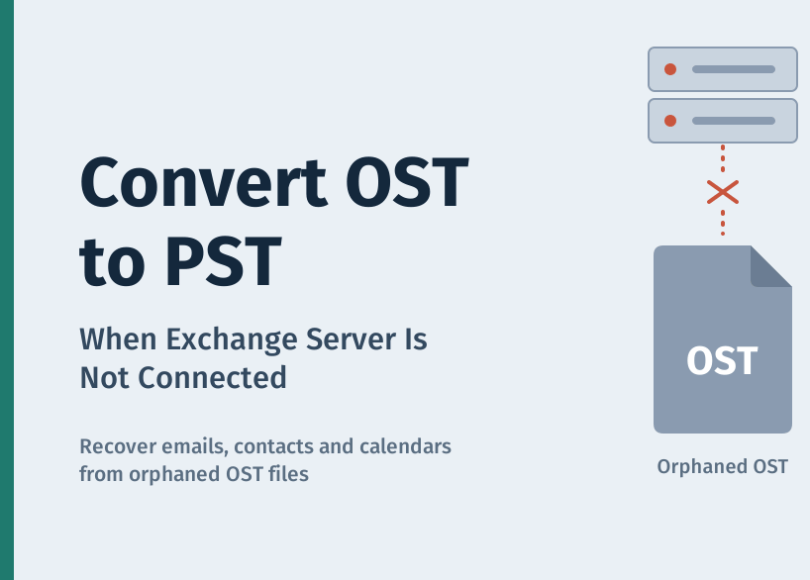
When an Exchange server is decommissioned, a user account is deleted, or there is an extended outage. Due to this, users cannot access mailbox data in Outlook. The OST file(s), however, are still on the local drive, containing the full mailbox data. But as the OST file is bound to the original server and its profile, it becomes an orphaned or unreadable file. To access the data in Outlook, you’ll have to convert OST to PST format.
In this blog, we’ll discuss why Exchange becomes unavailable and learn about a way to convert the orphaned OST file to PST format.
Why Is Exchange Server Unavailable?
Outlook loses its connection to Exchange for one of these reasons:
- Server downtime: Scheduled maintenance, an unexpected outage, or a technical fault takes the server offline.
- Server decommissioning: The organization has moved to another email platform or retired its on-premises Exchange server.
- Account deletion or deactivation: The mailbox was disabled or removed, often after an employee left the organization.
- Configuration changes: Changes to Exchange settings or authentication methods stop the existing Outlook profile from connecting.
Methods to Convert OST to PST When Exchange Server Is Not Connected
Method 1: Convert a Small OST File Online
What you can do is convert the orphaned or unreadable OST file to PST format using an OST to PST converter service. You’ll find plenty of options to choose from. One such utility that you can use is Stellar Online OST Converter. It is a powerful web-based service that lets you convert a single OST file of size <100MB to PST format for free. You can use this online service without an active Exchange server connection or MS Outlook. If your OST file is larger than 100MB but smaller than 5GB, you can upgrade to its Premium edition.
Here are some salient features of Stellar Online OST to PST Converter:
- Effortlessly converts OST to PST format
- No Outlook or Exchange server required to convert OST to PST
- Preserves the original mailbox structure and folder hierarchy in the resultant PST file
- Easily converts emails, contacts, calendars, notes, and other mailbox items
- Allows you to verify the mailbox folder structure via a downloadable HTML file
- It works in a web browser. It doesn’t need Outlook to be installed or configured.
Here’s how Stellar’s Online OST to PST Converter works:
- Go to the official page of Stellar Online OST Converter in a web browser.
- Sign in and select Convert OST File.
- Locate the OST file on your PC. Select it.
- Upload the file and wait for the service to convert it.
- Once the conversion is complete, you can click on Download HTML to verify the mailbox structure.
- After verifying, click on Download. The PST file will be saved on your PC.
Method 2: Convert Large, Multiple, or Encrypted OST Files with Desktop Software
For large OST files, a desktop OST to PST converter is the more practical choice. Multiple options are available in the market, such as Stellar Converter for OST, SysTools OST to PST Converter, Kernel for OST to PST Converter, and Shoviv OST to PST Converter. Desktop tools process files on your own computer, so your mailbox data never has to be uploaded anywhere.
What to look for in a desktop converter
- Support for orphaned and encrypted OST files: The tool should open OST files without the original profile or server connection.
- No practical size limit: Check that it handles your largest OST file, and whether it can split a very large PST into smaller files.
- Batch conversion: Useful if you need to convert several users’ OST files in one run.
- Preview before export: A free trial that shows recoverable emails, contacts, and calendars lets you confirm the data is intact before you pay.
- Folder structure preserved: The PST should keep the original folder hierarchy and item properties such as dates and read status.
- Multiple output formats: Besides PST, options like MSG, EML, or PDF help if you only need specific emails.
- Direct export to Microsoft 365: Saves time if you’re migrating the recovered mailbox to a new account.
Conclusion:
An unavailable Exchange Server doesn’t have to mean lost mailbox data. As long as the OST file is still on your computer, you can convert it to PST format and open it in Outlook to get back your emails, contacts, calendars, and other items.
For a small OST file under 100 MB, Stellar Online OST Converter is a quick, free option that works in your browser without Outlook or an Exchange connection. For larger, encrypted, or multiple OST files, a desktop converter is the better choice. Whichever tool you choose, test its trial version on your own OST file first to confirm your data and folder structure come through intact.
Frequently Asked Questions
Can I open an OST file without Exchange Server?
Only through the original Outlook profile in offline mode. If that profile no longer works, you need to convert the OST file to PST before Outlook can open it.
Can I simply rename an OST file to PST?
No. OST and PST files use different internal structures, and an OST file is bound to its original profile. Renaming the extension leaves you with a file Outlook can’t read.
Will converting OST to PST change or delete my original data?
No. Conversion reads the OST file and writes a new PST file. The original OST file stays as it was.
Can I convert an OST file from an account that has been deleted?
Yes. As long as the OST file is still on the computer, a converter tool can extract its data without connecting to the server.
What mailbox items are recovered?
Emails, attachments, contacts, calendar entries, tasks, and notes that were synced to the OST file before the connection was lost.
Discover more from Spyboy blog
Subscribe to get the latest posts sent to your email.
