 Posted by
Introduction: The Person Fixing Your Computer Could Be the Hacker
Imagine receiving a phone call.
The person introduces themselves as a Microsoft support technician. They tell you that your computer has been sending suspicious activity to the internet.
They sound professional.
They explain that they can check your computer remotely and fix the problem.
Then they ask you to open Quick Assist, enter a connection code, and approve a remote connection.
You follow their instructions.
Within seconds, another person can see your desktop. Depending on the permissions you grant, they may also be able to control your computer.
You believe someone is fixing your PC.
But what if that person is the one who wants to compromise it?
This isn’t just a hypothetical scenario. Microsoft has documented real cyberattacks involving criminals impersonating IT support personnel and abusing legitimate remote-access tools to gain access to victims’ computers.
The interesting part is that they don’t necessarily need to exploit Windows.
They convince you to give them access.
Let’s understand how this attack works.
1. What Is Microsoft Quick Assist?
<AsyncImage query=”Microsoft Windows Quick Assist app screen share remote assistance interface screenshot” aspectRatio=”16:9″ width=”100%” maxHeight={220} fit=”contain”/>
<Entity value=”Microsoft Quick Assist” category=”software” disambig=”Microsoft remote assistance application”/> is a legitimate Windows application designed to help people troubleshoot computers remotely.
For example:
- A family member can help you fix a Windows problem.
- An IT technician can troubleshoot an employee’s computer.
- A support professional can guide someone through a technical issue.
- A helper can view the screen and, with permission, take control.
It is useful because the helper doesn’t need to be physically present.
But here’s the problem.
The same remote assistance capability can be abused by someone pretending to be a trusted technician.
Quick Assist itself isn’t malware.
The danger is giving remote access to someone you haven’t verified.
2. How Does the Quick Assist Scam Work?
Let’s walk through a typical attack scenario.
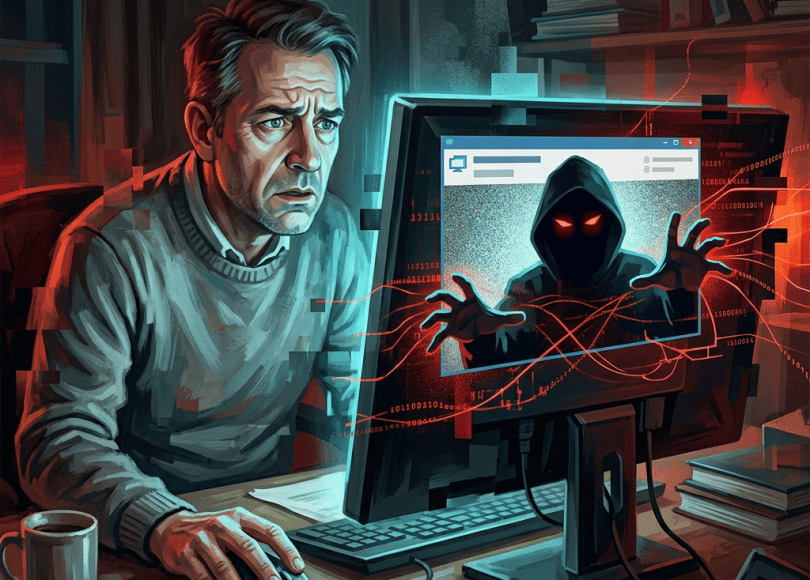
<AsyncImage query=”cybersecurity illustration fake IT support technician phone call laptop remote access scam” aspectRatio=”16:9″ width=”100%” maxHeight={210}/>
Step 1: The Attacker Contacts You
The attacker may contact you through:
- A phone call.
- An email.
- A Microsoft Teams message.
- A fake technical support website.
- A browser security warning.
- A message claiming your account or computer is compromised.
They might introduce themselves as:
- Microsoft Support.
- Windows Security Team.
- Your company’s IT department.
- A bank’s technical support team.
- A trusted software provider.
Their objective is to make you believe that they are legitimate.
Step 2: They Create Urgency
The person might say:
“Your computer has been infected.”
“Someone is accessing your banking information.”
“Your Microsoft account is compromised.”
“We detected suspicious activity from your device.”
They want you to become worried enough to follow their instructions without checking whether the caller is genuine.
This is social engineering.
Instead of breaking into your computer, they manipulate your decisions.
Step 3: They Ask You to Open Quick Assist
The attacker tells you to open Quick Assist.
They provide a connection code and ask you to enter it.
The application then presents a connection request.
If you approve the session, you allow the other person to connect.
Depending on the selected permissions, the helper may be able to view your screen or request control of your computer.
Step 4: They Gain Access to Your Desktop
Once the session is established, the attacker may be able to interact with your computer.
They could attempt to:
- Open applications.
- Navigate through files.
- Access websites.
- Change settings.
- Download software.
- Run commands.
- Access information visible on your screen.
The exact capabilities depend on the access you granted and your system’s security controls.
Step 5: They Attempt to Steal Information or Install Malware
This is where the incident can become serious.
A criminal with remote access may attempt to install additional remote management software, deploy malware, or steal sensitive information.
Potential targets include:
- Saved browser credentials.
- Email accounts.
- Banking sessions.
- Business documents.
- Password manager information.
- Cryptocurrency accounts.
Some campaigns go much further than ordinary account theft.
Microsoft has documented attacks in which remote access was followed by malware deployment, reconnaissance, credential theft, and attempts to move deeper into corporate networks.
3. What Can a Hacker Do After You Give Them Remote Access?
This depends on the permissions granted, the account being used, and the security configuration of the computer.
Here are some possible risks.
Access Files and Documents
A remote operator may navigate files that your account can access.
This could expose:
- Personal documents.
- Work files.
- Downloaded invoices.
- Screenshots.
- Sensitive spreadsheets.
Access Online Accounts
If you are logged into email, social media, or other services, an attacker may attempt to use those active sessions.
They may also try to capture credentials entered during the session.
Install Additional Software
A remote operator with sufficient permissions may attempt to install applications.
These could include:
- Remote access tools.
- Information stealers.
- Malware loaders.
- Other unauthorized utilities.
Access Banking Information
If you use online banking on the compromised computer, attackers may attempt to exploit the active session or manipulate what you see.
Never assume that a remote support session is safe simply because the person claims to be fixing Windows.
Maintain Access
Some attackers try to establish additional remote access mechanisms so that they can reconnect later.
Ending the original Quick Assist session does not necessarily remove software installed during the session.
4. Real Attacks: Microsoft Has Documented Quick Assist Abuse
This isn’t just a theoretical security concern.
Microsoft Threat Intelligence documented attacks involving a financially motivated threat actor known as Storm-1811.
The attackers impersonated trusted IT or help desk personnel and manipulated victims into granting access through Quick Assist.
The activity was associated with follow-on tools, credential theft, and ransomware-related operations.
Microsoft has also published research in 2026 describing newer help desk impersonation campaigns involving remote access, malicious software deployment, and deeper intrusion into organizational networks.
These cases demonstrate an important point:
A remote support session can become the first step in a much larger cyberattack.
The attacker doesn’t always need to steal information during the initial session. They may use it to establish a foothold and continue the attack later.
5. How to Recognize a Fake Microsoft Support Technician
There are several warning signs.
Red Flag 1: They Contact You Unexpectedly
Someone calls you and claims that Microsoft detected a problem on your computer.
Be suspicious.
Microsoft states that it does not proactively contact people to offer unsolicited technical support.
Red Flag 2: They Demand Immediate Remote Access
A caller tells you that your computer will be blocked unless you allow them to connect immediately.
This is a pressure tactic.
Red Flag 3: They Ask for Your Quick Assist Code
A remote assistance code is not something you should share with an unverified person.
The code helps establish a connection. Sharing it with a stranger can expose your computer to remote assistance requests.
Red Flag 4: They Ask You to Disable Windows Security
A legitimate support technician should not casually ask you to disable antivirus protection to fix an unrelated problem.
Red Flag 5: They Ask You to Open Banking or Payment Applications
If someone claiming to provide technical support asks you to open banking websites, payment applications, or cryptocurrency wallets, stop the interaction.
Red Flag 6: They Ask for OTPs or Passwords
Never share one-time passwords, account recovery codes, or passwords with someone claiming to be remote support.
A genuine technician does not need your banking OTP to troubleshoot Windows.
6. How to Protect Yourself From Quick Assist Scams
You don’t need to uninstall every remote assistance application.
You need to control who gets access.
1. Only Accept Sessions You Initiated
If you need technical support, contact the company through its official website or a verified support channel.
Don’t accept a connection because an unknown person called you first.
2. Never Share Remote Access Codes With Strangers
Treat a Quick Assist connection code like a temporary access credential.
Only share it with someone you have independently verified and intentionally contacted.
3. Don’t Trust Caller ID
A phone number or displayed business name is not sufficient proof of identity.
Verify the support request through an independently obtained official contact channel.
4. Never Share Passwords or OTPs
No legitimate troubleshooting session should require you to disclose banking OTPs or account recovery codes.
5. Keep Windows Security Enabled
Keep Microsoft Defender and other security protections enabled.
Don’t disable them just because a caller says they are interfering with a repair.
6. Review Remote Access Applications
Check your computer for remote access applications you didn’t install or don’t recognize.
Examples include:
- AnyDesk.
- TeamViewer.
- ScreenConnect.
- Remote utilities.
- Other remote management software.
These applications have legitimate uses. Their presence alone doesn’t prove an infection.
Investigate unfamiliar installations, especially if they appeared after an unexpected support session.
7. Businesses Should Control Remote Assistance Tools
Organizations should maintain policies governing remote support software.
Where Quick Assist is not required, administrators can consider restricting or removing it.
They should also monitor unusual remote access activity and investigate suspicious follow-on processes.
7. What to Do If You Already Gave Someone Quick Assist Access
If you suspect the person was a scammer, act immediately.
Step 1: End the Remote Session
Disconnect the session immediately.
Don’t continue following the caller’s instructions.
Step 2: Disconnect From the Internet if Necessary
If the attacker appears to be installing software or accessing sensitive information, disconnect Wi-Fi or Ethernet.
This can interrupt ongoing remote communication, although it doesn’t remove malware already installed.
Step 3: Don’t Use the Compromised PC for Sensitive Accounts
Avoid opening banking, email, cryptocurrency, or password manager accounts on that computer until you’ve investigated it.
Step 4: Check for Unauthorized Software
Review recently installed applications.
Look for remote access tools or unfamiliar programs installed during or after the session.
Also inspect startup applications and Windows Security alerts.
Step 5: Scan Your Computer
Open:
Windows Security → Virus & threat protection → Scan options.
Run a Full scan.
If compromise is suspected, consider Microsoft Defender Offline scan.
Step 6: Change Passwords From a Clean Device
Prioritize:
- Primary email account.
- Microsoft account.
- Banking accounts.
- Password manager.
- Social media accounts.
- Cryptocurrency accounts.
Revoke active sessions and review account recovery options.
Step 7: Contact Your Bank if Financial Information Was Exposed
If the attacker accessed your banking session or you noticed an unauthorized transaction, contact your bank immediately.
In India, report financial cyber fraud through 1930 and cybercrime.gov.in.
Step 8: Consider a Clean Windows Reinstallation
If the attacker installed unknown software or you cannot establish what happened during the session, a clean Windows installation may be the safer option.
For business systems, involve the organization’s IT or incident response team.
8. Should You Uninstall Microsoft Quick Assist?
Not necessarily.
Quick Assist is a legitimate support application.
If you regularly help family members or receive trusted technical assistance, it can be useful.
However, if you never use it, removing or restricting it may reduce unnecessary remote assistance exposure.
For organizations, administrators can decide whether Quick Assist should be available to employees based on their support requirements.
The important thing is understanding that having Quick Assist installed does not automatically give strangers access to your computer.
A connection still requires user interaction and approval.
9. Quick Assist vs AnyDesk vs TeamViewer: Are They Dangerous?
These applications are legitimate remote support tools.
| Application | Legitimate purpose | Main security concern |
|---|---|---|
| Microsoft Quick Assist | Windows remote assistance | Social engineering and unauthorized sessions |
| AnyDesk | Remote desktop and support | Fraudulent connection requests |
| TeamViewer | Remote support and administration | Misuse of remote access permissions |
| ScreenConnect | IT support and remote management | Unauthorized access or compromised deployments |
The software itself isn’t necessarily malicious.
The problem is who controls the connection.
A scammer using a legitimate remote support application can still compromise your computer.
10. How Security Teams Can Detect Remote Support Abuse
For cybersecurity teams, remote support applications should be treated as legitimate tools that can also be abused.
Useful defensive investigation areas include:
- Unexpected Quick Assist sessions.
- Remote assistance initiated after unsolicited calls or messages.
- Unusual PowerShell or Command Prompt activity during a remote session.
- Unexpected software installations.
- New startup entries and scheduled tasks.
- Unusual outbound network connections.
- Attempts to access sensitive files or accounts.
- Lateral movement between systems.
Microsoft’s 2026 investigations describe how attackers used remote access as an initial entry point before conducting further reconnaissance and deploying malicious components.
Security teams should correlate remote session activity with process creation, network events, and account activity.
A remote assistance connection by itself is not proof of compromise. The surrounding behavior matters.
Final Thoughts: The Most Dangerous Hacker Might Be the Person You Let In
People often imagine hacking as someone exploiting a vulnerability, breaking a password, or bypassing a firewall.
But sometimes the attacker simply calls you and asks for permission.
Quick Assist is a useful Windows feature. AnyDesk and TeamViewer are useful tools. Remote support is an important part of modern IT operations.
But none of these tools can protect you from someone you voluntarily trust with your computer.
Remember:
- Microsoft won’t unexpectedly call you to fix your PC.
- Never give remote access to an unverified person.
- Never share passwords or OTPs.
- Disconnect immediately if a support session feels suspicious.
- Investigate unfamiliar remote access software.
The next time someone claims your computer is infected and asks to control it, pause.
Verify their identity independently.
Don’t let a fake technician become the real hacker.
Think Like a Hacker. Defend Like a Pro.
Frequently Asked Questions
Can someone hack my PC using Microsoft Quick Assist?
Quick Assist is not malware. However, if you approve a remote connection with a malicious person, they may be able to view or control your computer depending on the permissions granted.
Is Microsoft Quick Assist safe?
Yes, it is a legitimate Microsoft application. Its safety depends partly on who you allow to connect to your device.
Does Microsoft ever call users about computer viruses?
Microsoft says it does not proactively contact people to offer unsolicited technical support. Treat unexpected calls claiming to be Microsoft support as suspicious.
Can a hacker install malware through Quick Assist?
A malicious person with sufficient remote control and permissions may attempt to download or install malware during a session.
What happens if I share my Quick Assist code?
The code helps the other person initiate a remote assistance connection. You should never share it with an unknown or unverified person.
Can I remove Quick Assist from Windows 11?
Quick Assist can be managed or removed depending on your Windows configuration. If you don’t use it, restricting its availability may be appropriate. Don’t remove it solely because the application is inherently unsafe.
Is AnyDesk safer than Quick Assist?
Neither application makes an interaction with an untrusted person safe. Both can be used legitimately and both can be abused in remote access scams.
nnection window, a shadowy attacker viewing the screen from another monitor, and a red warning symbol. Dark cybersecurity editorial aesthetic, professional rather than cartoonish.
Discover more from Spyboy blog
Subscribe to get the latest posts sent to your email.
