
 Posted by
 Your Computer Suddenly Says: “Your PC Is Infected”
You’re browsing the internet.
You click on a website.
Maybe you’re reading an article.
Maybe you’re downloading something.
Maybe you’re watching a video.
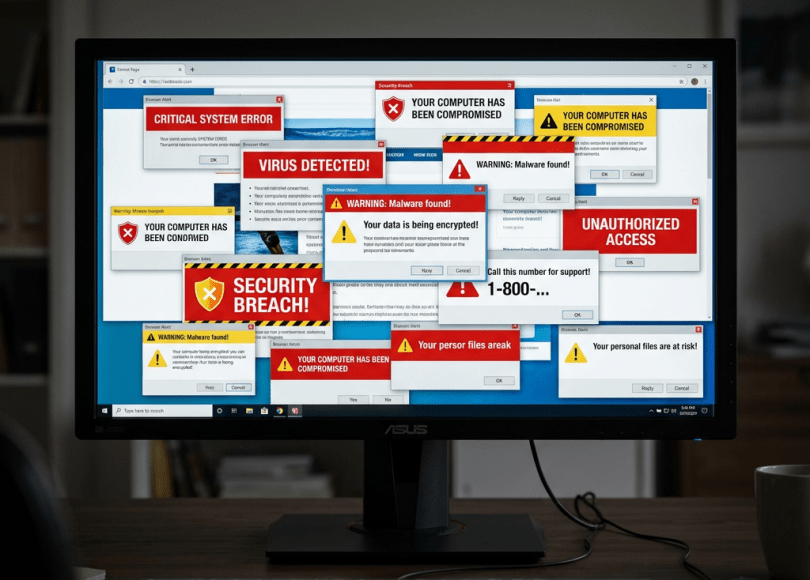
Suddenly, your computer displays:
🔴 WARNING! YOUR COMPUTER IS INFECTED!
Then another notification appears:
Microsoft Windows Security Alert
Then:
5 threats detected
Then:
Your antivirus subscription has expired
Then:
Click here to remove the virus immediately
You panic.
You click.
And that’s exactly what the attacker wanted.
Because there’s a good chance:
Your computer isn’t infected at all.
The “virus warning” may simply be a malicious browser notification.
What Are Browser Notifications?
Modern browsers can display notifications from websites.
For example, a legitimate website might ask:
Allow notifications?
You might allow it.
Later, the website can send notifications through your browser.
This is useful for:
- News
- Messaging
- Web applications
- Updates
- Alerts
But the same mechanism can be abused.
The Attack Usually Starts With One Click
You visit a website.
A box appears:
spyboy.blog wants to show notifications
That’s legitimate functionality.
But imagine a malicious website:
FreeMoviesExample.com wants to show notifications
You click:
Allow
Now the website may have permission to send browser notifications.
The attacker doesn’t necessarily need to install malware on your computer.
They may simply abuse the notification system to repeatedly display scam messages.
This Is Why the Scam Can Feel Like Malware
The notification may appear:
Outside the webpage
in your:
- Windows notification center
- Desktop
- Browser notification area
That makes it look much more legitimate.
You may think:
“Windows itself is warning me.”
But the notification could actually be generated by:
A website you previously allowed to send notifications.
The Fake Microsoft Warning
One of the most effective versions impersonates Microsoft.
You might see:
🔴 Microsoft Defender Alert
Your device is infected with 5 viruses.
Immediate action required.
Click to scan your computer.
The branding may look convincing.
The colors may look convincing.
The Microsoft logo may appear.
But:
A website notification using Microsoft’s logo does not mean Microsoft sent it.
The Fake McAfee Warning
Another common tactic impersonates antivirus brands.
You might see:
McAfee Security Alert
Your subscription has expired.
Your device is exposed.
Renew now.
Again:
The notification can look official.
The attacker is relying on:
Brand recognition + fear + urgency.
The Fake Norton Warning
Same trick.
You may see:
Norton has detected threats
or:
Your Norton subscription has expired
The notification might even use familiar branding.
But the browser notification doesn’t prove the antivirus company generated it.
The Fake Windows Defender Scan
This is especially convincing because users recognize:
Windows Security
A notification may claim:
Threats found
Run security scan
But Windows Defender doesn’t need a random website to tell you that.
If you’re concerned, open:
Windows Security
directly from Windows.
Don’t use the notification’s link.
The Biggest Trick: The Notification Doesn’t Need to Be a Virus
This is an important distinction.
You may have:
No malware
on your computer.
Yet you could still receive:
Fake malware warnings.
That’s because the scam is happening through:
Browser notifications
rather than necessarily through malware installed on your system.
Fake Notifications vs Malware
These are different.
Fake browser notification
A website abuses browser notification permissions.
Malware
Malicious software is actually installed or executing on your system.
Tech-support scam
The attacker tries to convince you to call a number or give remote access.
Phishing
The attacker tries to steal credentials or financial information.
A fake notification can be the first step toward any of the latter attacks.
How the Scam Works
The typical chain looks like:
Malicious website ↓"Allow notifications" ↓Browser permission granted ↓Fake security notification ↓User panics ↓Clicks notification ↓Fake security website ↓Credential / payment / malware scam
The attacker has turned:
A browser permission into a social-engineering channel.
Why Attackers Love Fear
Compare these two notifications:
New article available
versus:
🔴 YOUR COMPUTER IS INFECTED
Which one are you going to click immediately?
The second.
Fear short-circuits careful decision-making.
That’s why scammers use:
- Virus warnings
- Account suspension
- Bank alerts
- Payment failures
- Legal threats
- Expired antivirus
- Identity theft warnings
The Fake “5 Viruses Found” Scam
A notification might say:
5 threats detected
Then:
Your personal information is at risk.
Then:
Scan now.
But ask yourself:
How did a random website scan your entire computer?
It probably didn’t.
A normal webpage doesn’t automatically have unrestricted access to your computer’s files and security software.
The number:
5
is often simply a psychological trick.
The “Your Antivirus Expired” Scam
Another common message:
Your antivirus subscription expired today.
Then:
Renew now to prevent infection.
The scammer wants you to believe:
“My antivirus is warning me.”
But the notification may simply come from a website you previously authorized.
If you actually use that antivirus:
Open its official application yourself.
Don’t click the notification.
The “Call Microsoft” Scam
This one can become much more dangerous.
You see:
CRITICAL SECURITY ALERT
Call Microsoft Support immediately: +1-XXX-XXX-XXXX
You call.
The scammer says:
“Your computer is infected.”
Then:
“Download this remote-support application.”
You install it.
Now the attacker has potentially gained remote access to your computer.
The browser notification was merely the beginning.
Never Call the Number in a Random Security Popup
This deserves a rule of its own:
Real security software doesn’t require you to call a random number displayed by a website.
If you’re concerned:
Open the security application yourself.
Visit the official support website yourself.
Find the support number independently.
Don’t trust the number inside the warning.
The Fake Refund Scam
Another variation:
You are eligible for a $499 refund.
Then:
Click to claim.
You click.
The scammer asks for:
Bank details
or:
Card information
or:
Remote access
The notification wasn’t about malware at all.
It was a financial scam.
The Fake Amazon Notification
You might receive:
Amazon: Suspicious login detected
or:
Your order was cancelled
or:
Payment failed
The notification contains:
Review activity
Click.
Fake login page.
You enter your Amazon credentials.
The attacker now has them.
The Fake Bank Notification
Even more dangerous:
Your bank account has been temporarily locked.
Then:
Verify your identity.
A convincing bank login page appears.
You enter:
- Username
- Password
- OTP
Now the attacker may have everything needed for an account takeover attempt.
Why Browser Notifications Are Perfect for Phishing
Email phishing requires:
Open email → Read email → Click
Browser notification phishing can be:
Notification appears directly on your desktop.
It feels immediate.
It can appear while you’re:
- Gaming
- Working
- Watching YouTube
- Browsing
- Coding
The victim doesn’t necessarily remember which website originally obtained notification permission.
You May Have Forgotten You Allowed It
This is one of the biggest problems.
You visit a website six months ago.
It says:
Allow notifications?
You click:
Allow
You forget.
Months later:
“Your computer is infected!”
appears.
You have no idea where it came from.
You Can See Which Websites Have Notification Permission
Don’t guess.
Check your browser’s site permissions.
In Chromium-based browsers such as Chrome and Brave, you can review notification permissions through the browser’s privacy/site settings.
Microsoft Edge provides similar controls.
Firefox also allows notification permissions to be reviewed and removed.
The exact menu names can change between browser versions.
Remove Websites You Don’t Recognize
If you see:
random-news-example.com
and you have no idea why it has notification permission:
Remove it.
You don’t need to wait for another fake warning.
Don’t Automatically Allow Notifications
When a website asks:
Allow notifications?
ask:
Do I actually need this website to notify me?
For a messaging application:
Maybe.
For a random website:
Probably not.
The “Click Allow to Continue” Trick
This is extremely common.
You visit a page.
It says:
Click Allow to prove you’re human.
Or:
Click Allow to watch the video.
Or:
Click Allow to download the file.
Or:
Click Allow to verify you’re not a robot.
That’s suspicious.
A website generally doesn’t need browser notification permission to prove you’re human.
The Fake CAPTCHA
This deserves attention.
You might see:
I’m not a robot
with instructions that effectively cause you to interact with browser notification controls.
The page isn’t necessarily using a legitimate CAPTCHA.
It’s trying to manipulate you into granting permission.
CAPTCHA Does Not Mean Notification Permission
A genuine CAPTCHA and browser notification permission are completely different things.
If a website tells you:
“Click Allow notifications to prove you’re human.”
Stop.
The Fake “Enable Video” Scam
A malicious streaming site may say:
Enable notifications to watch this video.
You click Allow.
Video still doesn’t play.
But now the website can send notifications.
Later:
Your computer is infected.
The original video site has become a spam/scam channel.
The Fake Download Scam
You want a PDF.
The website says:
Click Allow to start download.
You click.
Nothing happens.
Later:
Security warning!
Again, the notification permission is being abused.
The Scam Can Survive Even After You Close the Website
This is what scares people.
You close:
Chrome.
Then later:
A notification appears.
You think:
“The virus survived after I closed the browser!”
Not necessarily.
The browser may be allowed to display notifications even when you’re not actively viewing that website.
That’s why the scam feels like a system infection.
Closing the Browser Doesn’t Remove Notification Permission
That’s an important distinction.
You need to:
Remove the site’s notification permission
rather than simply closing the webpage.
How to Stop Fake Browser Notifications
Chrome / Brave / Chromium
Go into:
Settings → Privacy and security → Site settings → Notifications
Review allowed websites.
Remove anything suspicious.
Microsoft Edge
Review:
Settings → Cookies and site permissions → Notifications
Then remove suspicious allowed sites.
Firefox
Go to:
Settings → Privacy & Security → Permissions → Notifications
Review the websites that are allowed.
Remove suspicious permissions.
Browser Menus Change
Don’t panic if the exact wording isn’t identical.
The important setting is:
Notifications / Site permissions
Search the browser’s settings for:
Notifications
and review which sites have permission.
What If the Fake Notification Keeps Appearing?
First:
Identify the source.
Clicking the notification may be risky, so instead inspect your browser’s notification permissions.
Find the suspicious website.
Remove its permission.
Then:
Clear browsing data if necessary.
Restart the browser.
Update the browser.
If notifications continue after permissions are removed, investigate further for unwanted software or browser extensions.
What If the Browser Is Redirecting You Everywhere?
That’s different.
If you experience:
- Constant redirects
- New tabs opening
- Search engine changing
- Unknown extensions
- Homepage changing
- Popups even when browsing legitimate sites
you may have a browser hijacker or unwanted software.
Don’t assume it’s just notifications.
Check Your Browser Extensions
Remove extensions you:
- Don’t recognize
- No longer use
- Didn’t intentionally install
Especially:
“Free VPN”
“Coupon finder”
“Video downloader”
“PDF converter”
“Crypto helper”
from unknown publishers.
But Don’t Delete Everything Immediately
If you’re investigating a security incident, document suspicious extensions first.
Take screenshots.
Record:
- Extension name
- Publisher
- Permissions
- Installation date if available
Then remove it if appropriate.
The Fake Security Notification May Lead to Malware
Suppose you click:
Remove viruses
The site says:
Download our security scanner.
You download:
SecurityScanner.exe
You run it.
Now you may actually have malware.
This is how:
A fake virus warning can potentially lead to a real virus.
Never Install Security Software From a Popup
If a notification says:
Download antivirus
don’t do it from the notification.
Instead:
- Close it.
- Open your browser.
- Go to the security company’s official website.
- Download from there.
Don’t Let a Website Scan Your Computer
A browser page may display:
Scanning your PC…
with a progress bar:
████████████████████ 100%
Don’t assume anything happened.
A webpage can create a convincing animation.
It doesn’t mean:
Your entire hard drive was actually scanned.
The Fake Scan Animation
The attacker may show:
Checking system files…
Checking Windows registry…
Checking passwords…
Checking network…
Then:
17 threats detected!
This is theater.
The webpage wants you to believe a security product has performed a real scan.
Real Antivirus vs Website
Your real antivirus runs with operating-system permissions and security components.
A random webpage is fundamentally different.
If you’re worried:
Open Windows Security yourself.
or:
Open your installed antivirus yourself.
Don’t trust the webpage’s claims.
The “Windows Is About to Expire” Scam
Another variation:
Your Windows license has expired.
Your computer will stop working today.
This is generally a social-engineering tactic.
Windows doesn’t normally require you to click random browser notifications to maintain your system.
Verify licensing information through Windows itself or Microsoft’s official channels.
The Fake “Firewall Disabled” Warning
You may see:
Your firewall has been disabled!
Again:
Don’t click.
Open your operating system’s security settings directly.
Check the actual status.
The Fake “IP Address Exposed” Warning
Another common notification:
Your IP address has been exposed!
Hackers can see your location!
This may be used to sell:
- VPN subscriptions
- Security software
- Fake cleanup services
An IP address being visible isn’t automatically evidence of compromise.
Websites normally see an IP address when you connect to them.
The Fake “Someone Is Watching You” Warning
This is designed to terrify you.
A hacker is monitoring your computer.
Your webcam has been accessed.
Your files are being stolen.
Unless the notification comes from a trusted security application and you have verified the underlying evidence:
Treat it as a scam claim.
Don’t Let Fear Make You Install Something
This is the attacker’s entire strategy.
They want:
Fear
↓
Urgency
↓
Click
↓
Download
↓
Compromise
Break the chain at:
Click.
What If You Already Installed the “Antivirus”?
Now the situation is more serious.
Disconnect from the internet if appropriate.
Don’t continue interacting with the suspicious program.
Use a trusted security tool to scan the system.
If you entered passwords into a suspicious application or website:
Change those passwords from a clean device.
What If You Gave Remote Access?
If you installed something like:
- Remote support software
- Screen-sharing software
- Remote administration tools
for a person who claimed to be Microsoft, your bank or “technical support”:
Treat it as a potential compromise.
Immediately:
- Disconnect the computer from the internet if appropriate.
- Remove unauthorized remote-access software.
- Change critical passwords from another trusted device.
- Review account sessions.
- Contact your bank if financial information was exposed.
- Consider professional incident-response assistance for serious cases.
Don’t Call the Scammer Back
Once you realize:
“That was fake.”
don’t call them back to argue.
Don’t threaten them.
Don’t attempt to hack them.
Just:
Cut the connection.
How to Report Malicious Notifications
The exact reporting mechanism depends on:
- Browser
- Operating system
- Website
- Security provider
You can report phishing/malicious websites through the relevant browser or security service.
For serious fraud or financial loss, use your country’s official cybercrime reporting channels.
The Browser Notification Permission Audit
Do this today.
Step 1
Open browser settings.
Step 2
Search:
Notifications
Step 3
Find:
Allowed
Step 4
Look through every website.
Step 5
Ask:
Do I recognize this?
Step 6
Remove suspicious websites.
Step 7
Set unfamiliar sites to:
Block
A Good Default Rule
For most websites:
Notifications = Block
Then manually allow them for sites you genuinely need.
This follows the principle:
Default deny.
Your Browser Is Part of Your Security Boundary
People protect:
Windows
Android
iPhone
but forget:
Browser permissions.
Your browser can interact with:
- Camera
- Microphone
- Location
- Notifications
- Clipboard
- Files
- Bluetooth
- USB-related interfaces
Review permissions periodically.
Don’t Give Websites Permissions They Don’t Need
Ask:
Why does this website need notifications?
Why does this website need my location?
Why does this website need my microphone?
Why does this website need my camera?
The fewer unnecessary permissions you grant:
the smaller your attack surface.
The 5-Minute Browser Security Audit
Minute 1
Check:
Notification permissions
Minute 2
Check:
Camera permissions
Minute 3
Check:
Microphone permissions
Minute 4
Check:
Location permissions
Minute 5
Check:
Extensions
Remove anything you don’t recognize.
How to Recognize a Fake Security Alert
Remember this checklist:
🚩 It appears while browsing a random website.
🚩 It says you have multiple viruses.
🚩 It uses extreme urgency.
🚩 It tells you to call a phone number.
🚩 It asks you to download software.
🚩 It asks for payment.
🚩 It asks for your password.
🚩 It asks for remote access.
🚩 It uses Microsoft/Apple/Google branding unexpectedly.
🚩 It tells you to disable security software.
Several of these together should immediately make you suspicious.
The Golden Rule
When a browser says:
“Your computer is infected!”
don’t let the notification tell you how to investigate the notification.
Instead:
Open your security software yourself.
When a notification says:
“Your account is compromised!”
open the account’s official website yourself.
When it says:
“Your payment failed!”
open the official banking/shopping application yourself.
When it says:
“Call support!”
find the official support number yourself.
Final Thoughts
The scariest thing about browser notification scams isn’t the notification.
It’s the fact that:
You may have voluntarily given the attacker permission to reach you.
You clicked:
Allow notifications
months ago.
You forgot.
Now the attacker has a direct channel to your desktop.
They can make a simple notification look like:
Microsoft
Apple
McAfee
Norton
Your bank
Your antivirus
And if they can make you believe the warning is real, they don’t necessarily need to exploit your computer.
They can simply convince you to do the dangerous part.
Download the malware.
Enter the password.
Call the scammer.
Give remote access.
Send the payment.
That’s why the best defense isn’t complicated.
Don’t trust scary notifications.
Don’t call numbers displayed in random security alerts.
Don’t install software because a webpage tells you your computer is infected.
And regularly review which websites you’ve allowed to send browser notifications.
Because sometimes the most frightening “virus warning” on your screen…
isn’t evidence that your computer has been hacked.
It’s evidence that someone successfully hacked your attention.
Discover more from Spyboy blog
Subscribe to get the latest posts sent to your email.
