 Posted by
 You probably don’t think of your calendar as a cybersecurity tool.
You think of it as a place for:
- Meetings
- Doctor appointments
- Birthdays
- Flights
- Reminders
- Work calls
- Events
But there’s a problem.
Your calendar can receive information from other people and external services.
And attackers can abuse that trust.
Imagine waking up and seeing:
⚠️ URGENT: Your Microsoft 365 account will be suspended today
on your calendar.
You didn’t create the event.
You don’t recognize the sender.
But there’s a button:
Verify Your Account
You click it.
A login page appears.
It looks exactly like Microsoft.
You enter your email.
Then your password.
Then an MFA code.
And suddenly, the calendar appointment wasn’t an appointment at all.
It was a phishing delivery mechanism.
This attack doesn’t necessarily require a malicious attachment.
It doesn’t necessarily require a suspicious email.
Sometimes:
The calendar notification itself becomes the bait.
Why Calendar Phishing Is So Effective
Most people automatically trust their calendars.
If something appears in:
Google Calendar
Outlook
Apple Calendar
it feels legitimate.
After all:
“Why would a hacker be inside my calendar?”
They may not be.
The attacker may simply be sending you a calendar invitation.
That’s an important distinction.
The Basic Attack
A simplified attack can look like this:
Attacker ↓Creates malicious calendar invitation ↓Victim receives notification ↓Victim sees urgent message ↓Victim clicks link ↓Fake login/payment page ↓Credentials or financial information stolen
The calendar isn’t necessarily hacked.
The attacker is abusing the calendar’s normal invitation functionality.
You Don’t Have to Accept the Meeting
This is one of the most important points.
A malicious calendar invitation can potentially appear in your calendar or generate notifications before you consciously decide to attend.
The exact behavior varies by calendar provider and account settings.
That’s why:
“I didn’t accept the meeting” doesn’t automatically mean “there was no risk.”
The invitation itself can be the delivery mechanism.
The Fake Microsoft Meeting
Imagine receiving:
Microsoft Security Verification
Date:
Today, 3:00 PM
Description:
“Your Microsoft 365 account requires immediate verification. Failure to complete verification will result in account suspension.”
Then:
Verify Account
This creates several psychological triggers:
Authority
“Microsoft”
Urgency
“Today”
Fear
“Account suspension”
Familiarity
“Calendar notification”
The victim may react before thinking.
The Fake Google Calendar Event
Another example:
Your Google Storage Payment Failed
Description:
“Your storage subscription could not be renewed. Update payment information immediately.”
Then a link:
Update Payment
The victim clicks.
The site looks like Google.
But the domain is something completely different.
The goal isn’t to hack Google.
The goal is:
Make you voluntarily give information to the attacker.
The Fake Delivery Appointment
This can be even more believable.
Imagine:
DHL Delivery — Action Required
or:
FedEx Delivery Reschedule
The event says:
“Your package could not be delivered. Confirm your address.”
Then:
Reschedule Delivery
You click.
The page asks for:
- Name
- Address
- Phone number
- Card details
Now a calendar invitation has become a phishing page for personal and financial information.
The Fake Bank Appointment
Imagine:
Bank Security Department — Account Review
Description:
“Suspicious activity has been detected. Confirm your identity.”
The event includes:
Secure Verification Portal
This is particularly dangerous because financial fear can override skepticism.
The Fake Crypto Event
Another common social-engineering angle:
Bitcoin Wallet Security Alert
or:
Crypto Transaction Confirmation
The event might claim:
“A withdrawal of $4,821 has been scheduled.”
Then:
Cancel Transaction
The victim panics.
Clicks the link.
Enters their exchange credentials.
The attacker wins.
The Fake Job Interview
This can target job seekers.
You receive:
Google Interview — Software Engineer
or:
Cybersecurity Analyst Interview
The event includes:
“Join the interview here.”
You click.
The page asks you to:
Install a “meeting application.”
Or:
Download a “candidate verification tool.”
That file may be malicious.
The calendar event becomes the first stage of a malware campaign.
The Fake Zoom / Teams Meeting
A malicious invitation may claim to be:
Zoom Meeting
Microsoft Teams Meeting
Google Meet
The event contains:
Join Meeting
You click.
Instead of the legitimate service, you land on a fake page.
The page might say:
“Your browser is incompatible.”
Then:
Download meeting application
That’s a classic opportunity for malware delivery.
The Link Is the Real Weapon
The calendar event isn’t necessarily dangerous by itself.
The dangerous component may be:
The link
The attachment
The download
The login page
The phone number
The payment request
Think of the calendar invitation as:
The delivery vehicle.
Why Calendar Notifications Can Beat Email Filters
Email security systems have spent years becoming better at detecting:
- Spam
- Phishing
- Malicious attachments
- Suspicious links
But calendar invitations are a different workflow.
A user may see:
Meeting reminder
instead of:
Potential phishing email
The psychological context changes.
You’re more likely to trust a notification generated by software you already use.
The Calendar Notification Problem
Imagine you’re busy.
Your phone vibrates:
Meeting starting in 10 minutes
You tap it.
The event says:
Account verification required.
You may click without inspecting anything.
That’s exactly the behavior an attacker wants.
The Most Dangerous Words in a Calendar Event
Watch for:
URGENT
IMMEDIATELY
ACCOUNT SUSPENSION
PAYMENT FAILED
SECURITY ALERT
VERIFY NOW
ACTION REQUIRED
FINAL NOTICE
PASSWORD EXPIRED
UNUSUAL LOGIN
These aren’t automatically scams.
But when combined with an unexpected invitation and a link:
Slow down.
Never Trust the Event Title
An attacker can name an event:
Google Security Alert
That doesn’t make it Google.
Anyone who can send an invitation may be able to choose the event title.
The title is just text.
Check Who Actually Sent the Invitation
This is much more important.
Look for:
Organizer
Sender email
Domain
If the event claims:
Microsoft
but the organizer is:
security-alerts@randommail.example
you have a problem.
Look at the Domain
Suppose the event says:
Google Account Security
but the link goes to:
google-security-login.example.com
That’s not Google’s domain.
Another trick:
google.com.security-check.example
The actual domain is:
example
not:
google.com
Read URLs from right to left when identifying the registered domain.
HTTPS Doesn’t Mean It’s Legitimate
This is a critical lesson.
A phishing website can have:
🔒 HTTPS
The padlock means the connection is encrypted.
It doesn’t mean:
“Google owns this website.”
A malicious website can obtain a valid TLS certificate.
So:
HTTPS ≠ trustworthy.
Don’t Search the Event Title and Click the First Result
Suppose you receive:
“Microsoft account verification”
Don’t simply Google:
Microsoft account verification
and click whatever result looks familiar.
Attackers can create:
- Fake support pages
- Sponsored phishing pages
- SEO spam
- Impersonation websites
Instead, navigate directly to the official service.
Go Directly to the Official Website
If you receive:
“Your Google account needs verification”
don’t click the event’s link.
Open your browser separately.
Navigate to the official Google account/security interface yourself.
Then check whether anything actually needs attention.
Same for:
- Microsoft
- Apple
- Amazon
- Your bank
- PayPal
- Your employer
Use a trusted route instead of the message’s route.
Calendar Phishing Can Target Businesses
Imagine an employee receives:
CEO — Urgent Finance Meeting
The description says:
“Please review the attached payment instructions.”
The employee assumes:
“The CEO needs this.”
They open the attachment.
Now the company may have a malware incident.
This is social engineering combined with calendar functionality.
CEO Impersonation
Attackers can impersonate:
- CEO
- CFO
- Manager
- HR
- IT department
- Client
- Vendor
- Recruiter
The goal is authority.
The employee thinks:
“My boss sent this.”
But the organizer address doesn’t actually belong to the company.
The Fake HR Meeting
Imagine:
Mandatory Employee Benefits Review
Description:
“All employees must verify their information before Friday.”
The link leads to a fake Microsoft login page.
An employee enters:
Corporate email
Password
Potentially:
MFA approval
The attacker now has an opportunity to compromise a corporate account.
The Fake IT Security Meeting
Another scenario:
URGENT — IT Security Audit
The description:
“Your workstation has been flagged. Join this meeting immediately.”
The link goes to:
company-security.example
Then:
“Install our security scanner.”
The employee downloads it.
The supposed security tool is malware.
The Fake Invoice Meeting
Businesses are particularly vulnerable to payment-related social engineering.
An attacker might create:
Vendor Payment Review
The event includes:
“Updated bank details attached.”
An employee follows the instructions.
The attacker has potentially turned a calendar event into a business-email-compromise-style payment fraud attempt.
Calendar Phishing Doesn’t Always Need a Link
The event could contain:
A phone number
“Call security immediately.”
QR code
“Scan to verify.”
Attachment
“Open invoice.”
Payment instructions
“Transfer funds.”
Fake support contact
“Contact this administrator.”
The basic rule remains:
Treat unexpected calendar content as untrusted input.
The QR Code Version
Suppose an event says:
Parking Payment Required
Then includes a QR code.
You scan it.
The QR code opens a fake payment page.
This is effectively combining:
Calendar phishing
with:
QR phishing.
Never assume a QR code is safe simply because it appears inside your calendar.
The Attachment Version
An event might include:
Meeting_Agenda.pdf
That sounds harmless.
But files can be weaponized.
Be particularly cautious with unexpected:
- ZIP files
- Office documents
- Executables
- Scripts
- Disk images
- HTML files
A calendar invitation is not a reason to lower your normal file-security standards.
The “HTML File” Trick
An attacker may send something that looks like:
Meeting_Details.html
You open it.
Your browser displays:
Microsoft 365 Login
But the page is actually hosted locally or redirects somewhere malicious.
The file extension doesn’t make it safe.
The “ICS File” Problem
Calendar events can also be distributed using calendar files such as:
.ics
An .ics file is a legitimate calendar format.
But:
A legitimate file format can still be abused for social engineering.
The danger may be what the event contains:
- Suspicious links
- Fake phone numbers
- Impersonation
- Malicious instructions
Don’t treat .ics as:
“Automatically trustworthy.”
What If You Receive a Completely Random Event?
Maybe you receive:
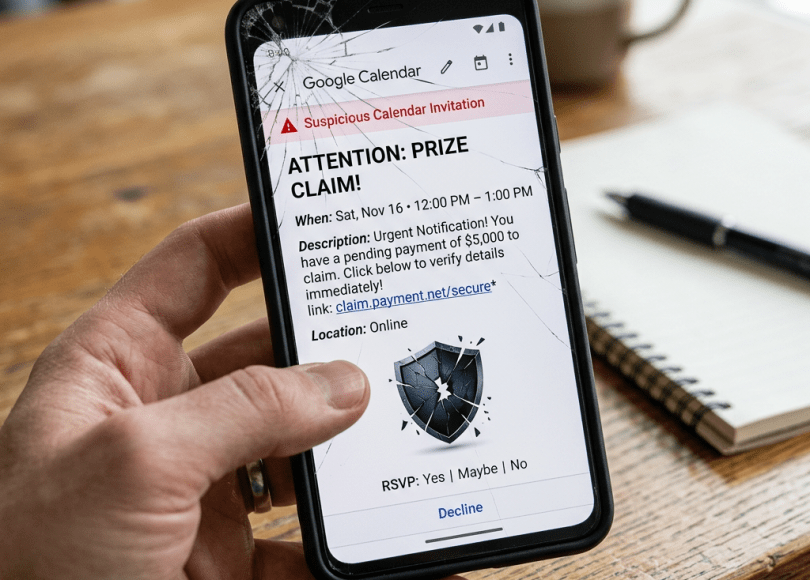
“Congratulations! You won $10,000.”
You never entered anything.
Don’t click.
Don’t call.
Don’t respond.
Don’t provide information.
Delete/report it according to your calendar provider’s controls.
Don’t Click “Decline” Automatically
This sounds strange.
But in some unwanted-event scenarios, interacting with the invitation may communicate information back to the sender or confirm that the address is active, depending on the platform and workflow.
If an event is clearly malicious or spam, prefer the provider’s:
Report spam / report unwanted invitation
function when available rather than engaging with the sender.
Why Your Email Address Can Become a Target
Calendar invitations often depend on an email address.
If your email is publicly available:
- Website
- GitHub
- Business page
- Social media
attackers may know where to send invitations.
This is another reason to avoid publishing your primary high-value email address everywhere.
Separate Your Email Identities
A practical strategy:
Primary/private email
For:
- Banking
- Password manager
- Recovery
- Important accounts
Public/professional email
For:
- Website
- Business
- GitHub
- Networking
Disposable/secondary email
For:
- Random registrations
- Low-trust services
This can reduce exposure of your most important identity.
Calendar Privacy Matters Too
Your calendar itself can contain sensitive information.
Imagine someone sees:
10:00 AM — Doctor
2:00 PM — Lawyer
5:00 PM — Job interview
7:00 PM — Dinner with Sarah
That’s personal information.
Review who can access your calendar.
Don’t Make Your Entire Calendar Public
Public calendars can expose:
- Meetings
- Locations
- Travel
- Names
- Organizations
- Routines
Unless you deliberately need a public calendar, keep sensitive events private.
Meeting Titles Can Leak Information
Instead of:
“Interview for New Job at Company X”
consider whether a more generic title is appropriate.
Instead of:
“Doctor — Cancer Consultation”
consider:
“Appointment”
You don’t need to broadcast sensitive information through event titles.
Locations Can Be Sensitive
Calendar events can contain:
- Home addresses
- Office addresses
- Hotel locations
- Meeting rooms
- Travel plans
If your calendar is shared with other people, review exactly what they can see.
Shared Calendars Create Another Risk
You might share a calendar with:
- Partner
- Family
- Coworkers
- Assistant
- Team
That’s useful.
But check whether they can:
View
Edit
Delete
or:
Invite others
The more permissions you grant, the greater the potential impact of account compromise.
A Compromised Calendar Account Can Be Abused
If someone actually gains access to your calendar account, they may potentially:
- Read events
- Learn your schedule
- Modify events
- Delete events
- Create invitations
- Insert malicious links
- Impersonate your scheduling activity
That’s much more serious than receiving one random spam invitation.
Protect Your Calendar Account
Usually this means protecting the underlying identity provider:
Strong unique password
MFA/passkey
Secure recovery methods
Updated devices
Review active sessions
Remove unknown third-party access
If your calendar is part of Google Workspace or Microsoft 365, securing the underlying account is particularly important.
What If You Clicked a Malicious Calendar Link?
Don’t panic.
The next steps depend on what happened.
If you only opened the page
Close it.
Don’t enter information.
If you entered a password
Change that password immediately from the legitimate website.
If you reused it anywhere else:
Change it there too.
If you entered an MFA code
Review active sessions and security activity immediately.
If you downloaded a file
Don’t open it.
If you already opened it, investigate the device.
If you entered card information
Contact your financial institution/card issuer promptly.
If You Entered Your Google Password
Don’t use the phishing page again.
Open Google’s official account security interface separately.
Then:
- Change the password.
- Review recent security activity.
- Review active sessions/devices.
- Remove suspicious access.
- Check recovery information.
- Review third-party applications.
If You Entered Your Microsoft Password
Do the same through Microsoft’s legitimate account/security interface:
- Change password.
- Review sign-ins.
- Revoke suspicious sessions where appropriate.
- Review MFA.
- Check security information.
If It’s a Work Account
Tell your IT/security team.
Don’t hide it because:
“Nothing happened.”
Early reporting can allow security teams to:
- Revoke sessions
- Reset credentials
- Search logs
- Block domains
- Investigate other recipients
One employee reporting a phishing event can protect the entire company.
How to Spot a Fake Calendar Invitation
Look for combinations of:
🚩 Unexpected invitation
You weren’t expecting a meeting.
🚩 Unknown organizer
You don’t recognize the sender.
🚩 Urgency
“Act immediately.”
🚩 Threats
“Your account will be deleted.”
🚩 Financial pressure
“Payment required.”
🚩 Suspicious domain
The link doesn’t belong to the claimed organization.
🚩 Unexpected attachment
Especially executable or compressed files.
🚩 Credential request
The event asks you to log in.
🚩 QR code
Particularly for payment or “verification.”
🚩 Phone number
Especially when presented as emergency support.
One warning sign isn’t proof.
Several together are a strong reason to stop.
The 30-Second Calendar Safety Test
Before clicking anything in an unexpected event, ask:
1. Did I actually expect this meeting?
2. Do I know the organizer?
3. Does the sender’s email make sense?
4. Does the link belong to the organization?
5. Why am I being asked to act urgently?
6. Can I verify this another way?
If you can’t answer these questions:
Don’t click.
Verify Outside the Calendar
This is one of the strongest defenses.
Suppose the event says:
“Your manager needs an urgent payment.”
Don’t reply to the event.
Contact your manager using:
Existing company chat
Known phone number
Existing email thread
not the contact information inside the suspicious invitation.
That’s called:
Out-of-band verification.
For Financial Requests, Always Verify
If someone asks you to:
- Transfer money
- Change bank details
- Buy gift cards
- Send cryptocurrency
- Pay an invoice
- Share credentials
through a calendar invitation:
Verify independently.
Never rely solely on the invitation.
Businesses Should Train Employees on Calendar Phishing
Most security-awareness training focuses on:
Email phishing.
That’s no longer enough.
Employees should also recognize:
- Calendar phishing
- Collaboration-platform phishing
- QR phishing
- Fake meeting links
- Fake support calls
- Malicious shared documents
Attackers go where users trust the interface.
Administrators Can Reduce the Attack Surface
Organizations using Google Workspace or Microsoft 365 should review their calendar-sharing and external-invitation policies.
Depending on the platform, administrators may be able to control:
- External invitations
- Calendar sharing
- Event visibility
- Automatic event handling
- External content
- Reporting mechanisms
The exact controls vary by platform and subscription.
Don’t Automatically Add Every Invitation
If your calendar is configured to automatically add invitations from unknown senders, consider whether that behavior is appropriate for you.
A stricter setup can reduce unwanted calendar spam and make unexpected events easier to recognize.
Calendar Security Isn’t About Never Accepting Invitations
You don’t need to become paranoid.
Calendar invitations are incredibly useful.
The goal is simply:
Don’t confuse a calendar notification with proof of legitimacy.
A malicious invitation can look just as polished as a legitimate one.
The Calendar Phishing Checklist
Before interacting with an unexpected event:
- Did I expect this?
- Do I recognize the organizer?
- Does the sender address look legitimate?
- Does the domain match the organization?
- Is the message unusually urgent?
- Is money involved?
- Is a password requested?
- Is MFA requested?
- Is there a QR code?
- Is there an attachment?
- Is there a download?
- Can I verify it independently?
If several answers look suspicious:
Delete/report it.
The Bigger Lesson
Attackers don’t always need to create a convincing fake website from scratch.
Sometimes they simply use a feature you already trust.
They used:
for phishing.
Then:
SMS
for smishing.
Then:
Social media
for scams.
Now:
Calendars and collaboration platforms
can become another delivery mechanism.
The technology isn’t necessarily broken.
The attacker is abusing:
Your trust in the interface.
Final Thoughts
Your calendar looks harmless.
It’s just a list of appointments.
But modern calendars are connected to:
- Contacts
- Cloud accounts
- Organizations
- Meeting platforms
- Mobile notifications
- External users
That makes them another part of your digital attack surface.
So the next time your phone says:
“New meeting invitation”
don’t automatically assume:
“Someone wants to meet me.”
It could be:
A phishing page.
A fake payment request.
A credential-stealing website.
A malicious download.
A social-engineering attempt.
Or it could simply be a legitimate meeting.
The notification itself doesn’t tell you which one.
Verify before you trust.
And remember the simplest rule:
An invitation is not authentication.
Just because something appeared inside your calendar doesn’t mean the person who sent it is legitimate.
Your calendar organizes your time.
Don’t let attackers use it to organize your compromise.
Discover more from Spyboy blog
Subscribe to get the latest posts sent to your email.
