 Posted by
 Your Password Manager Contains the Keys to Your Digital Life
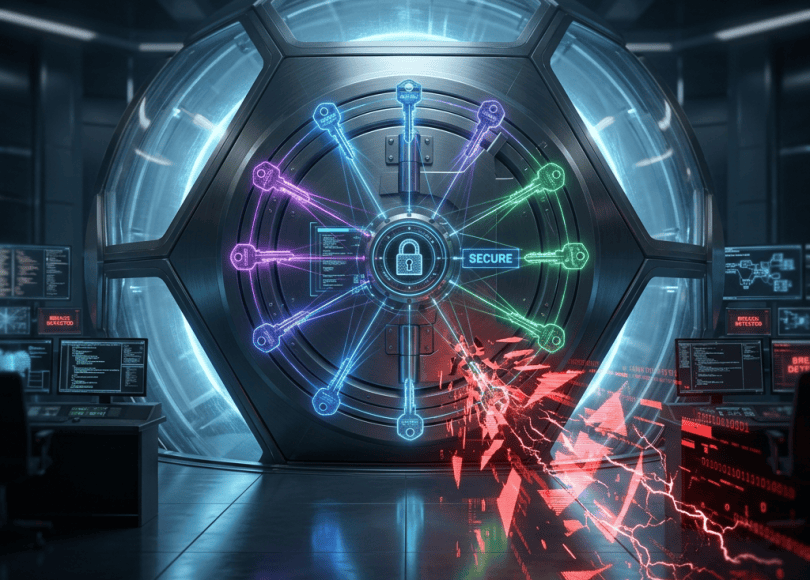
A password manager is supposed to make you safer.
Instead of remembering:
Gmail password
Instagram password
Amazon password
GitHub password
Bank password
Discord password
VPN password
Hosting password
you remember one master credential.
Everything else sits inside an encrypted vault.
It’s one of the best ways to stop password reuse.
But there’s an uncomfortable trade-off:
You have concentrated hundreds of credentials into one place.
If an attacker compromises individual accounts, they may get one password.
If they compromise your password manager account or vault, the potential prize could be dramatically larger.
Your password manager therefore becomes one of the most important accounts you own.
And that raises a scary question:
What happens if someone gets into your password vault?
Password Managers Aren’t Magic
Let’s destroy one misconception immediately.
A password manager isn’t:
“A website where all my passwords are stored in plain text.”
Modern password managers generally use encryption to protect vault data.
A properly designed system aims to ensure that someone who obtains the encrypted vault doesn’t automatically obtain all your passwords in readable form.
But security depends on:
- The password manager’s architecture
- Encryption design
- Your master password
- MFA
- Your device
- Recovery mechanisms
- Browser extensions
- Your operating system
- Your own security practices
So the question isn’t:
“Can password managers be hacked?”
Almost any software can have vulnerabilities.
The better question is:
“What happens if one layer fails?”
Why Password Managers Are Still Worth Using
Let’s compare two people.
Person A
Uses:
Password123
everywhere.
If one website is breached:
Everything is at risk.
Person B
Uses a password manager.
Every account has a different random password.
If one website is breached:
Only that account’s password is exposed.
That’s a huge security improvement.
So this article isn’t:
“Don’t use password managers.”
It’s:
“If your password manager is your master key, protect it like one.”
What Exactly Is Inside Your Vault?
Depending on the product and what you choose to store, a vault may contain:
- Usernames
- Passwords
- Passkeys
- Secure notes
- Recovery codes
- API credentials
- Wi-Fi passwords
- Software licenses
- Identity information
- Credit-card details
- Bank information
- Private keys
Some users even store:
Cryptocurrency seed phrases
inside password managers.
That dramatically increases the consequences of a compromise.
Your Password Manager May Know More About You Than Your Browser
Think about your browser.
It might contain:
50 saved passwords.
Your password manager might contain:
Or:
Or:
1,000.
And unlike browser history, these aren’t random websites.
They’re the credentials you deliberately decided were important enough to protect.
One Vault Can Unlock Your Digital Life
Imagine an attacker somehow gets access to your vault.
They potentially discover credentials for:
↓
Cloud storage
↓
Social media
↓
Shopping
↓
Banking
↓
Work
↓
GitHub
↓
Hosting
↓
VPN
↓
Crypto
That’s why password-manager security deserves serious attention.
What Is the Master Password?
Your master password is the credential used to unlock your password manager.
Think of it as:
The key to the vault.
If the master password is weak:
password123
your entire security architecture starts with a terrible foundation.
If it’s strong and unique:
a-long-unique-secret-you-never-use-anywhere-else
the situation is dramatically better.
Never Reuse Your Master Password
This deserves its own rule:
Your password-manager master password must be unique.
Don’t use it for:
- Gmail
- Discord
- Windows
- Your phone
- Your Wi-Fi
- Anything else
If another website leaks that password, attackers may attempt to use it against your vault.
Your Master Password Should Be Long
A long passphrase can be easier to remember than a short, complicated password.
For example, conceptually:
river-lantern-coffee-mountain-orbit
is easier to remember than:
X7$kP!2q
But don’t copy that example.
Generate your own unique secret.
A password manager can generate a high-entropy master password if you can store it securely.
What If Your Password Manager Gets Breached?
This is where things get interesting.
A breach doesn’t necessarily mean:
“Hackers now have every password in every vault.”
That’s an oversimplification.
A password manager may store encrypted vault data in a way designed to prevent the provider itself from simply reading your passwords.
The attacker may instead obtain:
- Encrypted vault data
- Account information
- Metadata
- Authentication information
- Other service-specific data
The exact exposure depends on the provider and incident.
Encrypted Vault ≠ Useless to Attackers
An encrypted vault is valuable to an attacker even if they can’t immediately decrypt it.
Why?
Because they may attempt:
Offline password guessing.
They can potentially take the encrypted data and repeatedly test guesses against it without interacting with the password manager’s servers.
This is why your master password matters so much.
The Offline Attack Problem
Imagine the attacker has:
Encrypted vault+Password-verification material
They try:
password123
No.
Then:
letmein
No.
Then:
YourName2026
No.
Then:
YourDogName123
Maybe.
This is why a strong master password is so important.
What Makes a Master Password Strong?
A strong master password should be:
Long
Unique
Difficult to guess
Not based on public information
Not reused
Not found in common password lists
Don’t use:
Your birthday
Your pet’s name
Your Instagram username
Your favorite football team
Your company name
Attackers can often find those things.
Your OSINT Footprint Matters Here Too
This is an interesting connection to SpyBoy’s OSINT content.
Suppose your public profile contains:
Name: Rahul
Dog: Bruno
City: Delhi
College: XYZ
Birthday: August 12
An attacker may construct guesses from publicly available information.
Don’t make your master password something derived from your public identity.
Don’t Store the Master Password in the Vault
This creates a circular problem.
Imagine:
Password manager
contains:
Master password
That’s not useful if you forget it.
The vault is supposed to protect the master password, not contain it.
What About Recovery Codes?
Recovery codes are extremely important.
They can help you regain access if:
- Your phone is lost
- Your authenticator is unavailable
- Your security key is unavailable
But they are also sensitive.
Treat them like backup keys.
Don’t leave them:
In your email inbox
In an unencrypted text file
In a public GitHub repository
In your desktop Downloads folder
The “Screenshot My Recovery Codes” Problem
People often screenshot recovery codes.
Then forget about them.
Years later:
Google Photos
iCloud
OneDrive
Windows Photos
may contain that screenshot.
The code might now exist in multiple cloud backups.
For sensitive recovery material:
Store it intentionally.
MFA Protects Your Password Manager Too
If your password manager supports MFA:
Enable it.
Prefer stronger options where available.
Depending on the service, these may include:
- Passkeys
- Hardware security keys
- Authenticator applications
SMS is generally weaker than phishing-resistant methods, although any MFA is generally better than no MFA.
A Security Key Can Be Extremely Valuable
A hardware security key adds another physical factor.
For example:
You know the master password.
and:
You physically possess the security key.
An attacker who only has your password may still be unable to authenticate.
This is especially useful for protecting your password manager account and primary email.
But MFA Isn’t a Substitute for a Strong Master Password
Think of security as layers.
You want:
Strong master password
MFA
Secure device
Updated software
Careful recovery settings
Not:
“I have MFA, so my master password can be weak.”
Your Password Manager Browser Extension Is Another Attack Surface
This is often overlooked.
You install a password manager extension in your browser.
It can interact with:
- Login pages
- Forms
- Browser tabs
- Autofill fields
That’s powerful functionality.
So:
Keep the extension updated.
And only install the official extension from the legitimate provider.
Beware of Fake Password Manager Extensions
Attackers can create:
“Password Manager Pro”
or:
“1Password Security”
or:
“Bitwarden Premium”
looking extensions.
You install it.
Then enter:
Master password.
You just handed the attacker the keys.
Always verify:
- Publisher
- Official website
- Extension listing
- Number of users
- Reviews
- Update history
Don’t install a password manager extension from a random link.
The Browser Is Also Part of Your Password Manager’s Security
If malware controls your computer, it may potentially interact with your password manager.
For example:
- Keylogging
- Screen capture
- Browser manipulation
- Malicious extensions
- Credential theft
That’s why:
A password manager cannot compensate for a completely compromised computer.
The Infostealer Connection
This connects directly with the infostealer article we just published.
Infostealers can target:
- Browser credentials
- Cookies
- Tokens
- Autofill
- Application data
If you use a browser-based password manager or extensions, endpoint compromise remains an important part of the threat model.
The solution isn’t:
“Stop using password managers.”
It’s:
Protect the device that accesses the vault.
Don’t Use a Password Manager on an Infected Computer
This sounds obvious.
But imagine:
You think your PC has malware.
Then you open your password manager.
Log into:
Gmail
Banking
GitHub
Crypto
You’ve potentially just exposed fresh credentials.
If you suspect malware:
Use a clean device first.
Then secure your accounts.
Your Password Manager Shouldn’t Be Your Only Backup
Imagine:
Your phone is destroyed.
Your laptop is stolen.
Your password manager requires a device you no longer have.
Now you’re locked out.
Make sure you understand the provider’s recovery process before you need it.
What If You Forget Your Master Password?
This is one of the most important trade-offs.
Some password managers are designed around a zero-knowledge architecture where the provider doesn’t have your master password.
That improves privacy and reduces what the provider can access.
But it can also mean:
There may be no magic “send me my password” button.
That’s a feature, not necessarily a bug.
The Security vs Recoverability Trade-Off
Think about a safe.
Easy recovery
If the company can reset everything for you easily:
Convenient
but potentially:
More recovery attack surface.
Strong zero-knowledge design
If only you can unlock the vault:
Stronger separation
but:
Losing the master credential can be catastrophic.
You need to understand which model your password manager uses.
Your Email Is the Backup Key to Your Password Manager
This is extremely important.
Suppose your password manager uses your email for account recovery.
Then:
Password manager
depends on:
Therefore:
Your primary email must be extremely well protected.
Secure it with:
- Unique password
- Strong MFA
- Passkey/security key
- Recovery methods
- Session monitoring
Protect Your Email Before Everything Else
If an attacker gets your primary email:
They may potentially attempt to reset:
- Social media
- Shopping
- Cloud
- Password manager
- Developer accounts
Your email is often the central identity hub.
Don’t Put Your Password Manager Recovery Email Inside the Same Vault
This can become circular.
You need to be able to recover your password manager independently.
Make sure you understand the provider’s recovery design.
What If Your Password Manager Is Compromised While You’re Logged In?
This is one of the nightmare scenarios.
An attacker compromises your device.
Your password manager is unlocked.
Now the attacker may potentially interact with the vault through the same session or application.
This is why:
Lock your vault when not needed.
Use device auto-lock.
Require reauthentication where available.
Keep your OS secure.
Auto-Lock Matters
Suppose you leave your laptop unattended.
Password manager:
Unlocked.
Someone walks up.
Depending on the environment and configuration, they may be able to access sensitive credentials.
Configure the vault to lock automatically after inactivity.
Don’t Leave Your Vault Permanently Unlocked
Convenience:
10/10
Security:
Not ideal.
If you frequently step away from your computer, automatic locking becomes particularly important.
What About Biometrics?
Fingerprint or Face ID can make unlocking convenient.
But understand what the biometric is doing.
Usually:
Biometric → unlocks protected credentials/device
rather than:
Biometric = your password
Biometric security depends on the device and password manager architecture.
Don’t Disable Device Encryption
Your password manager can be perfectly secure while your laptop’s storage is not.
If someone steals an unlocked or poorly protected device, the vault may be at greater risk.
Use:
- Full-disk encryption
- Device lock
- Strong PIN/password
- Secure boot where available
Your Laptop Is Part of the Vault
This is a useful mental model:
Password Manager ↓Encrypted Vault ↓Device ↓Operating System ↓Browser / App ↓You
Every layer matters.
Don’t Install Random Software on Your Main Security Device
If your laptop contains:
Password manager
Banking credentials
SSH keys
Crypto credentials
Work access
don’t treat it like a malware-testing machine.
Use an isolated VM or separate system for risky experiments.
This is particularly relevant for cybersecurity enthusiasts.
The Developer Problem
If you use a password manager for development credentials, you may also have:
- GitHub tokens
- API keys
- Cloud credentials
- SSH keys
- Database credentials
One compromised vault can potentially become a serious infrastructure problem.
Use:
- Short-lived credentials
- Scoped tokens
- Environment-specific secrets
- Hardware-backed authentication
- Secret managers for production systems
where appropriate.
Don’t Store Everything in Your Password Manager
This is controversial.
A password manager can be an excellent place for sensitive information.
But ask:
“Does this secret need to live here?”
For example, production infrastructure secrets may be better managed through a dedicated secrets-management system rather than copied into a personal password vault.
Password Manager vs Secrets Manager
They’re not identical.
Password Manager
Designed primarily for:
Human credentials
Secrets Manager
Designed primarily for:
Applications/services
Examples include:
- API credentials
- Database secrets
- Cloud credentials
- Deployment tokens
Use the appropriate tool for the job.
What If Your Password Manager Company Gets Hacked?
Don’t panic immediately.
First determine:
What was compromised?
Was it:
- Website infrastructure?
- User metadata?
- Encrypted vaults?
- Authentication systems?
- Browser extensions?
- Internal systems?
Not every breach means the same thing.
Follow the provider’s incident-response guidance.
What Should You Do After a Password Manager Breach?
Depending on the incident:
1. Read the provider’s official security notice.
2. Determine whether vault data was exposed.
3. Check whether your account credentials were affected.
4. Change your master password if recommended.
5. Revoke active sessions.
6. Rotate especially sensitive credentials.
Prioritize:
Banking
Cloud
Work
Developer
Crypto
Don’t Automatically Change 500 Passwords
This is an important practical point.
If the password manager provider says:
“Encrypted vaults were not accessed and account credentials were unaffected.”
you may not need to immediately rotate every password.
Follow the actual incident details.
Security response should be:
Risk-based, not panic-based.
What If You Used the Same Master Password Somewhere Else?
Now the situation is different.
If your password-manager master password was reused elsewhere:
Change that password everywhere immediately.
Especially if it was used for:
- Cloud
- Social media
- Work
A master password should never be reused.
The “One Password to Rule Them All” Problem
Password managers solve password reuse by giving you:
One master password
but:
Hundreds of unique account passwords.
That’s a good trade.
The mistake is turning the master password into:
“My usual password.”
What About Storing Passkeys?
Some password managers now support storing passkeys.
This can be convenient.
But it means your password manager may now hold another class of authentication credentials.
That’s not necessarily bad.
It simply makes vault security even more important.
Should You Store 2FA Backup Codes in Your Password Manager?
There is no universal answer.
It’s convenient.
It keeps recovery information organized.
But you’re concentrating:
Password + backup code
in one place.
For extremely sensitive accounts, some people prefer keeping certain recovery factors separate.
Think about your threat model.
The “Separate Everything” Extreme
You don’t need:
Password
on one device,
MFA
on another,
Recovery code
buried underground.
Security becomes unusable.
The goal is:
Meaningful separation of high-value factors without making recovery impossible.
What If Your Phone Is Stolen?
If your password manager is accessible from your phone:
Immediately:
- Lock the device remotely if possible.
- Revoke sessions.
- Change critical credentials.
- Secure your email.
- Review password-manager devices.
- Contact your carrier if necessary.
- Review MFA methods.
Don’t assume:
“The thief can’t guess my PIN.”
Treat the device as potentially exposed until you’ve verified otherwise.
What If Your Laptop Is Stolen?
Same principle.
Use:
- Full-disk encryption
- Strong login credentials
- Device tracking
- Remote wipe where available
- Password-manager session controls
And revoke access from another trusted device.
The Password Manager Security Checklist
Master Password
- Unique
- Long
- Not reused
- Not publicly guessable
Account
- MFA enabled
- Strongest MFA available
- Recovery methods secured
- Unknown sessions removed
Device
- Full-disk encryption
- Strong device PIN/password
- OS updated
- Security software active
- Auto-lock enabled
Browser
- Official extension
- Extension updated
- Unnecessary extensions removed
Vault
- Auto-lock enabled
- Sensitive notes reviewed
- Old credentials removed
- Recovery codes stored securely
Recovery
- Recovery process understood
- Backup method available
- Emergency access configured appropriately
The 10-Minute Password Manager Audit
Open your password manager today.
Minute 1
Check:
Master password
Is it unique?
Minute 2
Check:
MFA
Is it enabled?
Minute 3
Check:
Active sessions
Anything unfamiliar?
Minute 4
Check:
Devices
Do you recognize them all?
Minute 5
Check:
Browser extensions
Only official ones?
Minute 6
Check:
Old passwords
Remove accounts you no longer use.
Minute 7
Check:
Recovery settings
Do you understand them?
Minute 8
Check:
Emergency access
Is it configured?
Minute 9
Check:
Backup codes
Where are they?
Minute 10
Check:
Sensitive secrets
Are API keys or private keys stored unnecessarily?
The Biggest Password Manager Mistakes
❌ Using a weak master password
❌ Reusing the master password
❌ No MFA
❌ Installing unofficial extensions
❌ Leaving the vault unlocked
❌ Using an infected computer
❌ Storing production secrets unnecessarily
❌ Ignoring security alerts
❌ Keeping old recovery methods
❌ Forgetting about account sessions
So… Should You Use a Password Manager?
Yes.
For most people, a reputable password manager is significantly better than:
Reusing the same password everywhere.
The solution to password-manager risk isn’t abandoning password managers.
It’s securing the one account that matters most.
Final Thoughts
Your password manager is one of the most powerful security tools you can own.
It can eliminate password reuse.
Generate random credentials.
Protect hundreds of accounts.
Store recovery information.
And make your online life dramatically easier.
But there’s a trade-off.
You’ve created:
One extremely valuable vault.
So protect it accordingly.
Use a strong, unique master password.
Enable strong MFA.
Secure your email.
Keep your operating system updated.
Use full-disk encryption.
Lock the vault automatically.
Be careful with browser extensions.
Don’t use your main computer as a malware playground.
And understand your recovery process before disaster strikes.
Because the question isn’t:
“Can a password manager ever be hacked?”
Almost any piece of technology can eventually have vulnerabilities.
The better question is:
“If something goes wrong, how much can the attacker actually get?”
A well-designed password manager, combined with a strong master password, MFA, a secure device and sensible recovery controls, can make that answer dramatically smaller.
Your password manager shouldn’t be the weakest link in your security.
It should be:
the strongest vault you have.
Discover more from Spyboy blog
Subscribe to get the latest posts sent to your email.
