 Posted by
 You finish your app, build the installer, send it to a friend, and they message back: “Windows says it’s unsafe.”
That blue screen reading “Windows protected your PC” is one of the most common reasons users abandon a download. It doesn’t mean your software is malicious. It means Windows doesn’t know you yet.
This guide explains why the warning appears, what code signing does about it (and what it doesn’t), and how to sign your first file.
Why Windows shows the “Windows protected your PC” warning
The warning comes from Microsoft Defender SmartScreen. SmartScreen checks files people download and decides whether to trust them. It looks at two things:
- Who published it. Is the file signed, and by whom?
- How familiar it is. Have lots of people downloaded and run it without problems?
An unsigned app from a new developer fails both. SmartScreen sees an unknown file with no identity and stops it. The full message says Windows prevented an unrecognized app from starting, and the user has to click “More info” and then “Run anyway.”
Most people won’t. That’s why this warning costs downloads.
“Unknown Publisher” is a related problem
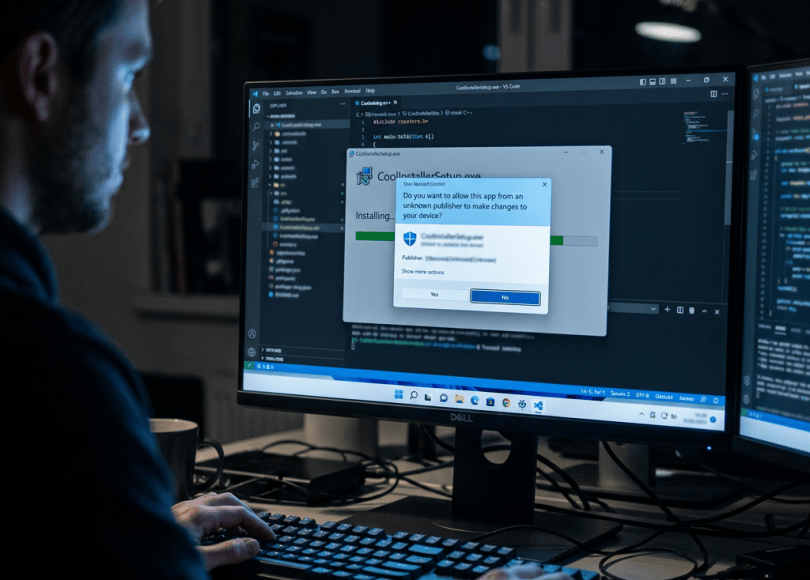
You may also see the Unknown Publisher warning in a User Account Control (UAC) prompt when installing software. It’s a different screen from SmartScreen, but the root cause is the same: the file isn’t signed, so Windows can’t show who made it. Signing your app with a code signing certificate replaces “Publisher: Unknown” with your verified company name, which removes the warning right away.
What code signing actually does
A code signing certificate lets you add a digital signature to your executable, installer or driver. The signature does two things:
- Proves who published it. Your verified company or developer name appears instead of “Unknown.”
- Proves it hasn’t been changed. If anyone alters the file after you sign it, the signature breaks.
Signed software also gives SmartScreen something to build trust on. Reputation attaches to your publisher identity over time, so signing is the foundation for removing the warning.
What code signing does NOT do
This matters, because you’ll see claims that are out of date.
A signed app can still trigger SmartScreen at first. Reputation builds as more people download and run your software without problems.
EV certificates no longer give an instant bypass. For years, an EV code signing certificate gave immediate SmartScreen reputation. Microsoft removed that in 2024, and EV-signed files now build reputation the same way OV-signed files do. EV still has a use: it requires stricter identity checks and is often asked for in enterprise purchasing. But don’t buy it just to skip SmartScreen.
Signing is still worth it. Unsigned apps get the strongest block. Signed apps show your verified name and gain trust as downloads accumulate.
OV vs EV: which one do you need?
| OV code signing | EV code signing | |
| Identity check | Business or individual verified | Stricter, extended verification |
| Publisher name shown | Yes | Yes |
| Instant SmartScreen bypass | No | No (removed in 2024) |
| Best for | Indie developers, small teams, most apps | Enterprises, regulated industries, buyers who require EV |
| Cost | Lower | Higher |
For most developers, OV is the sensible starting point. Choose EV if a customer, partner or procurement process requires it.
How to sign your first .exe or installer
Here’s the basic process on Windows using Microsoft’s SignTool, which comes with the Windows SDK.
1. Get a code signing certificate. Complete the identity validation with the certificate authority. Since mid-2023, the private key must be stored on secure hardware, such as a USB token, an HSM or a cloud signing service.
2. Install your token or connect your signing service. Follow the CA’s instructions for drivers and the client software.
3. Sign the file. Open a command prompt and run something like:
signtool sign /fd SHA256 /tr http://your-ca-timestamp-url /td SHA256 /a yourapp.exe
Replace the timestamp URL with the one your CA provides.
4. Always timestamp. The timestamp keeps your signature valid even after the certificate expires. Without it, the signature stops being trusted when the certificate does.
5. Verify the result.
signtool verify /pa /v yourapp.exe
You can also right-click the file, open Properties, and check the Digital Signatures tab.
6. Sign the installer too. Sign the final installer file, and the app files inside it. Signing only one leaves the other unsigned.
How to build SmartScreen reputation faster
- Sign everything, every release. Don’t release some versions unsigned.
- Keep the same publisher identity. Reputation attaches to it, so avoid switching certificates or names unless you have to, especially just before a big release.
- Host the download on your own HTTPS site. Avoid file-sharing links or random mirrors.
- Don’t change the file after signing. Packers, obfuscators and post-sign edits can break the signature or raise flags.
- Send a false positive report. If a legitimate signed app is blocked, submit it to Microsoft for review through its security intelligence portal.
- Be patient with new releases. A fresh build can take time to settle, so plan for it when you launch.
Plan for shorter certificate lifetimes
Code signing certificates are changing too. Under CA/Browser Forum Ballot CSC-31, certificates issued from March 1, 2026 can be valid for at most 460 days, down from 39 months. Plan to renew about once a year and to automate signing in your build pipeline so a renewal doesn’t break a release. Because you timestamp your signatures, files you’ve already signed stay valid.
Where SignMyCode fits in
SignMyCode helps developers and software publishers sign code with trusted OV and EV code signing certificates. Whether you’re shipping your first installer or running signing in a CI pipeline, we can help you pick the right option.
FAQ
1. Why does Windows say “Windows protected your PC”?
SmartScreen flags files it doesn’t recognize, especially unsigned ones or ones from publishers with little reputation. It doesn’t mean the file is malware.
2. Does code signing remove the SmartScreen warning?
It removes the “Unknown publisher” problem and helps SmartScreen trust your app over time. Reputation builds as more people download and run it, so a brand new signed release may still show a warning at first.
3. Do EV certificates remove the SmartScreen warning instantly?
Not anymore. Microsoft removed that instant bypass in 2024. EV-signed and OV-signed files now build reputation the same way. EV is still useful where stricter identity validation is required.
4. What’s the difference between OV and EV code signing?
Both show your verified publisher name. EV involves a more extensive identity check and is often requested by enterprises. OV is enough for most developers.
5. Why do I need to timestamp my signature?
Timestamping proves the file was signed while the certificate was valid. Without it, the signature stops being trusted when the certificate expires.
6. How long is a code signing certificate valid?
Up to 460 days for certificates issued from March 1, 2026. Plan for yearly renewals.
7. Can users still run my app if it’s blocked?
Yes. They can click “More info” and then “Run anyway,” but many won’t, which is why signing matters.
Discover more from Spyboy blog
Subscribe to get the latest posts sent to your email.
