 Posted by
Imagine you’re sitting in front of your computer.
You open your email.
You check your bank account.
You log in to social media.
You type a password.
Everything feels normal.
But what if someone else can see exactly what is happening on your screen?
Not through a hidden camera.
Not by standing behind you.
But remotely, from another location.
They might see your open applications, read messages displayed on your screen, observe your browsing activity, and potentially interact with your computer if they have been given remote-control access.
And here’s the uncomfortable part:
Sometimes, the person being watched has no idea that someone else can see their screen.
This isn’t science fiction. Remote-access software, screen-sharing applications, malicious software, and social-engineering attacks can all create opportunities for unauthorized screen access.
But how does it actually happen?
Can someone watch your Android phone remotely? Can hackers see your Windows desktop? How do you know if someone has remote access?
Let’s investigate.
1. The Day You Realize Someone Might Be Watching
Imagine receiving a message from someone claiming to be technical support.
They say there’s a problem with your computer.
They ask you to install a remote-support application so they can investigate.
You download it.
You open it.
You follow their instructions.
A few seconds later, they tell you:
“Can you see your screen now?”
You say yes.
They respond:
“Great. I can see everything.”
Initially, it sounds harmless.
They might move your mouse, open settings, or help you fix a problem.
But now imagine that the person wasn’t legitimate support.
They were a scammer.
You have potentially given an unknown person the ability to view your screen or interact with your computer.
If you also granted unattended access, additional permissions, or persistent access, the risk could continue beyond the original support session.
This is one of the reasons remote-access scams are so dangerous.
The attacker doesn’t always need to break through a complicated technical security system.
Sometimes, they simply convince you to install the software and approve the connection.
2. How Can Someone Watch Your Screen Remotely?
There are several ways screen access can happen.
They are not all the same, and understanding the differences is important.
Method 1: Remote Desktop Software
Remote desktop applications are designed to let someone access another computer over a network.
They have legitimate uses.
For example:
- IT teams troubleshooting employee computers.
- Developers accessing remote machines.
- People managing their home computers.
- Technical support professionals helping customers.
- Businesses administering servers.
Popular examples include:
- <Entity value=”AnyDesk” category=”software” disambig=”Remote desktop and remote support software”/>.
- <Entity value=”TeamViewer” category=”software” disambig=”Remote access and remote support software”/>.
- <Entity value=”Microsoft Remote Desktop” category=”software” disambig=”Remote desktop client”/>.
- <Entity value=”Chrome Remote Desktop” category=”software” disambig=”Remote desktop access service”/>.
<AsyncImageGroup query={[“AnyDesk remote desktop connection interface screenshot”,”TeamViewer remote support desktop interface screenshot”,”Chrome Remote Desktop computer access interface screenshot”]} aspectRatio=”5:4″ layout=”carousel”/>
These tools are not inherently malicious.
The danger appears when someone tricks you into connecting to an untrusted person, or when remote access is configured without your informed consent.
Depending on the software and permissions, a remote operator may be able to:
- View your screen.
- Move your mouse.
- Type using your keyboard.
- Open applications.
- Transfer files.
- Change system settings.
Some tools support unattended access, meaning a device can be accessed without someone approving every new connection.
That feature is useful for legitimate administration, but dangerous when configured carelessly.
Method 2: Remote Access Trojans (RATs)
Now we move into more serious territory.
A Remote Access Trojan, commonly called a RAT, is malicious software that can give an attacker remote access to a compromised device.
Depending on its capabilities and the permissions it obtains, a RAT may allow an attacker to:
- View screen activity.
- Interact with the operating system.
- Access certain files.
- Collect information.
- Monitor application activity.
- Use other compromised device capabilities.
Not every RAT has all these features.
Some are designed for surveillance, while others focus on remote control, credential theft, or data collection.
A RAT is different from a legitimate remote-support application because it is used without the victim’s informed authorization.
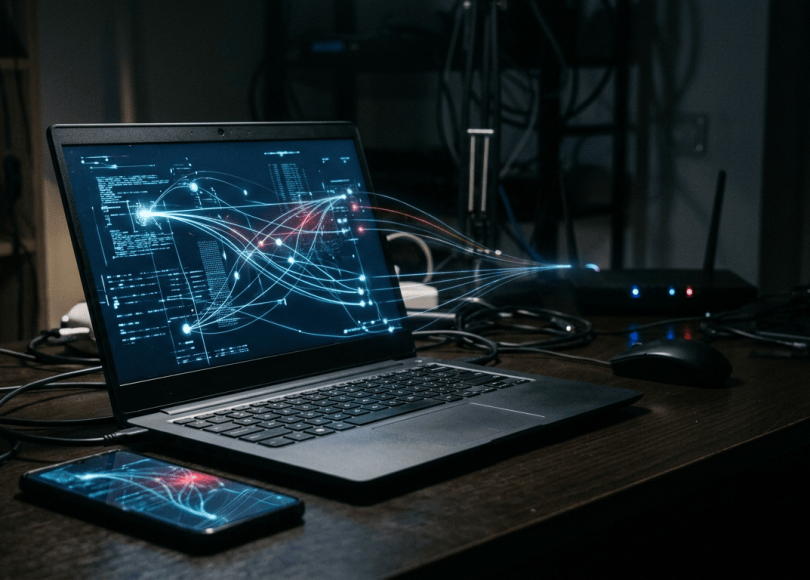
<AsyncImage query=”cybersecurity remote access trojan computer monitoring dark screen malware concept” aspectRatio=”16:9″ width=”100%”/>
Method 3: Malicious Applications on Android
Your smartphone can also be affected.
Android applications can request permissions to access different device features.
Some permissions deserve particular attention:
- Accessibility access.
- Notification access.
- Screen recording or screen capture access.
- Display over other apps.
- Device administrator privileges.
- VPN access.
These permissions have legitimate uses.
For example, accessibility services help people with disabilities interact with their devices.
Screen capture is needed by screen-recording applications.
Notification access can help smartwatch and notification-management applications.
But a malicious application that abuses sensitive permissions may create serious privacy risks.
Depending on the Android version, permissions, and security restrictions, malicious software may be able to observe certain screen activity or interact with parts of the device.
A random APK asking for unnecessary accessibility or screen-related permissions should make you suspicious.
Method 4: Browser-Based Screen Sharing
Not every screen-watching incident involves malware.
Modern browsers support screen sharing.
For example, a website or web application may ask you to share:
- An entire screen.
- A particular application window.
- A browser tab.
This is commonly used in video meetings, technical support, and collaboration tools.
The danger is when someone tricks you into sharing your screen with them.
Imagine someone pretending to be your bank’s support team.
They tell you:
“Share your screen so we can verify the transaction.”
You approve screen sharing.
Now they may be able to see information displayed during the session.
Depending on what you share, this could include personal messages, account details, notifications, or sensitive documents.
Never share your screen with an unverified caller just because they claim to represent a bank or company.
3. What Can Someone See If They Have Access to Your Screen?
This depends on the technology and permissions involved.
A person with ordinary screen-viewing access may see information currently displayed on the shared screen.
For example:
| Information | Could it be visible? |
|---|---|
| Open applications | Yes |
| Messages displayed on screen | Yes |
| Browser tabs | Yes, if included in the shared view |
| Documents | Yes, when opened |
| Passwords being typed | Potentially, depending on visibility and capture method |
| Banking information | Potentially, if displayed |
| Desktop notifications | Potentially |
| Files not displayed on screen | Not through screen viewing alone |
| Microphone audio | Not automatically |
| Camera feed | Not automatically |
| Every file on the device | Not through screen viewing alone |
This distinction matters.
Watching your screen is not the same as having complete control over your device.
A screen-sharing connection may only allow viewing.
Remote-control software may allow interaction.
Malware may have additional capabilities.
The actual risk depends on what access was granted or compromised.
4. Can Someone Watch Your Phone Screen Without You Knowing?
This is one of the most common questions.
The answer is: it can happen under certain circumstances, but it isn’t something an ordinary person can do simply by knowing your phone number.
For example, unauthorized screen access may involve:
- A malicious application.
- Abused accessibility permissions.
- A compromised device.
- A remote-support application configured for unattended access.
- A security vulnerability.
- Social engineering that convinces the victim to approve screen sharing.
Android and iOS have permission systems designed to limit unauthorized access.
However, no operating system should be treated as completely immune to vulnerabilities or malicious software.
Android
Android provides privacy indicators and permission controls.
On supported versions, you can inspect privacy-related activity and review which applications have sensitive permissions.
iPhone
iOS provides privacy indicators and controls for screen recording, microphone access, camera access, and application permissions.
However, the exact visibility and behavior depend on the activity and operating-system version.
Neither platform’s privacy indicators should be treated as proof that every possible form of surveillance is impossible.
5. Five Warning Signs Someone May Have Unauthorized Remote Access
A single unusual symptom doesn’t prove that someone is watching your screen.
But several unexplained changes deserve investigation.
1. Unexpected Remote-Access Software
You discover an application such as AnyDesk, TeamViewer, or another remote-support tool that you don’t remember installing.
Ask yourself:
- Who installed it?
- Why is it installed?
- Is unattended access enabled?
- Are there unknown accounts or devices connected?
Don’t assume that every remote-access application is malicious.
Some computers have legitimate support software installed by manufacturers or employers.
The important thing is whether you recognize and authorize it.
2. Unexpected Screen-Sharing Indicators
You notice that screen sharing or screen recording is active even though you didn’t start it.
Stop and investigate.
Check which application initiated the activity and whether a meeting or support session is still running.
3. Unknown Android Permissions
An unfamiliar application has accessibility access, notification access, or other powerful permissions.
This is particularly concerning if the application has no legitimate reason to need them.
4. Mouse or Keyboard Activity You Didn’t Initiate
Your mouse moves unexpectedly.
Windows open.
Applications launch.
Text appears without your input.
Possible explanations include:
- A connected remote-control session.
- A faulty mouse or keyboard.
- A hardware issue.
- Automation software.
- Malware.
Disconnect from the network if you suspect an active unauthorized remote session, then investigate.
5. Unexpected Account Activity
You discover unfamiliar login sessions, password changes, or security alerts.
This doesn’t necessarily prove someone watched your screen, but it may indicate that an account or device has been compromised.
Review your account security activity from a trusted device.
6. How to Check If Someone Has Remote Access to Your Windows PC
If you’re using Windows 10 or Windows 11, start with these checks.
Step 1: Check Installed Applications
Open:
Settings → Apps → Installed apps.
Look for remote-access software you don’t recognize.
Examples include:
- AnyDesk.
- TeamViewer.
- RustDesk.
- Other remote administration applications.
Don’t uninstall legitimate workplace or support software without checking with your administrator.
Step 2: Review Windows Remote Desktop
Open:
Settings → System → Remote Desktop.
If you don’t use Remote Desktop, make sure it is disabled.
Remote Desktop is a legitimate Windows feature. Its presence alone does not mean someone has accessed your computer.
Step 3: Check Startup Applications
Open Task Manager.
Select Startup apps.
Review applications that automatically launch when Windows starts.
Look for unfamiliar software, especially remote-access applications.
Step 4: Review Running Applications and Services
Open Task Manager and inspect unfamiliar processes.
You can also review installed services through Windows Services.
However, don’t terminate or delete system processes simply because their names look unfamiliar.
Some legitimate Windows components have technical names.
Research suspicious entries before taking action.
Step 5: Run a Security Scan
Open Windows Security.
Go to:
Virus & threat protection → Scan options.
Run a full scan.
If you suspect serious malware, consider Microsoft Defender Offline scanning.
Use official Windows security tools rather than downloading random cleanup programs advertised through pop-ups.
7. How to Check If Someone Is Watching Your Android Phone
Android users should pay particular attention to permissions.
Here are some practical checks.
Step 1: Review Accessibility Permissions
Open:
Settings → Accessibility → Installed apps or Installed services.
The exact menu depends on your phone manufacturer.
Review which applications have accessibility access.
If you find an unfamiliar application with this permission, investigate why it needs it.
Step 2: Review Screen-Recording Applications
Check your installed applications.
Look for unfamiliar screen recorders, remote-support utilities, or applications you don’t remember installing.
Also review active screen-sharing sessions if your device provides that option.
Step 3: Review Notification Access
Open your phone’s special app access or notification access settings.
Check whether unfamiliar applications can read notifications.
This matters because notifications can contain private information, including message previews and one-time verification codes.
Step 4: Review Device Administrator Access
Look for unfamiliar applications with device administrator privileges.
Some legitimate security and enterprise applications use this feature.
Unknown applications should be investigated.
Step 5: Run Google Play Protect
Open Google Play Store.
Tap your profile icon.
Select Play Protect.
Run a scan.
Play Protect helps detect potentially harmful applications, although no scanner can guarantee detection of every threat.
8. What If Someone Has Been Watching Your Screen During Online Banking?
This is where the consequences can become serious.
Imagine you open your banking application.
You enter your credentials.
You check your balance.
You perform a transaction.
If an unauthorized person can view your screen, they may see sensitive information displayed during that session.
If they also have remote-control access, the risk may be greater.
However, screen viewing alone does not automatically bypass banking authentication or give someone your banking password.
Some banking applications also restrict screenshots or hide sensitive information.
Still, you should never assume that a shared screen is safe for banking.
If you suspect unauthorized access:
- End the remote session.
- Disconnect the affected device from the internet if necessary.
- Contact your bank using its official contact details.
- Review recent transactions.
- Change compromised credentials from a trusted device.
- Inform your bank immediately if you notice unauthorized transactions.
In India, report financial cyber fraud immediately through 1930 and <Link url=”https://cybercrime.gov.in/” title=”cybercrime.gov.in”/>.
Time matters when responding to financial fraud.
9. What Should You Do If Someone Is Actually Watching Your Screen?
Don’t panic and start deleting random system files.
Follow a controlled response.
If you suspect an active remote session
- Stop sharing your screen.
- End the remote-access session if you can do so safely.
- Disconnect the affected device from Wi-Fi or Ethernet if unauthorized activity continues.
- Do not enter passwords or financial information on that device.
- Use a separate trusted device to secure important accounts.
If you suspect malware
- Run a full security scan.
- Review recently installed applications.
- Check sensitive permissions.
- Preserve evidence if you need to investigate or report the incident.
- Consider professional incident-response help if the compromise appears serious.
- Reinstall the operating system from trusted installation media if necessary.
If you shared access with a scammer
Immediately review:
- Remote-access applications.
- Unattended access settings.
- Saved access credentials.
- Unknown connected devices.
- Recently installed software.
- Important account sessions.
Uninstalling the remote-support application may not be enough if the attacker also installed other software or changed account settings.
10. How to Prevent Someone From Watching Your Screen
You don’t need to be a cybersecurity expert to reduce the risk.
Follow these precautions.
1. Never install remote-access software because an unknown caller tells you to.
Banks, government departments, and legitimate support teams should not pressure you into granting unrestricted access to your personal device.
2. Never share your screen during an unexpected financial-support call.
A legitimate transaction investigation should not require you to expose your entire screen to an unverified person.
3. Review remote-access software regularly.
Remove applications you no longer need.
Disable unattended access when it isn’t required.
4. Keep your operating system updated.
Security updates help protect against known vulnerabilities.
5. Avoid installing unknown APK files.
Download Android applications from trusted sources and carefully review their permissions.
6. Be careful with accessibility permissions.
Only grant accessibility access when an application genuinely needs it.
7. Use strong account security.
Enable multifactor authentication where available.
Review account sessions and sign out unfamiliar devices.
8. Lock your computer when you leave it.
Use Windows + L on Windows.
A locked screen reduces the risk of someone physically accessing an unattended computer.
9. Don’t leave unattended remote sessions running.
Close remote-support sessions when the work is finished.
10. Don’t confuse legitimate software with malware.
Remote-access applications are useful tools. The security problem is unauthorized access, not the existence of the software itself.
11. Remote Access vs Screen Sharing vs Spyware: What’s the Difference?
People often use these terms interchangeably, but they describe different things.
| Technology | Main purpose | Potential risk |
|---|---|---|
| Screen sharing | Show another person your screen | Sensitive information becomes visible |
| Remote desktop | View and potentially control another device | Unauthorized interaction |
| Remote Access Trojan | Malicious remote access | Surveillance, control, or data theft |
| Screen recorder | Capture screen activity | Private activity may be recorded |
| Monitoring software | Observe device or user activity | May be abused for covert surveillance |
The technology alone doesn’t always tell you whether an activity is legitimate.
Authorization, transparency, permissions, and intended use matter.
Frequently Asked Questions
Can someone watch my phone screen remotely?
Yes, under certain circumstances. Malicious applications, compromised devices, abused permissions, or unauthorized remote-access sessions can expose screen activity. Simply knowing your phone number or IP address does not give someone the ability to watch your screen.
Can hackers see everything I do on my computer?
Not automatically. It depends on the level of access they obtain. Screen-viewing access may expose displayed information, while remote-control malware can have broader capabilities depending on permissions and system protections.
Can someone watch my screen without me knowing?
Some forms of unauthorized monitoring may be difficult to notice. Modern operating systems provide security and privacy controls, but these do not guarantee detection of every compromise. Review installed applications, permissions, remote-access settings, and account activity.
Does AnyDesk mean my computer is hacked?
No. AnyDesk is legitimate remote-access software. It becomes a security concern when someone uses it without your authorization or tricks you into granting access.
Can someone watch my screen through Wi-Fi?
Being connected to the same Wi-Fi network does not automatically let someone view your screen. Unauthorized screen access generally requires a vulnerable or compromised device, an exposed remote-access service, malicious software, or user approval of a remote session.
Can someone watch my phone screen using an IP address?
No, an IP address alone does not provide screen access. It may reveal limited network information, but remote viewing requires an additional access mechanism or vulnerability.
Can antivirus detect screen-monitoring malware?
Security software can detect many known malicious programs and suspicious behaviors. However, detection is not guaranteed, particularly for new threats or legitimate remote-access tools being misused.
How do I know if someone is controlling my PC?
Look for unexpected mouse movement, unknown remote-access sessions, unfamiliar applications, and unexplained system activity. These symptoms are not conclusive individually, so investigate before removing software or changing system settings.
Final Thoughts: Your Screen Is More Private Than You Think—Until You Give Someone Access
Most people protect their passwords.
They lock their phones.
They avoid suspicious websites.
But they sometimes forget how much sensitive information appears directly on their screens.
Your screen may display:
- Private messages.
- Email conversations.
- Banking information.
- Password-reset links.
- Verification codes.
- Personal photographs.
- Confidential documents.
Someone who gains unauthorized access to that screen may learn far more than you expect.
And the most concerning part is that the initial access doesn’t always involve a sophisticated technical exploit.
Sometimes, it begins with a simple request:
“Install this application.”
“Share your screen.”
“Allow remote access.”
“Let me fix your computer.”
Before you approve anything, verify who is asking and why.
Remote-access technology is useful. It helps people work, troubleshoot, and manage devices from anywhere.
But when the wrong person gets access, a convenient feature can become a serious privacy risk.
Your screen is a window into your digital life. Don’t let strangers look through it.
Think Like a Hacker. Defend Like a Pro.
Discover more from Spyboy blog
Subscribe to get the latest posts sent to your email.
