
 Posted by
What if you could create your own tiny computer virus, run it on your PC, and watch what it does without actually damaging anything?
Imagine opening a Python file and seeing it create dummy files, display a fake infection warning, simulate how malware might inspect a computer, and generate a harmless activity report.
Sounds interesting, right?
But here’s the interesting part: many of the programming concepts behind this simple experiment are also used in real malware.
A malicious program could use similar capabilities to search for personal files, steal saved credentials, monitor activity, encrypt documents, or communicate with an attacker’s server.
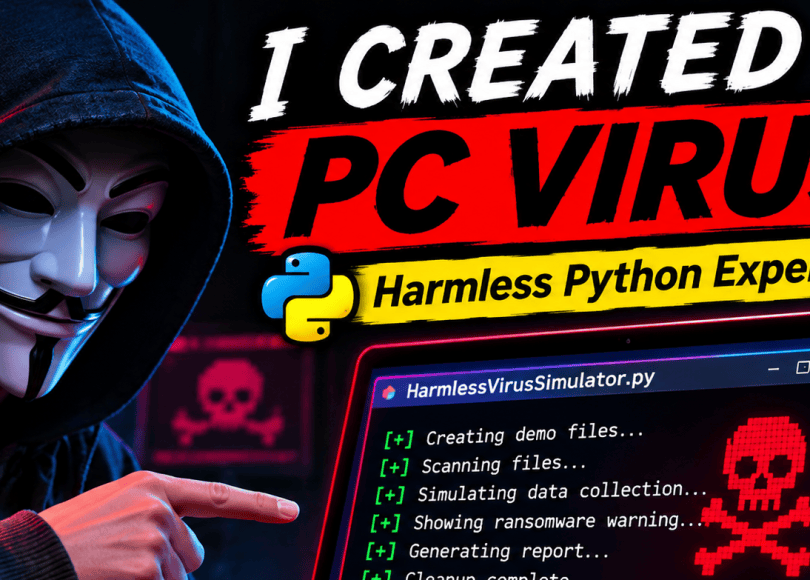
In this tutorial, we’re going to build a harmless PC virus simulator using Python. It will demonstrate some malware-like behaviours without performing any malicious actions.
You won’t need Kali Linux, expensive software, or complicated tools. A Windows PC and Python are enough.
And don’t worry: our program will not infect your system, spread to other computers, modify real documents, steal information, or run secretly in the background.
Let’s understand how it works.
1. First, What Exactly Is a Computer Virus?
A computer virus is a type of malware designed to attach itself to legitimate files or programs and replicate when those files or programs are executed.
The word virus is frequently used to describe all kinds of malicious software, but there are important differences.
Here are some common malware categories:
| Malware type | What it does |
|---|---|
| Virus | Attaches to files or programs and replicates when executed |
| Worm | Spreads between systems, often without requiring a user to execute an infected file on each system |
| Trojan | Pretends to be legitimate software while performing hidden malicious activities |
| Ransomware | Encrypts or otherwise locks access to data and demands payment |
| Spyware | Secretly collects information about a user or device |
| Keylogger | Records keyboard input |
| RAT | Allows remote access and control of a compromised device |
| Infostealer | Attempts to collect passwords, browser data, tokens, and other sensitive information |
These threats don’t all work the same way.
For example, a Trojan doesn’t necessarily replicate like a traditional virus. A worm doesn’t need to attach itself to another executable.
However, they can share capabilities such as file access, process execution, network communication, and system inspection.
And that’s what makes this experiment interesting.
2. What Are We Going to Build?
We’re going to create a small Python program called:
HarmlessVirusSimulator.py
It will imitate several behaviours associated with malware, but every operation will be simulated or restricted to temporary demonstration files.
Our simulator will:
- Create a temporary demonstration folder.
- Generate a few dummy documents.
- Display a simulated system inspection.
- Demonstrate how a malicious program might identify interesting files.
- Display a fake infection warning.
- Simulate a ransomware-style warning without encrypting anything.
- Generate an activity report.
- Clean up its own temporary demonstration files.
<blockquote> **Important:** This is not a real computer virus. It is a controlled educational simulation designed to help beginners understand malware behaviour without putting their computers or data at risk. </blockquote>
3. Requirements
You only need:
- Windows 10 or Windows 11.
- Python 3.10 or newer.
- A text editor such as VS Code or Notepad.
Check whether Python is installed:
python --version
If that doesn’t work, try:
py --version
You don’t need to install any external Python packages. Everything in this experiment uses Python’s standard library.
4. Let’s Create Our Harmless Virus Simulator
Create a new file named:
HarmlessVirusSimulator.py
Copy the following code into it:
import tempfilefrom pathlib import Pathfrom datetime import datetimeimport time# Educational malware behaviour simulator# All operations are restricted to a temporary demo folder.REPORT = []def log(message): timestamp = datetime.now().strftime("%H:%M:%S") entry = f"[{timestamp}] {message}" REPORT.append(entry) print(entry)def create_demo_environment(): demo_dir = Path(tempfile.mkdtemp(prefix="harmless_demo_")) dummy_files = [ "personal_notes.txt", "sample_document.docx", "example_photo.jpg", "dummy_spreadsheet.xlsx", ] for filename in dummy_files: file_path = demo_dir / filename file_path.write_text( "This is dummy educational data. " "It contains no personal information.", encoding="utf-8" ) return demo_dirdef simulate_file_discovery(demo_dir): log("Starting simulated file inspection...") for file_path in demo_dir.iterdir(): if file_path.is_file(): log(f"[SIMULATED] Interesting file detected: " f"{file_path.name}") log("File inspection simulation completed.")def simulate_ransomware_warning(): log("Starting ransomware behaviour demonstration...") print("\n" + "=" * 50) print(" SIMULATED SECURITY WARNING") print("=" * 50) print("Your demonstration files have supposedly") print("been locked!") print("\nThis is ONLY a simulation.") print("No files have been encrypted or modified.") print("=" * 50 + "\n") log("[SIMULATED] Ransomware warning displayed.") log("[SIMULATED] No encryption performed.")def simulate_data_collection(): log("Starting simulated information collection...") simulated_data = { "Operating system": "Windows (example)", "Username": "DEMO_USER", "Collected passwords": "NONE", "Collected browser data": "NONE", "Network transmission": "NONE", } for key, value in simulated_data.items(): log(f"[SIMULATED] {key}: {value}")def generate_report(): report_path = Path.cwd() / "virus_simulation_report.txt" report_path.write_text( "\n".join(REPORT), encoding="utf-8" ) print(f"\nReport saved to: {report_path}")def main(): print("=" * 50) print(" HARMLESS VIRUS SIMULATOR") print(" EDUCATIONAL DEMO") print("=" * 50) log("Simulator started.") demo_dir = create_demo_environment() log("Temporary demonstration files created.") try: time.sleep(1) simulate_file_discovery(demo_dir) time.sleep(1) simulate_data_collection() time.sleep(1) simulate_ransomware_warning() log("Simulation completed successfully.") generate_report() finally: # Remove only the temporary directory created by this program. import shutil shutil.rmtree(demo_dir, ignore_errors=True) log("Temporary demonstration files cleaned up.") print("\nNo real files were harmed.")if __name__ == "__main__": main()
5. Run Your First Malware Simulation
Open Command Prompt or PowerShell in the directory containing your Python file.
Run:
python HarmlessVirusSimulator.py
You should see output similar to this:
================================================== HARMLESS VIRUS SIMULATOR EDUCATIONAL DEMO==================================================[12:30:01] Simulator started.[12:30:01] Temporary demonstration files created.[12:30:02] Starting simulated file inspection...[SIMULATED] Interesting file detected:personal_notes.txt[SIMULATED] Interesting file detected:sample_document.docx[SIMULATED] Interesting file detected:example_photo.jpg[SIMULATED] Interesting file detected:dummy_spreadsheet.xlsx[12:30:02] File inspection simulation completed.[12:30:03] Starting simulated information collection...[SIMULATED] Operating system: Windows (example)[SIMULATED] Username: DEMO_USER[SIMULATED] Collected passwords: NONE[SIMULATED] Collected browser data: NONE[SIMULATED] Network transmission: NONE[12:30:04] Starting ransomware behaviour demonstration...================================================== SIMULATED SECURITY WARNING==================================================Your demonstration files have supposedlybeen locked!This is ONLY a simulation.No files have been encrypted or modified.==================================================[12:30:05] Simulation completed successfully.
Congratulations! You’ve just created a basic malware behaviour simulator.
Notice something important: our program can demonstrate file discovery and a ransomware-style warning without actually performing either a malicious file operation or an encryption attack.
That’s exactly the distinction we want beginners to understand.
6. What Could Happen If Someone Used These Concepts With Bad Intentions?
Now comes the most interesting part.
Our harmless program is deliberately limited. But let’s examine how the underlying programming concepts could be abused.
A. File Discovery Could Become Data Theft
Our simulator identifies dummy files in a temporary directory.
A malicious program could instead attempt to locate valuable files throughout a victim’s computer.
For example, attackers may target:
- Personal documents.
- Financial spreadsheets.
- Business records.
- Private photographs.
- Browser profiles.
- Configuration files.
- Sensitive project files.
Why?
Because personal information can be valuable.
Stolen documents might be used for identity theft, blackmail, corporate espionage, or financial fraud.
A malicious application could also attempt to transmit collected information to an external server.
The danger: A program that looks like a simple utility could secretly access information the user never intended to share.
B. A Fake Warning Could Become Real Ransomware
Our simulator displays a fictional message claiming that files have been locked.
Real ransomware can be much more destructive.
Depending on its capabilities, it may encrypt documents, photographs, databases, and business files.
The victim may suddenly find that important files are inaccessible.
Attackers then demand money in exchange for a supposed recovery key.
But paying doesn’t guarantee that files will be recovered.
Some ransomware operations also steal information before encrypting it. This is commonly called double extortion.
The victim may face two problems:
- Losing access to important files.
- Having private information threatened with public exposure.
This is why offline backups and tested recovery procedures are extremely important.
C. Information Collection Could Become Spyware
Our program prints fictional information such as an example username and operating system.
Real spyware may attempt to collect much more.
Depending on its permissions and capabilities, it could target:
- Browser information.
- Login sessions.
- Personal documents.
- Clipboard contents.
- Screenshots.
- Location information.
- Microphone or camera access.
Not every spyware application can access everything on a computer. Its capabilities depend on permissions, operating-system protections, and the vulnerabilities or privileges available to it.
The danger: You might believe you’re installing a useful application while it is secretly collecting information.
D. Network Communication Could Become Remote Control
Many legitimate applications communicate with remote servers.
Your browser, messaging applications, cloud storage, and software updaters do this every day.
Malware can abuse the same general capability.
For example, a compromised computer might communicate with attacker-controlled infrastructure to receive instructions or send stolen information.
Some malware families use command-and-control (C2) infrastructure.
This allows attackers to coordinate compromised systems remotely.
A compromised computer could potentially become part of a botnet, which is a network of infected devices controlled by an operator.
These devices may be abused for:
- Distributed denial-of-service attacks.
- Spam distribution.
- Credential attacks.
- Fraudulent activity.
- Further malware distribution.
A simple network connection isn’t evidence of malware, though. The destination, process, context, and behaviour matter.
E. Persistence Could Make Malware Difficult to Remove
Our simulator closes when the experiment finishes.
Malware may try to remain active after a computer restarts.
This is called persistence.
Depending on the operating system and malware type, attackers may abuse startup applications, scheduled tasks, services, or other mechanisms.
The purpose is simple: keep the malicious program running even after the user closes it or restarts the computer.
This is one reason why removing a suspicious executable doesn’t always solve an infection.
A security investigation may need to identify and remove additional malicious components.
7. How to Recognise Suspicious Activity on Windows
You don’t need to be a cybersecurity professional to start investigating unusual activity.
Windows already includes useful tools.
1. Task Manager
Press:
Ctrl + Shift + Esc
Look for processes that consume unusual amounts of CPU, memory, or network resources.
Remember that high resource usage alone doesn’t prove malware infection.
2. Startup Apps
Open Task Manager and select Startup apps.
Review applications that automatically start with Windows.
Disable entries you don’t recognise only after verifying what they are. Some legitimate drivers and security applications need startup access.
3. Windows Security
Open:
Windows Security
Navigate to:
Virus & threat protection
Run a full scan if you suspect suspicious software.
Microsoft Defender Offline can also help investigate certain threats that are difficult to detect while Windows is running.
4. Installed Applications
Go to:
Settings → Apps → Installed apps
Review unfamiliar applications, especially anything installed around the time unusual behaviour started.
5. Browser Extensions
Check your installed browser extensions.
Remove extensions you don’t use or cannot verify. Review their permissions and install software only from trusted sources.
8. How to Make This Experiment More Interesting Without Creating Real Malware
If you want to extend the project, there are several safe experiments you can build.
| Experiment | What you learn |
|---|---|
| Malware activity dashboard | How security tools display suspicious events |
| File integrity checker | How to detect unexpected file changes |
| Hash calculator | How file hashes help identify modifications |
| Process monitor | How applications run on Windows |
| Log analyser | How security events can reveal suspicious activity |
| Network traffic viewer | How applications communicate over networks |
For example, you could build a file integrity checker using SHA-256.
It calculates a file’s hash and lets you compare it later to determine whether its contents have changed.
That is a genuinely useful defensive security technique.
You can also explore tools such as Sysinternals Process Explorer and Autoruns to understand running processes and startup mechanisms.
For malware analysis, use a properly isolated virtual machine with snapshots, no shared folders, and carefully controlled networking. Never experiment with unknown malware on your everyday computer.
9. Why Even a Small Malicious Program Can Cause Serious Damage
One common misconception is that malware needs to contain thousands of lines of code to be dangerous.
That’s not necessarily true.
A small malicious program may be harmful if it has access to sensitive information or runs with excessive privileges.
For example:
- A program with access to private documents could expose them.
- A program with permission to modify important files could destroy or corrupt them.
- A program with access to an authenticated session could put an account at risk.
- A program with network access could attempt to communicate with an external service.
The real danger isn’t the number of lines of code.
It’s what the program can access, what permissions it has, and what actions it performs.
This is also why downloading random executables from unknown websites is risky.
A file called Free_Game_Cracked.exe might look harmless, but its name tells you absolutely nothing about its actual behaviour.
10. How to Protect Your PC From Malware
Here are practical steps worth following:
- Download software from official websites. Avoid unknown download portals and suspicious cracked applications.
- Keep Windows updated. Security updates fix vulnerabilities that attackers may otherwise exploit.
- Keep Microsoft Defender enabled. Don’t disable security protection just because an unknown program asks you to.
- Use standard user accounts for everyday activities. Avoid unnecessary administrator privileges.
- Back up important data. Maintain a backup that ransomware cannot easily modify or delete.
- Be careful with email attachments. Unexpected executable files and suspicious documents deserve extra scrutiny.
- Review startup applications. Investigate unfamiliar entries instead of blindly allowing everything to run.
- Use unique passwords and MFA. This reduces the damage caused by stolen credentials.
- Avoid pirated software. Cracks, keygens, and unofficial installers are common malware distribution opportunities.
- Investigate unexpected behaviour. Unusual network activity, security alerts, or unexplained file changes should not be ignored.
11. What If You Accidentally Run Real Malware?
If you suspect that your computer has been infected:
- Disconnect it from Wi-Fi or Ethernet if active malicious communication is suspected.
- Avoid entering passwords or accessing sensitive accounts from the affected device.
- Run a Microsoft Defender scan, including an Offline scan where appropriate.
- From a separate, trusted device, change passwords for important accounts if credential theft is suspected.
- Contact your organisation’s IT or security team if it is a work device.
- Preserve relevant evidence if you need professional incident response.
- Restore from a known-clean backup if necessary.
Don’t immediately delete everything or format the computer without considering whether important evidence needs to be preserved.
If ransomware is involved, don’t assume that paying the attacker will restore your files.
12. Final Thoughts: Learning Malware Is Different From Creating Malware
We started with a tiny Python program.
It created dummy documents, simulated file discovery, displayed a fake ransomware warning, and generated an activity report.
Nothing was stolen. Nothing was encrypted. Nothing spread to another computer.
But the experiment demonstrated something important.
The same broad programming capabilities can be used for completely different purposes.
A security researcher might use file inspection to identify suspicious behaviour. A malicious attacker might abuse file access to locate sensitive information.
A developer might use networking to build a legitimate application. A malware author might abuse network communication to control compromised systems.
The technology itself is not always the problem. The permissions, intentions, and actions behind it matter.
If you’re learning ethical hacking, don’t just learn how to write programs that perform actions. Learn how to understand their impact, identify their risks, and defend against their misuse.
That’s what separates someone who simply experiments with code from someone who understands cybersecurity.
Think Like a Hacker. Defend Like a Pro.
Frequently Asked Questions
1. Can I create a computer virus using Python?
Python can be used to write malware, but it can also be used to build security tools, simulations, and defensive utilities. The language itself isn’t malicious.
2. Is the virus in this tutorial dangerous?
No. The provided program is a harmless simulation. It creates dummy files in a temporary directory, displays simulated activity, writes a report, and removes its temporary files. It doesn’t spread, steal information, encrypt documents, or establish persistence.
3. Can a small Python script destroy a computer?
A program’s impact depends on the operations it performs and the permissions it receives. A small script can cause significant data loss if deliberately written to delete or modify important files. That’s why you should never run unknown scripts.
4. Can Windows Defender detect every virus?
No. Antivirus software can detect many known and suspicious threats, but no security product guarantees detection of every malware variant. Updates, safe browsing, least-privilege access, and backups remain important.
5. Is malware analysis legal?
Learning about malware and analysing samples for legitimate security research can be lawful, but laws depend on your location and what you do. Creating, distributing, deploying, or using malware against systems without permission can lead to serious legal consequences.
6. Should beginners experiment with real malware?
No. Beginners should start with simulations, defensive tools, and controlled training environments. Never test unknown malware on your personal computer or a device containing important information.
7. What should I learn after this experiment?
Start with Python fundamentals, Windows internals, file permissions, process monitoring, networking, hashing, and digital forensics. Then explore defensive malware analysis in a properly isolated lab.
Discover more from Spyboy blog
Subscribe to get the latest posts sent to your email.
