 Posted by
Your Android TV was probably fast when you first bought it. The menus opened quickly, apps launched without much waiting, and navigating between screens felt smooth.
Now, things may be different.
You press a button on your remote, and the TV takes a few seconds to respond. The home screen displays recommendations you never asked for. Apps you never use keep running in the background, while the available storage continues to shrink.
Buying a new television isn’t always the answer. Sometimes, you can improve the experience by cleaning up unnecessary apps, reducing background activity, and replacing a cluttered home screen.
One project worth exploring is CleanYourTV, a community-built tool designed to help users clean up compatible Android TV and Google TV devices. It uses Android Debug Bridge (ADB) to communicate with your television and can disable selected preinstalled apps without uninstalling them. It also provides a way to restore changes.
In this guide, you’ll learn what CleanYourTV does, how it works, how to use it safely, and which alternatives to try if you don’t want to modify your TV’s configuration.
Why Is Your Android TV So Slow?
Before changing anything, it helps to understand why your television might be struggling.
Smart TVs are computers with limited resources. Depending on the model, they may have relatively little RAM, modest processors, limited internal storage, and software that runs several services alongside the apps you actually use.
Here are some common reasons for poor performance.
1. Too many preinstalled apps
Manufacturers and service providers often include applications that you may never open. Some are useful, while others may be promotional apps, partner services, or software associated with features you don’t use.
Not every preinstalled app causes slowdowns. However, unnecessary software can consume storage, generate notifications, or run background services.
Disabling selected apps may reduce some of this overhead.
2. A cluttered home screen
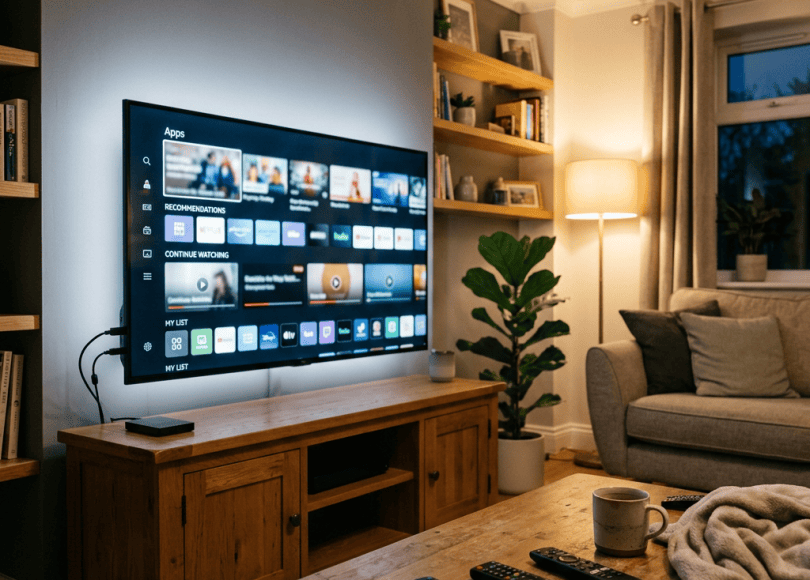
Android TV and Google TV home screens can contain recommendations, promotional content, sponsored placements, and rows of suggested shows.
This doesn’t automatically mean that every recommendation is slowing down your television. But a home screen with many content feeds and background services may feel less responsive on lower-end hardware.
A simpler launcher can make navigation feel cleaner and more direct.
3. Limited internal storage
When a TV has very little free storage, installing updates, downloading apps, and maintaining cached data can become difficult.
Apps also accumulate temporary data over time. Clearing an app’s cache can sometimes help, although the effect may be temporary.
4. Outdated software
An old operating system or outdated app may contain performance issues that have already been fixed in a newer release.
Check for official system and app updates before trying more advanced changes.
5. Hardware limitations
Software cleanup cannot turn a low-powered television into a high-end streaming device.
If the processor is slow or the available RAM is limited, some applications may still take time to load. The goal is to remove unnecessary overhead and improve the everyday experience—not promise impossible performance gains.
What Is CleanYourTV?
CleanYourTV is a community project for cleaning up compatible Android TV and Google TV devices.
Official website: https://cleanyour.tv/
Android app page: https://cleanyour.tv/app/android
The project is designed to help users reduce unwanted preinstalled software and simplify their TV experience without requiring root access.
Depending on the supported device and configuration, its workflow can involve:
- Connecting to the TV using ADB over the local network.
- Reviewing selected applications or packages.
- Disabling unwanted applications instead of uninstalling them.
- Setting up a different home-screen launcher.
- Creating a backup or restore point and providing a way to reverse changes.
The exact options and compatibility depend on the device and the project’s current implementation. Read the official instructions for your particular model before proceeding. https://cleanyour.tv/faq
What does it mean to disable an app instead of uninstalling it?
This distinction is important.
When an application is disabled, Android generally prevents it from running normally. Its package remains on the device, unlike a conventional uninstall.
That can be useful for system-preinstalled applications that cannot be removed through the normal settings menu.
However, disabling a package can also affect features that depend on it. For example, removing or disabling a launcher-related component could interfere with the home screen. This is why you should only change packages you understand and use a documented restoration process.
Before You Start: Check These Things
Don’t connect to your television and start disabling packages blindly. A few minutes of preparation can save you from a frustrating troubleshooting session.
First, confirm compatibility. CleanYourTV is intended primarily for Android TV and Google TV. Samsung televisions using Tizen, LG televisions using webOS, and Roku devices do not use the same Android TV package-management workflow.
Second, make sure you own or are authorized to administer the television. These steps change the device’s configuration.
Third, use a trusted network. ADB can provide powerful access to an Android device. Do not expose its debugging port to the public internet or forward that port through your router.
Fourth, understand how to reverse changes. Read the project’s restoration instructions and identify how to recover if the launcher or a system feature stops working.
Finally, make sure your TV has stable power. Avoid experimenting during a firmware update or while the television is behaving unpredictably.
How to Make Your Android TV Faster With CleanYourTV
The following is a general workflow. Interface labels and exact steps can differ between TV manufacturers, Android versions, and versions of the project. Follow the official setup guide if it differs from this overview.
Step 1: Check your TV’s operating system
Open your television’s settings and look for the device information or system information section.
Check the following:
- TV manufacturer and model.
- Android TV or Google TV version.
- Available internal storage.
- Whether a system update is available.
If you have a non-Android smart TV, stop here: this particular ADB-based workflow may not be suitable for your device.
Step 2: Visit the official CleanYourTV website
Open:
Read the current instructions and check whether your model and software version are supported.
You can also review the Android app information at:
Avoid downloading repackaged versions from random websites. Use the project’s official distribution links and read the permissions requested by the software.
Step 3: Enable developer options if required
Some Android TV workflows require developer options to be enabled before ADB access becomes available.
On many Android devices, the general process is to open Settings → System or Device Preferences → About, locate the build information, and select it several times until developer mode is enabled.
The precise menu path depends on the manufacturer and operating system version.
Developer options alone do not mean your TV is compromised. They expose advanced configuration options, some of which can affect device security. Enable only what you need for the task.
Step 4: Enable network debugging only when necessary
The project may require network debugging or ADB over Wi-Fi so a compatible app or computer can communicate with the TV.
Follow the official pairing instructions. Depending on your device, you may need to approve a pairing request or confirm a debugging authorization prompt on the television.
Important precautions:
- Use a trusted private home network.
- Approve only the device you intend to connect.
- Never publish your TV’s debugging address or expose the ADB port to the internet.
- Do not approve unexpected debugging requests.
If your television uses a different ADB setup, do not assume that instructions for another model will work.
Step 5: Review the applications CleanYourTV identifies
Once connected, review the proposed changes before applying them.
Do not treat every unfamiliar package as useless. Some system components have names that are difficult to understand but are required for important functions.
Be especially cautious with packages associated with:
- The system interface and home screen.
- Google Play services or the app store.
- System updates.
- Network connectivity.
- Remote-control input.
- Accessibility features.
- Audio, display, or device-specific functionality.
Only disable applications that you have a reasonable basis for identifying as unnecessary. If you cannot determine what a package does, leave it enabled.
Step 6: Review the proposed cleanup plan
A useful feature of the CleanYourTV workflow is that it presents changes for review rather than requiring you to blindly remove every package.
Read the proposed actions. Confirm what will be disabled, what launcher changes are involved, and how the tool intends to restore the previous configuration.
If something looks unclear, stop and investigate before proceeding.
Step 7: Apply the changes carefully
After reviewing the plan, follow the project’s instructions to apply the selected changes.
Do not disconnect the TV or interrupt an operation in progress. Once the process finishes, test the television rather than assuming that a successful setup means every feature works correctly.
Step 8: Test the television
Try the things you use every day:
- Open the home screen several times.
- Launch your main streaming apps.
- Test Wi-Fi and Bluetooth if you use them.
- Check your remote-control buttons.
- Verify audio output and display settings.
- Confirm that important system settings remain accessible.
Pay attention to whether the interface feels more responsive and whether your normal apps still work.
If the home screen fails to load or an important feature disappears, use the documented restoration procedure rather than continuing to disable additional packages.
Step 9: Turn debugging off when finished
This is one of the most important security steps.
When you no longer need ADB access, turn off network debugging or wireless debugging in developer options. Revoke debugging authorizations for devices you no longer intend to trust, where your TV provides that option.
Leaving debugging enabled unnecessarily increases the risk of an unwanted device obtaining access if it can reach the debugging interface and satisfy the relevant authorization requirements.
Your TV should not need to remain in debugging mode for normal streaming.
Will CleanYourTV Make Your Android TV 10 Times Faster?
Let’s be realistic.
You may see dramatic improvements on a particular device if unnecessary services, a resource-heavy launcher, or other avoidable overhead are contributing to poor performance. Another television may show only a small difference.
There is no universal benchmark establishing that CleanYourTV makes every supported television ten times faster.
The outcome depends on factors such as:
- The processor and available RAM.
- The amount of free storage.
- The manufacturer’s software.
- Which applications are disabled.
- The launcher being used.
- The apps and streaming services you run.
A cleaner interface can also feel faster even when raw processing performance has not changed significantly.
For a fair comparison, test the same actions before and after cleanup: measure how long the home screen takes to become usable, how quickly a frequently used app launches, and whether menus respond consistently.
Avoid judging performance from one launch immediately after a reboot. Let the device settle, repeat the same tests, and compare like with like.
Other Ways to Speed Up Android TV Without Advanced Tools
You don’t have to use ADB to improve every slow television. Try these lower-risk options first.
1. Restart the TV properly
A restart can resolve temporary software problems and clear some transient resource usage.
Use the television’s restart option if available. Simply pressing the remote’s power button may put some models into standby instead of fully restarting them.
2. Free up storage
Open the app-management settings and review installed applications.
Uninstall apps you no longer use when the TV permits it. For apps that are behaving strangely, clearing the cache may help.
Be careful with Clear data: it can reset the app, remove local preferences, or require you to sign in again.
3. Update your system and apps
Check for official TV firmware updates and update your frequently used apps through the supported app store.
Updates may fix bugs and compatibility issues. If the TV is already running well, however, don’t assume that every update will produce a noticeable speed increase.
4. Reduce unnecessary home-screen recommendations
If your version of Android TV or Google TV provides controls for recommendations, content previews, or app-specific channels, adjust them to suit your needs.
The available options differ by software version. Disabling recommendations may reduce clutter, but it will not necessarily eliminate every advertisement or background service.
5. Use a simpler launcher
A different launcher can give you a cleaner home screen, depending on device compatibility and system restrictions.
However, changing launchers is not always straightforward on every television. Some manufacturers rely on their own home-screen services, and certain system updates can change how third-party launchers behave.
If you choose to use CleanYourTV or another tool to change the launcher, make sure you understand how to return to the original home screen.
6. Check your internet connection
Sometimes an apparently slow TV is actually waiting for online content.
If the home screen loads slowly, try testing another device on the same Wi-Fi network. If only the television is affected, compare its signal strength, try a different supported Wi-Fi band, or use Ethernet if available.
A network problem can make streaming apps and content recommendations feel sluggish even when the TV’s local interface is working normally.
7. Consider a factory reset only as a last resort
A factory reset can help with persistent software problems, but it also removes personal settings and may require you to reinstall apps and sign in again.
Before resetting, make sure you have your account credentials and know how to restore your configuration. If the TV is slow because of hardware limitations, a reset may not solve the underlying issue.
Is CleanYourTV Safe?
No tool that changes system settings should be treated as risk-free.
CleanYourTV is designed around a non-root approach and disabling selected apps rather than uninstalling them. Its project materials also describe a restoration mechanism. Those design choices can make changes easier to reverse than permanently removing system packages, but they do not eliminate every possible problem.
Consider these points before using it:
Read the source and instructions. The project is available at https://github.com/Gathin23/cleanyourtv. Reviewing the source code and release information can help technically experienced users understand how it works.
Check the proposed changes. A tool’s reputation does not make every package safe to disable on every model.
Keep a recovery path. Know how to restore the original launcher or re-enable a package if the interface stops working.
Protect debugging access. Do not expose ADB to the public internet, and turn off debugging when finished.
Understand compatibility limits. A workflow designed for one Android TV model may behave differently on another, even when both run a similar version of Android.
If your television is used by family members who rely on accessibility features or specific system apps, check those requirements before making changes.
Does CleanYourTV Work on Android Phones?
There is also a community Android app associated with the project. You can find its project information at:
Do not assume that the Android phone app and the Android TV workflow have identical features, requirements, or compatibility. Read the instructions for the specific version you intend to use.
For this guide, the primary focus is cleaning up compatible Android TV and Google TV devices.
Android TV vs. Google TV: Does It Matter?
Google TV is an interface and experience built on Android TV OS. Although the two are closely related, the menus, home-screen behavior, and manufacturer customizations can differ.
That means the same cleanup approach may not produce identical results on both.
Before making changes, identify the operating system and exact model of your television, and consult the project’s compatibility guidance. Don’t rely solely on the brand name printed on the TV.
Frequently Asked Questions
Can I use CleanYourTV without rooting my TV?
The project is designed to work without root access on compatible devices. It uses ADB-based access to perform selected configuration changes. Exact capabilities depend on your TV and the current version of the project.
Will disabling preinstalled apps damage my TV?
Disabling an unnecessary app does not normally damage the television physically, but disabling the wrong system package can break features or affect the interface. Review every proposed change and keep a restoration method available.
Does CleanYourTV remove every advertisement?
No. Cleaning up selected apps or changing the home screen does not guarantee that every advertisement, recommendation, or promotional placement will disappear. Some advertising may be built into system software or individual streaming apps.
Will this work on Samsung or LG smart TVs?
The Android TV workflow described here is not designed for Samsung TVs running Tizen, LG TVs running webOS, or Roku devices. Check the official project documentation for supported platforms.
Can I reverse the changes?
The project describes a restoration mechanism, but you should read the current instructions before applying changes. Do not assume that every modification can be automatically reversed in every situation.
Do I need to leave developer options enabled?
You may need developer options during setup, but network debugging should be disabled when it is no longer needed. Revoke unused debugging authorizations where supported.
Is CleanYourTV guaranteed to improve performance?
No. It may help reduce clutter or unnecessary software activity on some devices, but the results vary. Hardware limitations, network issues, firmware, and individual apps can still affect performance.
Should I buy a new streaming device instead?
If your television is severely limited by old hardware, a supported external streaming device may provide a more noticeable improvement than software cleanup. Compare its cost and features with the TV’s current performance before deciding.
Final Thoughts
A slow Android TV doesn’t always need an expensive upgrade. Restarting it, freeing storage, updating software, and reducing unnecessary home-screen clutter are sensible first steps.
If you want to explore a more advanced cleanup, CleanYourTV is a project worth investigating for compatible Android TV and Google TV devices. Its approach of disabling selected apps rather than uninstalling them can be useful, provided you understand the changes and how to restore them.
The important part is not chasing a claim of making every TV ten times faster. It is identifying what’s actually slowing your device down, making controlled changes, and checking whether the result is better.
Before you modify anything, check compatibility, review the proposed changes, protect debugging access, and keep a recovery plan.
Discover more from Spyboy blog
Subscribe to get the latest posts sent to your email.
