

 Posted by
 When you encounter a corrupt SQL database, the foremost task to fix the issue is to find its current state, whether Suspect or Recovery Pending. This requires you to set the database to Emergency mode before proceeding with a feasible solution. Once the database recovery is a success, you can set it back to ONLINE status. At times, the SQL database fails to come out of the Emergency state. To fix this error, you can run CHECDB DBCC, use a backup to restore the database, or opt for a SQL database recovery tool. Here is a detailed insight into the Emergency mode and methods used for SQL database Emergency mode recovery
What is the role of Emergency mode in SQL Server?
Admins use Emergency mode to access a corrupt and inaccessible SQL database in a read-only and single-user state. Setting the database in this mode allows direct access to data, so that you can bypass the transaction log and carry out the repair task. The read-only mode prevents users from modifying the database. Hence, you cannot perform the usual Insert, Update, or Delete queries on the database. But, you can turn it to Single-user mode with Sysadmin access to run DBCC CHECKDB repair and extract crucial data from the corrupt database.
What is the need to set the database to Emergency mode?
You may often be unable to perform routine operations in your SQL database. This happens possibly because of errors caused by system crashes, power outages, malware attacks, incorrect configuration settings, and so on. Any of these incidents can make your database corrupt and stall the normal functioning of your business.
In any such situation, repairing the database becomes top priority, and you can do it by setting the database to Emergency mode. Here are various situations that prompt you to switch your database to this specific state.
- Corrupted or damaged MDF/NDF file or transaction log file
- Database enters RECOVERY PENDING or SUSPECT mode
- An urgent need to check and repair the current database
- Run metadata queries on an inaccessible database, such as system catalog views, or information schema
- Extract data from the database and export it before rebuilding
How to Prevent Emergency Mode Issues
At times, recovery from Emergency mode may become complicated. It is therefore crucial to adopt useful measures to prevent your database from facing the Emergency mode issues. Here are some of them:
- Ensure to frequently back up your database and transaction log
- Set SQL Server alerts for different SQL errors, including 823, 824, 825, etc.
- Store database backup on a different physical drive or cloud
- Make it a routine to perform regular DBCC CHECKDB checks in SQL Agent tasks.
- For database servers, prefer using RAID or ECC RAM storage
If, despite using the requisite measures, you face the Emergency mode issues, proceed with the most optimal restore method.
Bring SQL database Out of Emergency mode
Follow the steps below to recover your database to Normal mode.
- Check the current state of the database if it is still in the Emergency mode. Our database is TestDB; you can replace it with yours. Here is the query:
SELECT name, state_desc FROM sys.databases WHERE name = ‘TestDB’
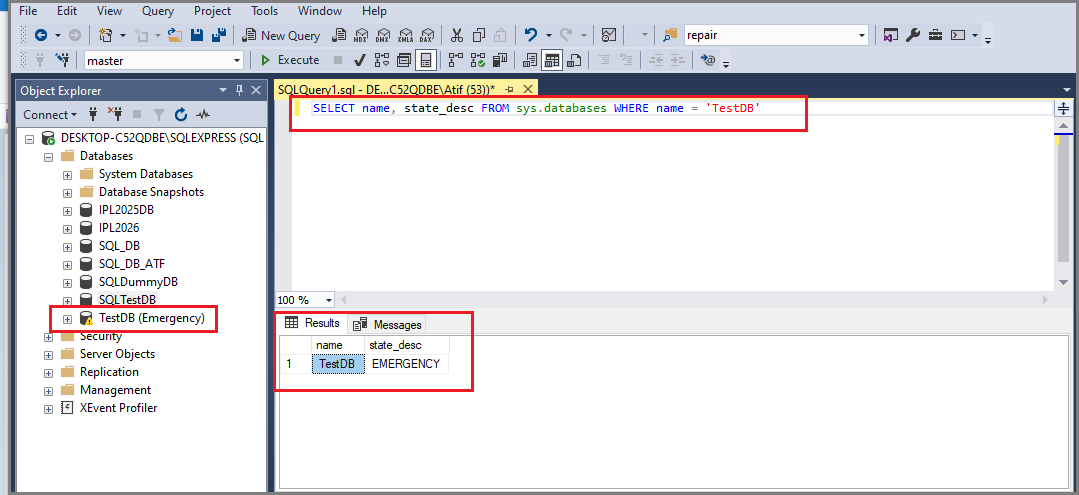
- If the database shows Emergency state, as visible in the screenshot above, bring the database back to the normal state:
Alter Database TestDB Set Online;
This T-SQL query will bring the database online, making it accessible to resume usual operations. If it still shows the Emergency state, it can be due to incorrigible corruption, missing log files, or storage issues. In case, the situation remains unchanged and the database appears stalled in Emergency mode, you should try something different. Here are the resolution steps in this case.
Recovering the database stuck in the Emergency mode
- The foremost step to recover your database in this situation is to set it to single-user mode.
Alter Database Testdb Set Single_User With Rollback Immediate;
- Next, use the DBCC CHECKDB command with the REPAIR_ALLOW_DATA_LOSS option to repair the database stuck in the Emergency mode.
DBCC CHECKDB (TestDB, REPAIR_ALLOW_DATA_LOSS);
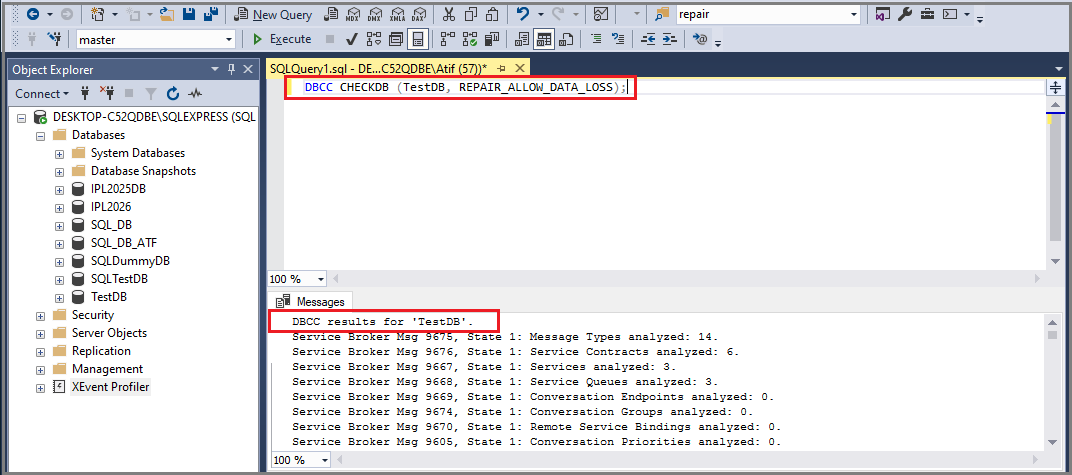
Use this option only if you do not have any other recovery option left, as It can lead to loss of corrupted data.
If this method does not work, it indicates the possibility of severe corruption in the database. To remedy the situation, you can restore the database from a recently taken healthy backup. However, even if you do not have a backup or it does not work to restore the database, you may use a SQL database recovery tool.
Using the SQL database recovery tool
In case of a corrupt, damaged, or unavailable database, several third-party SQL recovery tools can serve the intended purpose. These tools can repair badly corrupted SQL databases to extract the repaired data to a live or a new database file, saving your time. Here are some of the possible features of these tools that you can use for hassle-free data recovery.
- Recover the data from the database stuck in Emergency mode
- Repair corrupt or damaged MDF and NDF files
- Recover deleted or missing data from the database
- Fix the I/O consistency-based SQL database errors, such as 823, 824, 825, 8946, and more
- Restore the database that fails to recover using log files or backup files
- Restore all the database objects, including keys, views, triggers, stored procedures, and so on
- A parallel processing technique to allow the processing of 8 tables at once
- Database repair on Windows and Linux
- Reset the password of a protected database
- Preview all the database recovery objects in a tree-like structure
- Save the repaired database using Windows or SQL Server Authentication
- Save selected objects from recoverable items
After doing a deep inspection of the market, you will find Stellar Repair for MS SQL as a viable option to perform the recovery task. Using it is easy and self-explanatory. You can use it on Windows 11, 10, 8.1, and several previous versions up to Windows 2012.
Conclusion
Your database may become corrupt for many reasons and end up halting the routine functioning of your business. To fix the issue, the administrators set the database in the Emergency mode, as it allows direct access to data, enabling you to bypass transactions and perform the repair job. Several database issues cause the admins to set it to Emergency mode, such as a corrupted database or log file, Suspect or Recovery Pending state, run metadata queries, and more.
You can prevent such issues from occurring firsthand by adopting several crucial measures. Still, if you do not succeed, continue with the most feasible recovery methods. After switching the database to Emergency mode, perform the requisite SQL database Emergency mode recovery and then set it to online mode. If it remains stuck in the Emergency state, you can try multiple solutions.
For example, set the database to Single_User and then use DBCC CHECKDB (TestDB, REPAIR_ALLOW_DATA_LOSS) to perform the repair task. If this method does not work, use a backup file to restore the database. In case there is no backup file or the manual T-SQL queries are not delivering the expected results, a suitable alternative would be to use SQL database recovery. Stellar Repair for MS SQL can be a suitable tool to help your cause in this regard.
Discover more from Spyboy blog
Subscribe to get the latest posts sent to your email.
