 Posted by
 Is Someone Watching You Through Your Webcam?
You close your laptop.
The camera is still physically sitting there.
You open your phone.
There’s a camera pointing directly at you.
You use your computer for:
- Banking
- Work
- Private conversations
- Video calls
- Personal documents
- Social media
And somewhere in the back of your mind is the question:
Can someone secretly turn on my camera and watch me?
The answer isn’t simply:
“No, impossible.”
But it also isn’t:
“Yes, hackers are watching everyone.”
The real answer is more interesting.
Modern operating systems have security controls designed to prevent unauthorized camera and microphone access.
But malicious software, malicious browser permissions, compromised accounts, vulnerable applications, and poorly configured devices can create privacy risks.
And unlike stealing a password, webcam surveillance can feel deeply personal.
Because an attacker isn’t just seeing your data.
They may potentially be seeing you.
Your Camera Is One of the Most Sensitive Devices You Own
Think about what’s in front of your camera.
Maybe:
You.
Your family.
Your bedroom.
Your office.
Documents on your desk.
Computer screens.
Passwords written on paper.
Private conversations.
A compromised camera can therefore reveal information that isn’t stored digitally anywhere.
Your Microphone Can Be Even More Dangerous
People focus heavily on webcams.
But your microphone may reveal far more.
A microphone can potentially capture:
- Conversations
- Meetings
- Phone calls on speaker
- Names
- Addresses
- Passwords spoken aloud
- Business discussions
- Personal information
A camera requires:
Something to be visible.
A microphone only requires:
Someone to talk.
How Can Camera Access Happen?
There isn’t one magical “hacking a webcam” technique.
Access could potentially result from:
- Malware
- A compromised application
- A malicious browser permission
- A vulnerable application
- Remote-access software
- A compromised account
- Poor device security
- Social engineering
The exact attack depends on the device and operating system.
The Most Common Problem Isn’t a Hollywood Hacker
Imagine downloading:
FreeVideoEditor.exe
You install it.
The application asks for:
Camera access
You click:
Allow
You forgot about it.
The software now legitimately has camera permission.
That’s not necessarily “hacking.”
You gave the application access.
Browser Camera Permissions Are Another Risk
Visit a website.
It asks:
Allow this site to use your camera?
You click:
Allow.
Now the website has permission to access the camera under the browser’s security model.
This is useful for:
- Google Meet
- Zoom
- Online interviews
- Video recording
- QR scanning
But dangerous when granted to:
Random websites.
The Same Applies to Your Microphone
A website may ask:
Allow microphone access?
You might need this for:
- Video calls
- Voice chats
- Recording
But why would:
random-free-movie-site.example
need your microphone?
It probably doesn’t.
Never Click “Allow” Automatically
This is one of the most important habits you can develop.
When a browser asks:
Allow camera?
Don’t think:
“It’s probably fine.”
Ask:
“Why does this website need my camera?”
If you don’t know:
Block.
Your Browser Keeps Permission Records
Your browser remembers which websites you’ve allowed to use:
- Camera
- Microphone
- Location
- Notifications
You can review these permissions.
That’s important because you may have granted access months ago and forgotten.
The Forgotten Permission Problem
Imagine:
January
You use a video-editing website.
You click:
Allow camera.
August
You completely forgot about it.
That permission may still exist.
This is why:
Permission audits matter.
Check Your Browser Permissions
In Chrome, Brave and other Chromium-based browsers, look through:
Settings → Privacy and security → Site settings
Then review:
Camera
and:
Microphone
Remove websites you don’t recognize.
Firefox and Edge provide similar controls.
The exact menu names can change between browser versions.
Don’t Trust a Website Because It Has HTTPS
A malicious website can use HTTPS.
You can still have:
🔒
in the address bar.
That only means the connection is encrypted.
It doesn’t mean:
“This website is trustworthy.”
Fake Video Chat Websites
Attackers can create pages that say:
“Enable camera to continue.”
Maybe you’re trying to:
- Watch a video
- Verify your age
- Join a chat
- Download a file
The attacker doesn’t necessarily need to exploit your browser.
They can simply manipulate you into granting permission.
The Fake CAPTCHA Trick
You might see:
Verify you’re human
Then:
Enable camera
or:
Enable microphone
That’s suspicious.
A normal CAPTCHA doesn’t generally need unrestricted access to your camera or microphone just because you’re proving you’re human.
The “Your Webcam Is Required” Scam
Some fake sites say:
“Your webcam must be enabled to verify your identity.”
Then request camera access.
Before granting it, ask:
- Who operates this website?
- Why do they need my camera?
- Is this actually an official service?
- Can I verify the request independently?
What Happens If Malware Gets on Your Computer?
This is where the threat becomes more serious.
Malware may attempt to abuse operating-system permissions or vulnerabilities to access sensitive hardware.
Modern operating systems attempt to restrict this.
But:
A compromised computer should never be considered trustworthy.
If malware has significant control of your system, you have a much larger problem than the webcam.
The Camera Indicator Is Your Friend
Modern devices commonly provide indicators when camera or microphone access is occurring.
For example:
- Camera LED
- On-screen indicator
- Privacy indicator
- System notification
These aren’t identical across all devices.
But they can provide useful visibility.
But Don’t Treat the Indicator as Your Only Defense
Security indicators are helpful.
They’re not a substitute for:
- Updated software
- Strong permissions
- Malware protection
- Secure accounts
Think of them as:
A warning layer.
What If Your Webcam Light Turns On Randomly?
Don’t immediately conclude:
“I’ve been hacked.”
First investigate.
Possible legitimate causes include:
- Video-call applications
- Browser tabs
- Camera applications
- Background software
- Virtual-camera software
- Meeting applications
Check which application currently has camera access.
Windows Lets You Review Camera Access
On Windows, review privacy settings for:
Camera
and:
Microphone
You can see which applications are permitted to access these devices, depending on your Windows version and configuration.
Remove permissions from applications that don’t need them.
Your Phone Does This Too
Modern Android and iPhone devices provide privacy indicators and permission controls.
You can review which applications have access to:
- Camera
- Microphone
Ask:
Why does this application need this?
A flashlight app doesn’t need your microphone.
A calculator doesn’t need your camera.
A random wallpaper app probably doesn’t need either.
The Permission Principle
A good security rule is:
Minimum necessary permissions.
If an app doesn’t need access:
Don’t give it access.
If it used to need access:
Remove it when you’re finished.
Your Apps Can Change Over Time
An application may receive updates.
Its functionality can change.
An app that originally needed:
Camera
may later introduce features that request:
Microphone
or:
Location.
Review permissions after major updates.
Android Privacy Dashboard
Many Android versions provide a privacy dashboard or similar interface showing recent access to sensitive permissions.
This can help answer:
Which application recently accessed my camera or microphone?
Use it periodically.
iPhone Privacy Indicators
iPhones provide indicators for camera and microphone activity.
You can also review application permissions through:
Settings → Privacy & Security
Then inspect:
Camera
and:
Microphone
Remove access that isn’t necessary.
Don’t Ignore Unknown Apps
If you find:
System Update Pro
or:
Security Service
or:
Android System Helper
and you don’t remember installing it:
Investigate.
Don’t assume the name means it’s legitimate.
Malware can use names designed to sound like system components.
Fake System Apps
Attackers sometimes name malicious applications things like:
System Update
Google Security
Windows Defender Pro
Security Service
The name isn’t proof.
Check:
- Publisher
- Installation source
- Permissions
- File location
- Digital signature where applicable
Remote-Access Software Is Another Risk
Programs designed for legitimate remote support can also become dangerous if someone tricks you into installing them.
Examples include remote desktop/support tools.
The problem isn’t necessarily the software itself.
The problem is:
Who controls the session?
If a scammer tells you:
“I’m Microsoft Support.”
and asks you to install remote-control software:
Stop.
Remote Access + Webcam Is a Dangerous Combination
If someone has remote control over your computer, they may potentially interact with applications and settings that can expose sensitive information.
That’s why:
Never give remote access to an unknown person.
Your Employer’s Laptop Is Different
If you’re using a company device:
Your employer may legitimately use:
- Camera
- Microphone
- Endpoint security
- Device management
- Remote administration
Don’t automatically interpret enterprise monitoring as hacking.
Check your organization’s policies.
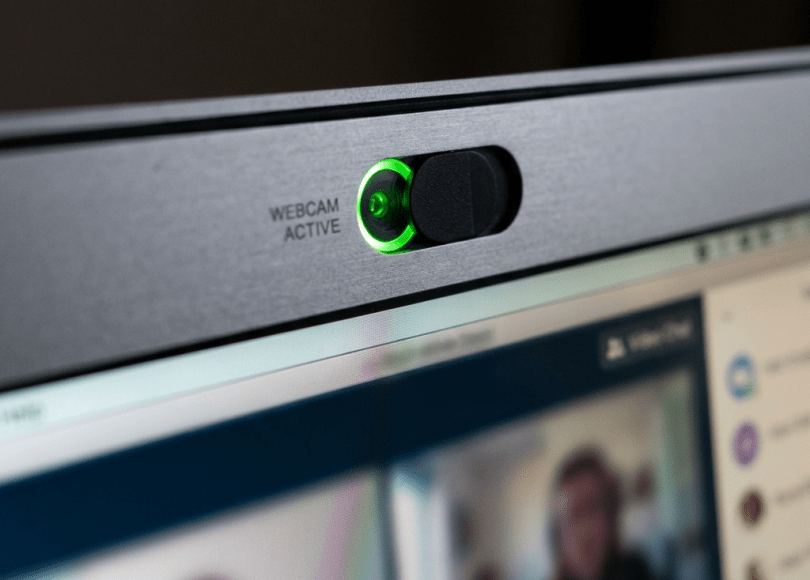
Covering Your Webcam: Does It Work?
Yes—for the camera.
A physical cover can prevent the camera from seeing anything.
That’s why some people use:
Webcam covers
or simply:
A removable physical shutter.
It’s a simple privacy layer.
But a Webcam Cover Doesn’t Protect the Microphone
This is important.
Covering the camera does:
Camera → blocked visually
It does not necessarily stop:
Microphone → listening
For microphone protection, you need:
- Permission controls
- Device settings
- Physical disconnection where possible
- Hardware-level privacy controls
Don’t Use Thick Webcam Covers on Laptops
Some laptop displays are designed with very small tolerances.
A thick physical cover can potentially:
- Damage the display
- Put pressure on the panel
- Prevent proper closure
Use a thin cover designed for your device, or use the built-in privacy shutter if available.
Your Smart TV May Have a Camera Too
Some smart TVs and other home devices can include:
- Camera
- Microphone
- Voice assistants
Don’t assume:
“It’s a TV.”
Review privacy settings and disable features you don’t use.
Gaming Consoles Can Have Microphones and Cameras
Modern gaming systems may include:
- Microphones
- Cameras
- Voice chat
- Video communication
Again:
Review permissions and connected devices.
Smart Speakers Are Microphones by Design
Devices such as smart speakers are intentionally designed to listen for wake words.
That doesn’t mean:
“A hacker is listening to you.”
But it does mean you should understand:
- What is collected
- Where recordings go
- How recordings are stored
- How to delete them
- Which users have access
Privacy isn’t just about malware.
Your Phone Is Probably the Most Important Microphone You Own
Think about how often your phone is near you.
At:
Home
Work
Car
Bedroom
Restaurants
Hotels
Meetings
That’s why microphone permissions deserve serious attention.
How to Check Which Apps Have Microphone Access
On your phone:
Open:
Privacy / Permissions
Find:
Microphone
Review the application list.
Ask:
Does this app genuinely need microphone access?
If not:
Disable it.
Do the Same for Your Camera
Review:
Camera permissions
Then remove access from:
- Games that don’t need it
- Utilities that don’t need it
- Unknown apps
- Old apps
- Apps you no longer use
Don’t Install APKs From Random Websites
This is especially important on Android.
You may see:
Premium WhatsApp APK
Free Netflix APK
Instagram Plus
Cracked VPN
Free movie app
These can contain malicious code.
And if you grant:
Camera
or:
Microphone
permissions to a malicious application?
You’ve created an obvious privacy risk.
Sideloading Increases Risk
Sideloading isn’t automatically malicious.
Cybersecurity researchers legitimately use it.
Developers legitimately test apps.
But installing software from outside trusted sources removes some of the safeguards provided by official app ecosystems.
On your everyday phone:
Be selective.
Your Browser Extensions Can Also Access Sensitive Data
Some extensions can interact with webpages.
Depending on permissions, they may access:
- Page contents
- Tabs
- Browsing activity
Extensions can be powerful.
Only install those you actually need.
What If You See an Unknown Extension?
Don’t ignore it.
Check:
- Name
- Publisher
- Permissions
- Installation date
- Reviews
- Source
If you didn’t install it and can’t explain its presence:
Investigate it.
Can a Hacker Turn on Your Camera Without You Knowing?
Potentially, if they have sufficient control over your device or exploit a relevant vulnerability.
But this isn’t something that should make you believe:
“Every hacker can instantly turn on every webcam.”
Modern operating systems implement permission and security boundaries.
The realistic threat is:
Compromised device + sufficient access + exploitable software or permissions.
Can Someone Listen Through Your Phone?
Again:
Potentially, if malicious software or a serious vulnerability gains the necessary access.
But simply knowing your phone number doesn’t give someone magical microphone access.
This distinction matters because social media posts often exaggerate these threats.
Your Phone Number Is Not a Remote-Control Button
Someone knowing:
Your phone number
doesn’t automatically mean they can:
Turn on your microphone.
That would require a much more serious compromise.
Can Someone Spy Through Your Webcam From Your IP Address?
Not simply because they know your IP.
An IP address isn’t a magic:
“Turn on webcam”
command.
An attacker would need some pathway into your device or an application capable of providing camera access.
What If You Think You’re Being Watched?
Don’t immediately start deleting everything.
First:
Disconnect from the internet if you suspect active compromise.
Document suspicious behavior.
Check installed applications.
Review camera/microphone permissions.
Review browser permissions.
Run trusted security scans.
Update the operating system.
Change important passwords from a trusted device if account compromise is suspected.
If the suspected compromise is serious, preserve evidence before wiping the device.
Don’t Factory Reset Immediately If You Need Evidence
If you’re investigating a genuine security incident:
Take screenshots.
Record:
- Suspicious applications
- Permissions
- Notifications
- Timestamps
- Account activity
A factory reset can destroy useful forensic information.
If it’s a serious case, consider professional assistance.
The “My Camera Light Is On” Checklist
If the camera unexpectedly activates:
1. Don’t panic.
2. Identify which application is using it.
3. Close video-call applications.
4. Check browser tabs.
5. Review camera permissions.
6. Check recently installed software.
7. Run a security scan.
8. Update your OS.
9. Investigate further if it continues.
The “Microphone Is Active” Checklist
Same approach:
Identify application
↓
Check permissions
↓
Close unnecessary apps
↓
Review recent access
↓
Update
↓
Scan
If the behavior remains unexplained, investigate further.
How to Make Webcam Spying Harder
🔒 Keep your OS updated
🛡️ Use reputable security software
🚫 Don’t install pirated software
🚫 Don’t install random APKs
🎥 Review camera permissions
🎙️ Review microphone permissions
🌐 Review browser permissions
🧩 Remove unnecessary extensions
🔐 Use a strong device lock
📷 Use a physical camera shutter if appropriate
🎤 Disable microphone access when unnecessary
Your 5-Minute Camera & Microphone Audit
Do this today.
Minute 1
Check:
Camera permissions
Minute 2
Check:
Microphone permissions
Minute 3
Check:
Browser camera permissions
Minute 4
Check:
Browser microphone permissions
Minute 5
Check:
Installed apps and extensions
Remove anything you don’t recognize.
The Biggest Mistakes
❌ Installing cracked software
❌ Installing random APKs
❌ Clicking “Allow” without reading
❌ Giving random websites camera access
❌ Giving random websites microphone access
❌ Ignoring unknown apps
❌ Ignoring browser extensions
❌ Using outdated operating systems
❌ Giving remote access to strangers
❌ Assuming a camera indicator automatically means hacking
What About Tape Over the Camera?
It’s not sophisticated.
It doesn’t replace security controls.
But as a physical privacy layer:
It works.
The camera cannot see through opaque material.
For particularly privacy-sensitive environments, a physical shutter can be a reasonable additional layer.
But Don’t Forget the Bigger Picture
If malware controls your computer, the camera is only one concern.
The attacker may potentially also target:
- Passwords
- Cookies
- Documents
- Browser sessions
- Screenshots
- Files
- Microphone
- Cloud accounts
So don’t focus entirely on the webcam.
Secure the entire device.
Final Thoughts
Your webcam isn’t automatically watching you.
Your microphone isn’t automatically being controlled by hackers.
And every strange camera indicator isn’t evidence of surveillance.
But these devices deserve more attention because they’re extremely personal.
A leaked password can be changed.
A leaked credit card can be replaced.
But a recording of a private conversation or a video captured inside your home can be much harder to take back once it exists.
So don’t live in fear.
Instead:
Keep your software updated.
Review permissions.
Remove suspicious applications.
Don’t install pirated software.
Don’t give remote access to strangers.
Don’t blindly click “Allow.”
And if you want an additional physical privacy layer:
Cover the camera when you’re not using it.
Because your webcam should be a device you deliberately activate—
not something you trust blindly because you forgot it was there.
Discover more from Spyboy blog
Subscribe to get the latest posts sent to your email.
