
 Posted by
 Your Router Is Probably the Most Important Device in Your House
You probably protect your phone.
You have a password on your laptop.
You use antivirus.
You have MFA enabled.
But what about the device sitting quietly in the corner of your house?
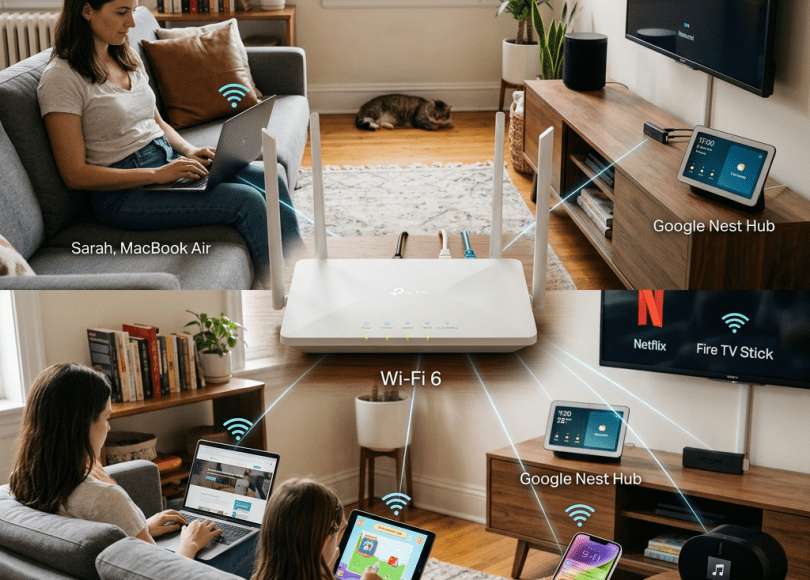
The one connected to:
- Your phone
- Laptop
- Smart TV
- CCTV cameras
- Gaming console
- Printer
- Smart speakers
- IoT devices
- Work computer
Your Wi-Fi router.
Most people think of it as:
“The box that gives me Wi-Fi.”
That’s an enormous understatement.
Your router is effectively the gateway between your home network and the internet.
If an attacker compromises it, they may gain a position from which they can manipulate network traffic, redirect DNS requests, attack exposed services, or interfere with connected devices.
And unlike your laptop, your router may sit there for years without anyone checking whether its firmware is current.
What Does a Router Actually Do?
At a basic level, your router connects your local network to other networks, usually the internet.
Your home might look like:
                    INTERNET
                        │
                        ▼
                  ┌──────────┐
                  │  ROUTER  │
                  └────┬─────┘
                       │
       ┌───────────────┼───────────────┐
       ▼               ▼               ▼
    Laptop           Phone          Smart TV
       │
       ├── Printer
       ├── Camera
       └── IoT devices
The router controls important network functions.
Depending on the device, it may provide:
- Wi-Fi
- Routing
- DHCP
- Firewalling
- DNS forwarding
- NAT
- Port forwarding
- VPN functionality
- Device management
- Parental controls
- Guest networking
That’s a lot of responsibility for one little box.
Why Hackers Care About Routers
Compromising a single laptop gives an attacker access to that machine.
Compromising a router can potentially provide a network-level position.
That’s valuable.
An attacker may attempt to:
- Change DNS settings
- Modify router configuration
- Redirect users
- Open ports
- Enable remote administration
- Install malicious firmware where possible
- Monitor network behavior
- Attack vulnerable devices
- Join the router to a botnet
The exact capabilities depend heavily on the router model, firmware, vulnerabilities and attacker privileges.
Attack #1: Default Admin Passwords
This is one of the oldest problems.
You buy a router.
The administration page says:
Username: adminPassword: admin
Or the credentials are printed on the device.
If you never change the administrative credentials, anyone who can reach the management interface may potentially attempt to log in.
Modern routers increasingly force users to create credentials during setup, but older or poorly configured devices can still be dangerous.
Your Wi-Fi Password and Router Admin Password Are Not the Same Thing
This distinction matters.
Wi-Fi password
Controls access to your wireless network.
Router administrator password
Controls the router’s configuration.
You should not assume they’re interchangeable.
If your router uses:
Wi-Fi password: MyWifi123
and:
Admin password: MyWifi123
you’ve unnecessarily reduced your security.
Use separate credentials.
Attack #2: Outdated Router Firmware
Your router runs software.
That software can contain vulnerabilities.
Just like:
- Windows
- Android
- Chrome
- Linux
- iOS
routers need security updates.
But many people never update them.
They install the router once and forget about it.
Five years later:
Same firmware.
Same password.
Same configuration.
Same exposed services.
Meanwhile, security researchers may have discovered vulnerabilities affecting the model.
Why Router Vulnerabilities Are Particularly Dangerous
Your laptop may get patched automatically.
Your router often won’t.
You may need to:
- Log into the router.
- Check firmware.
- Download/update.
- Reboot.
Some modern routers automate this.
Older devices often don’t.
That’s why:
Router age matters.
Attack #3: Remote Administration
Many routers have a feature that allows administrators to manage the router from outside the home network.
This can be useful.
But it increases the attack surface.
If remote administration isn’t needed:
Turn it off.
Why expose the administration interface to the internet if you never use it remotely?
Attack #4: Weak Router Credentials
Even if your Wi-Fi password is extremely strong:
gH8!pQ2#xZ91@Lm7
your router administration password could still be:
admin123
That’s backwards.
The administrative interface deserves particularly strong protection.
Attack #5: WPS Abuse
Some routers support Wi-Fi Protected Setup (WPS).
It was designed to make connecting devices easier.
But some older WPS implementations have had security weaknesses.
If you don’t need WPS:
Consider disabling it.
The exact settings and risk depend on the router and implementation.
Attack #6: Weak Wi-Fi Encryption
If your router still uses:
WEP
that’s a major warning sign.
WEP is obsolete.
Prefer modern security such as:
- WPA2
- WPA3
depending on device compatibility.
If your router supports WPA3, it’s generally preferable for compatible devices.
WPA3 Is Not Magic
WPA3 improves Wi-Fi security.
But it doesn’t protect against:
- Router administrator compromise
- Malware on your laptop
- Phishing
- Stolen passwords
- Compromised devices
Think of Wi-Fi encryption as one layer.
Not the entire security system.
Attack #7: DNS Hijacking
This is one of the more interesting router attacks.
Your device needs to translate domain names such as:
google.com
into IP addresses.
That’s DNS.
Normally:
You ↓Router ↓DNS resolver ↓Correct website
But if an attacker modifies your router’s DNS configuration:
You ↓Compromised router ↓Malicious DNS ↓Fake/malicious destination
You could potentially be redirected somewhere you didn’t expect.
Why DNS Hijacking Is So Dangerous
Imagine typing:
yourbank.com
You expect your bank.
But a compromised DNS configuration could potentially redirect the request elsewhere.
You might see:
A convincing fake login page.
You enter your:
Username
Password
OTP
and the attacker gets the information.
This is why checking the URL and using strong account security remains important even on your home network.
Attack #8: Malicious DNS Servers
Attackers may attempt to replace legitimate DNS settings with attacker-controlled infrastructure.
This has happened in real-world router attacks.
The attacker isn’t necessarily “breaking HTTPS.”
They’re attempting to control where your domain lookup leads.
Modern HTTPS protections can make many forms of simple redirection easier to detect, but DNS manipulation can still be dangerous.
Attack #9: Port Forwarding
Port forwarding is useful.
For example, you might intentionally expose a service:
Internet ↓Router ↓Your server
But every open port increases your attack surface.
If you don’t need a port forwarding rule:
Remove it.
Check Your Router Right Now
Open your router’s administration page.
Look for:
Port Forwarding
or:
NAT
or:
Virtual Server
You may discover rules you created years ago and forgot about.
If you see:
TCP 3389 → 192.168.1.50
and you don’t know why it’s there:
Investigate.
Don’t blindly delete business-critical configurations, but don’t ignore unknown rules either.
Attack #10: UPnP
Universal Plug and Play (UPnP) allows devices and applications to automatically configure network settings.
Convenient?
Absolutely.
But automatic configuration can also create security risks if devices or applications request unnecessary exposure.
If you don’t need UPnP:
Consider disabling it.
The correct decision depends on what you use on your network.
Gaming consoles and certain applications may rely on it.
Attack #11: Router Web Interface Exposed to the Internet
Your router’s management page should not normally be openly accessible from the internet unless you have a specific reason and have secured it appropriately.
You don’t want:
Internet ↓Router Admin Login
available to everyone.
Ideally:
Internet XRouter Admin
and administration is available only from your local network or through a properly secured remote-management method.
Attack #12: Guest Network Misconfiguration
Many routers provide:
Guest Wi-Fi
Use it.
If your friend visits:
Don’t necessarily give them access to your primary network.
Instead:
                    ROUTER
                       │
             ┌─────────┴─────────┐
             ▼                   ▼
        MAIN NETWORK        GUEST NETWORK
             │                   │
       Your devices         Visitors
A properly isolated guest network can reduce unnecessary access between guests and your trusted devices.
Your Smart TV Doesn’t Need to See Everything
Think about your devices.
Does your:
Smart TV
need unrestricted access to:
Work laptop?
Probably not.
Does your:
IoT light bulb
need access to:
NAS server?
Probably not.
Does your:
Guest’s phone
need access to:
CCTV cameras?
Definitely questionable.
This is why network segmentation matters.
IoT Devices Are Often the Weakest Link
Your router may be perfectly secure.
But then you connect:
- Cheap camera
- Smart plug
- Smart bulb
- Old printer
- Android TV box
The device may have:
- Weak default credentials
- Outdated firmware
- Poor security design
- Unnecessary services
An attacker who compromises one device may attempt to use it as a foothold for attacking other devices.
The Casino Fish Tank Problem
SpyBoy already covers the famous casino incident where attackers reportedly gained access to a casino network through an internet-connected fish-tank thermometer. (Spyboy blog)
The broader lesson is more important than the story:
Every connected device can become part of your attack surface.
Don’t Put Everything on One Network
If you have:
Work laptop
Personal laptop
CCTV
IoT
Guests
Smart TV
all sharing the same network with unrestricted communication, a compromise of one device can potentially make lateral movement easier.
Segmentation reduces that risk.
A Better Home Network
A stronger setup could look like:
                 INTERNET
                     │
                  ROUTER
                     │
        ┌────────────┼─────────────┐
        │            │             │
        ▼            ▼             ▼
     TRUSTED       GUEST          IoT
      Wi-Fi         Wi-Fi         Wi-Fi
        │            │             │
   Laptop/Phone   Visitors     TV/Cameras
Now a compromised IoT device doesn’t automatically have the same network position as your primary laptop.
Attack #13: Router Botnets
Routers are attractive targets for botnets.
A compromised router can potentially become part of a larger network of infected devices.
The attacker may use compromised infrastructure for:
- DDoS
- Proxying traffic
- Scanning
- Credential attacks
- Other malicious activity
This is one reason routers should be treated like computers.
Attack #14: ISP Router + Forgotten Settings
Many people use the router supplied by their ISP.
That’s completely normal.
But users often assume:
“The ISP manages everything.”
That isn’t always true.
Depending on the provider and device, you may still be responsible for:
- Wi-Fi password
- Admin password
- Device updates
- Remote administration
- Connected devices
- Network configuration
Check what your ISP actually manages.
Attack #15: The Router You Never Replace
Your router could be:
8 years old.
You may think:
“It still works.”
That’s not the same as:
“It’s secure.”
A router can continue functioning perfectly while receiving no security updates.
If the manufacturer has ended support:
Replacement may be the safest option.
How to Know If Your Router Is End-of-Life
Find:
Manufacturer
Model
Hardware revision
Then search the manufacturer’s official support site.
Look for:
- Firmware updates
- Security advisories
- End-of-support notices
- End-of-life dates
Don’t rely solely on random YouTube videos or forums.
How to Secure Your Router
Now let’s fix it.
1. Change the Administrator Password
Make it:
Unique
Long
Not reused anywhere else
Don’t use:
admin123passwordyourname123
2. Update Firmware
Check:
Router Settings → Administration → Firmware Update
If automatic updates are available:
Enable them.
Otherwise check periodically.
3. Disable Remote Administration
If you don’t need it:
Turn it off.
4. Use WPA2/WPA3
Avoid obsolete encryption.
Prefer:
WPA3
where compatible.
Otherwise:
WPA2-AES
is generally preferable to legacy protocols.
5. Disable WPS If You Don’t Need It
Especially on older routers.
6. Change the Default Wi-Fi Name
Changing the SSID isn’t a security control by itself.
But don’t advertise unnecessary information such as:
AcerNitroANV15
or:
RahulHome
A neutral name is better.
7. Create a Strong Wi-Fi Password
Use a long random password.
For example, instead of:
Rahul@123
use something like:
v9!Kq7#Lm2@Tz8$Wp4
Better yet, generate it with your password manager.
8. Separate Wi-Fi Networks
Use:
Main
For trusted devices.
Guest
For visitors.
IoT
For smart devices where your router supports suitable isolation.
9. Review Connected Devices
Open:
Connected Devices
Look through the list.
You might see:
- Phone
- Laptop
- TV
- Printer
- Camera
But perhaps also:
Unknown Android Device
Investigate.
Don’t Panic Over Every Unknown Device
Device names aren’t always accurate.
A phone may appear as:
android-123456
A TV may appear as:
localhost
An IoT device may have a cryptic manufacturer name.
If you don’t recognize something:
- Disconnect your devices one by one.
- Refresh the router’s client list.
- Identify what disappears.
- Rename devices where possible.
10. Review DNS Settings
Check what DNS servers your router is using.
If you never changed them but suddenly see unfamiliar addresses:
Investigate.
Don’t blindly replace DNS settings with random addresses from the internet.
Use reputable DNS providers or your ISP’s legitimate configuration.
11. Review Port Forwarding
Remove unnecessary rules.
Especially:
- RDP
- SSH
- Admin interfaces
- Old game servers
- Forgotten development services
12. Review UPnP
Check which devices are creating automatic port mappings.
If something unexpected is opening ports:
Investigate.
13. Disable Unused Services
Your router may offer:
- FTP
- Telnet
- SSH
- Remote management
- VPN
- SNMP
Don’t expose services you don’t use.
Telnet Is a Big Red Flag
If your router still exposes Telnet administration:
Disable it.
Telnet does not provide the protection expected from modern secure administration.
Use secure alternatives supported by your router.
14. Back Up Router Configuration
If your router supports configuration backups:
save one securely.
This can make recovery easier after a reset.
But remember:
A configuration backup may contain sensitive information.
Protect it appropriately.
15. Factory Reset a Seriously Compromised Router
If you have strong evidence that the router has been compromised:
A factory reset followed by:
- Firmware update
- New admin password
- New Wi-Fi password
- Reconfiguration
- Removal of unnecessary services
can be appropriate.
If the router is end-of-life:
Replace it.
How to Tell If Your Router Might Be Compromised
Possible warning signs include:
🚩 DNS settings changed unexpectedly
🚩 Unknown admin accounts
🚩 Unknown port-forwarding rules
🚩 Remote administration enabled unexpectedly
🚩 Unknown firmware
🚩 Strange configuration changes
🚩 Unexpected device connections
🚩 Frequent unexplained reboots
🚩 Devices being redirected to strange websites
🚩 Browser warnings about unexpected certificates
One symptom alone doesn’t prove compromise.
But multiple unexplained changes deserve investigation.
What If Your Router Has Been Hacked?
Don’t start changing random settings immediately if this is a business or serious incident.
First:
Document the configuration.
Take screenshots.
Record:
- Firmware version
- DNS settings
- Connected devices
- Port forwards
- Admin accounts
- Suspicious changes
- Dates/times
Then:
Update firmware.
Change credentials.
Disable unnecessary services.
Consider factory reset.
Monitor the network.
For an organization, involve the security/IT team and preserve evidence before wiping if an investigation may be required.
Your Router Password Should NOT Be Shared
Don’t give:
Router admin password
to:
- Friends
- Guests
- Random ISP callers
- People claiming to be “technical support”
If legitimate support needs access, use official procedures.
Don’t Confuse Wi-Fi Hacking With Router Hacking
These are different things.
Wi-Fi attack
Targets the wireless network/authentication.
Router attack
Targets the router’s firmware, services, configuration or vulnerabilities.
Device attack
Targets a laptop, phone, camera, TV, etc.
A secure Wi-Fi password doesn’t automatically protect against a vulnerable router.
Can Someone Hack Your Router Just by Knowing Your Wi-Fi Name?
Normally:
No.
An SSID isn’t a secret.
Attackers can see Wi-Fi network names around them.
Knowing:
SpyboyHome
doesn’t automatically provide router access.
The real risks involve:
- Weak credentials
- Vulnerabilities
- Exposed management interfaces
- Misconfiguration
- Social engineering
- Compromised devices
Can Someone Hack Your Router From Outside Your House?
Potentially, yes.
But not simply because they know your public IP.
There generally needs to be an exploitable weakness or exposed service.
That’s why:
Internet exposure + vulnerability = risk.
Your Public IP Isn’t Your Router Password
Another common misconception.
Someone knowing your public IP doesn’t automatically give them router access.
But an exposed vulnerable service can potentially make the IP relevant.
That’s why minimizing unnecessary exposure matters.
The Home Network Security Checklist
Open your router settings and check:
- Admin password changed
- Firmware current
- Remote administration disabled
- WPA2/WPA3 enabled
- WPS disabled if unnecessary
- Strong Wi-Fi password
- Guest network enabled
- IoT devices isolated where possible
- Unknown devices investigated
- DNS settings reviewed
- Port forwarding reviewed
- UPnP reviewed
- Unused services disabled
- Router still supported by manufacturer
- Configuration backup secured
The 15-Minute Router Security Audit
If you have never checked your router:
Minute 1–2
Find:
Manufacturer + model
Minute 3
Check:
Firmware version
Minute 4
Check:
End-of-life/support status
Minute 5
Change:
Admin password
Minute 6
Check:
Remote administration
Minute 7
Check:
Wi-Fi encryption
Minute 8
Check:
WPS
Minute 9
Check:
Connected devices
Minute 10
Check:
DNS
Minute 11
Check:
Port forwarding
Minute 12
Check:
UPnP
Minute 13
Check:
Guest network
Minute 14
Check:
IoT isolation
Minute 15
Restart the router if appropriate and verify the settings remain correct.
Don’t Buy a New Router Just Because Someone Says Yours Is “Hackable”
Almost every device has vulnerabilities.
The important questions are:
Is the vulnerability patched?
Is your firmware current?
Is the vulnerable service exposed?
Is the device still supported?
Can the risk be mitigated?
Don’t replace hardware based solely on sensational headlines.
But if the manufacturer has officially abandoned the device:
Replacement becomes much more compelling.
The Router Is Part of Your Security Perimeter
Your cybersecurity isn’t:
Laptop + Antivirus
It’s more like:
Internet ↓Router ↓Wi-Fi ↓Devices ↓Accounts ↓Data
Every layer matters.
And the router sits near the beginning of that chain.
Final Thoughts
Most people never think about their router until:
The Wi-Fi stops working.
They restart it.
Wait 30 seconds.
Everything works again.
But your router isn’t just an internet box.
It’s a network gateway.
It can control:
- Where traffic goes
- Which devices can communicate
- Which services are exposed
- How your Wi-Fi is protected
- Which DNS servers your devices use
- Whether guests can access your network
And if it’s running outdated firmware, using weak credentials or exposing unnecessary services, it may become an attractive target.
You don’t need to become a network engineer.
Just remember:
Update it.
Lock it down.
Remove unnecessary exposure.
Separate untrusted devices.
Replace it when the manufacturer stops supporting it.
Because the security of your laptop isn’t very comforting if the device sitting between your laptop and the internet has been forgotten for six years.
Your router may be the quietest device in your house.
But from a cybersecurity perspective:
It may be one of the most important.
Discover more from Spyboy blog
Subscribe to get the latest posts sent to your email.
