
 Posted by
 That Free USB Drive Could Be the Most Dangerous Thing You Plug Into Your Computer
Someone gives you a USB drive.
Maybe it says:
“Company documents.”
Maybe you found it in a parking lot.
Maybe someone left it at your office.
Maybe it’s a free promotional USB.
Maybe a friend says:
“There are some photos on it.”
You plug it in.
The computer makes the familiar:
Ding.
The drive appears.
You open it.
Nothing happens.
You think:
“It’s empty.”
You remove it.
But what if the dangerous part wasn’t the file?
What if the USB device itself was malicious?
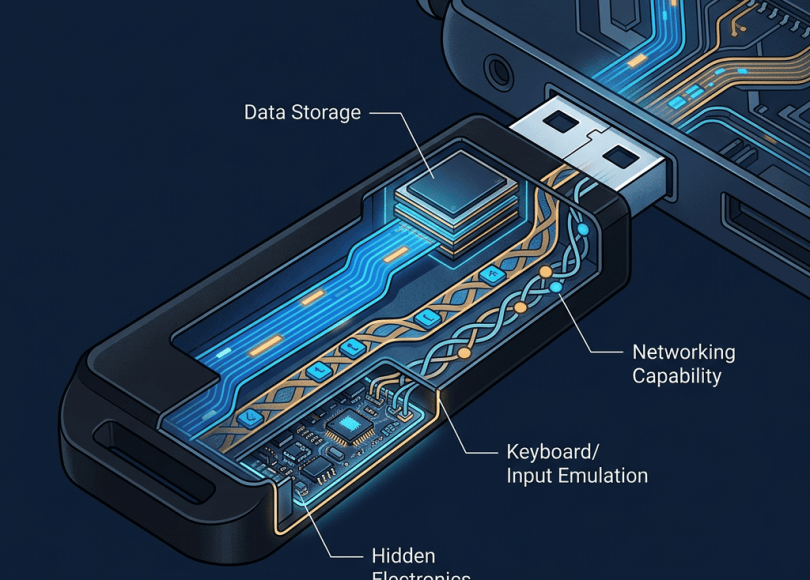
USB isn’t simply a storage technology.
A USB device can identify itself to a computer as different types of hardware, depending on what it is designed to do.
That means:
A USB device can potentially be much more than a box containing files.
The Biggest USB Security Mistake
People think:
USB drive = files.
But USB can be used for:
- Storage
- Keyboard input
- Mouse input
- Networking
- Audio
- Serial communication
- Other device functions
That’s why plugging in an unknown USB device is fundamentally different from opening an unknown document.
What Is a Malicious USB?
A malicious USB device is hardware intentionally configured or modified to perform harmful actions when connected to a computer or other device.
Depending on the device and attack, it may attempt to:
- Deliver malware
- Pretend to be a keyboard
- Steal data
- Execute unwanted commands
- Exploit software vulnerabilities
- Install unauthorized software
- Disrupt a system
The exact behavior depends on the hardware, operating system and vulnerabilities involved.
The USB Drive Doesn’t Have to Look Suspicious
This is the scary part.
It can look completely normal.
Black plastic.
Small metal connector.
Maybe:
32 GB
printed on it.
There may be no obvious indication that anything is wrong.
You cannot reliably determine USB safety just by looking at the outside.
Attack #1: The Infected Flash Drive
The classic scenario.
You plug in a USB drive.
Inside:
Photos/Documents/Invoice.pdfsetup.exe
You open:
setup.exe
and accidentally execute malware.
The USB didn’t magically hack you.
You executed a malicious program from it.
This is still one of the simplest USB attack scenarios.
The Fake PDF Trick
A file may look like:
Invoice.pdf
but the actual file may be an executable with a deceptive name or icon, depending on the operating system and file-display settings.
That’s why:
Don’t execute unknown files simply because their icons look familiar.
Windows File Extensions Matter
Windows can hide known file extensions.
That can make a malicious file appear less suspicious.
For example, users may see a name that appears to be:
document.pdf
while the underlying filename has additional executable characteristics.
Enable the option to display file extensions so you can inspect filenames more clearly.
Attack #2: The “Free USB” Scam
Imagine attending a conference.
Someone gives everyone:
Free 64 GB USB drive.
It has the company logo.
Looks professional.
You take it home.
You plug it into your work laptop.
Why would a criminal bother?
Because physical devices can cross security boundaries.
People trust objects more than they trust links.
Attack #3: The Found USB Drive
This is one of the oldest social-engineering tricks.
Someone leaves a USB drive somewhere people are likely to find it.
For example:
Parking lot
Office
School
Conference
Reception area
The label says:
SALARY DATA
or:
PRIVATE PHOTOS
Curiosity does the rest.
Don’t Plug In Found USB Drives
If you find a USB device:
Don’t connect it to your personal or work computer to find out what’s inside.
If it belongs to a company or institution:
Hand it to the appropriate IT/security team.
If it’s yours:
Verify its origin before using it.
Attack #4: BadUSB
Now we get into a more interesting class of attacks.
A technique commonly known as:
BadUSB
involves manipulating USB device firmware or behavior so that a device can present itself to a computer as something other than what the user expects.
For example, a device that looks like:
USB storage
could potentially behave like:
Keyboard
depending on its hardware and configuration.
Why Pretending to Be a Keyboard Is Dangerous
Your computer trusts keyboards.
When you press:
A
the computer doesn’t ask:
“Are you really a human?”
It processes the input.
A malicious USB device that identifies itself as a keyboard may therefore be able to send keystrokes to the system.
This is commonly called:
HID injection
where HID refers to Human Interface Device functionality.
The Attack Can Happen Very Quickly
A malicious device could potentially present itself as a keyboard and send a sequence of inputs rapidly.
The user might see:
USB connected.
Then:
Something opens.
Then:
A command executes.
The exact attack depends heavily on the operating system, permissions and defenses.
But the principle is important:
You didn’t necessarily need to open a file.
The device itself interacted with the computer.
Your Antivirus Isn’t a Complete Defense Against HID Attacks
Traditional antivirus is primarily designed to detect malicious software and behavior.
A device pretending to be:
A keyboard
may not look like conventional malware.
The computer could simply believe:
“A keyboard is typing.”
That’s why device-control policies can matter in organizations.
Attack #5: USB Rubber Ducky-Style Attacks
There are legitimate security-testing devices designed to emulate keyboards and automate keystrokes.
Security professionals use such hardware to test whether systems properly restrict untrusted peripherals.
The defensive lesson is:
A USB port is not automatically a trusted input channel.
Attack #6: USB Network Devices
Some USB devices can present themselves as network interfaces.
That means a device connected over USB may potentially create or modify network connectivity.
This can be useful legitimately.
It can also become a security concern in an environment that blindly trusts newly connected hardware.
Attack #7: USB Data Theft
USB isn’t only an infection mechanism.
It’s also a very convenient way to:
Copy information.
If someone gets physical access to an unlocked computer, a USB device can potentially be used to copy files depending on the operating system, permissions and security controls.
Imagine:
Employee leaves laptop unlocked.
Someone plugs in a storage device.
Sensitive files may potentially be copied.
Physical security is cybersecurity.
Lock Your Computer When You Leave
This simple habit prevents an enormous number of opportunistic attacks.
Don’t leave:
Windows desktop
or:
MacBook
unlocked while you walk away.
Use:
Win + L
on Windows.
Use the appropriate lock function on macOS/Linux.
Attack #8: USB Malware That Spreads
Historically, malware has used removable media to spread between computers.
The basic idea:
Computer A ↓Infected USB ↓Computer B ↓Another USB ↓Computer C
Modern operating systems have introduced protections that make many classic removable-media propagation techniques less effective.
But:
Users can still manually execute malicious files.
Attack #9: Fake Capacity USB Drives
Not every dangerous USB is designed to hack you.
Some are simply:
Fraudulent hardware.
You buy:
“2 TB USB drive”
for an unbelievably cheap price.
Your computer reports:
2 TB.
But the physical flash storage may be dramatically smaller.
The device can be manipulated to report false capacity.
Why Fake USB Capacity Is Dangerous
You copy:
500 GB
of data.
The drive appears to accept it.
Later:
Files are corrupted.
Data disappears.
Backups fail.
You thought you had:
A backup.
You actually had:
A data-loss machine.
Never Trust a USB Drive With Your Only Copy
If something is important:
Use the 3-2-1 backup principle.
Keep:
3 copies
on:
2 different types of media
with:
1 copy stored separately/off-site
The exact implementation can vary.
But the principle is excellent.
Attack #10: USB Data Destruction
A malicious or malfunctioning device can potentially cause hardware or system problems.
One infamous concept is:
USB Killer
devices designed to discharge electrical energy through USB interfaces.
These are not normal USB drives.
They are specialized destructive hardware.
The defensive lesson isn’t:
“Every USB is a USB Killer.”
It is:
Don’t plug unidentified hardware into expensive equipment.
A USB Port Is an Electrical Interface Too
USB isn’t only:
Data.
It’s also:
Power.
Devices can draw power through USB.
That’s why malicious or defective hardware can potentially cause physical damage under certain circumstances.
Attack #11: Juice Jacking
You’ve probably seen this warning:
“Don’t charge your phone using random public USB ports.”
The broader concern is that USB can carry:
Power + data.
A compromised or malicious charging setup could potentially attempt unwanted data interaction, depending on the phone, connection mode and security controls.
This has historically been called:
Juice jacking.
USB Charging Isn’t Automatically Dangerous
Modern phones have significantly improved protections.
Simply connecting a phone to a USB power source does not mean:
Your entire phone is automatically accessible.
Devices may ask whether to:
- Trust
- Allow data access
- Transfer files
- Use USB accessories
Don’t approve unexpected requests.
The Safer Public Charging Option
If you’re concerned about unknown charging infrastructure, consider:
Your own wall charger
or:
A power bank
or other trusted charging equipment.
A power-only setup can reduce the data-channel risk, depending on the equipment.
Don’t Approve Random USB Prompts
Your phone says:
Allow accessory to access data?
You don’t know the accessory.
Choose:
No
unless you know exactly what you’re connecting.
Attack #12: USB-C Doesn’t Mean “Safe”
USB-C is a connector standard.
It doesn’t automatically tell you:
What the device can do.
USB-C devices can support different capabilities.
A USB-C cable/device may support:
- Charging
- Data
- Video
- Other protocols
So:
USB-C is not a security certification.
The Cable Can Matter Too
People focus on:
USB flash drives.
But cables can also contain electronics.
A cable may be designed for legitimate functions.
There have also been specialized malicious cables designed to emulate input devices or perform other actions.
So don’t assume:
“It’s just a cable.”
Don’t Borrow Random USB-C Cables for Sensitive Devices
If you’re charging your:
Laptop
Phone
Tablet
use a trusted cable/charger where possible.
Especially for high-value or work devices.
Your Charging Station Is Part of Your Security Model
At an airport:
Free charging.
At a hotel:
USB charging port.
At a conference:
USB charging hub.
Convenient.
But you don’t know how the equipment is implemented.
If the device contains a data path, there may be more going on than:
Electricity.
USB Security at Work
Companies should consider:
- Device control
- USB storage restrictions
- Endpoint protection
- Application allowlisting
- Least privilege
- Encryption
- Logging
- Security awareness
Organizations often restrict removable media precisely because:
Physical devices can bypass some digital security assumptions.
Why Companies Disable USB Storage
Imagine an employee can plug any USB drive into a workstation.
They could potentially:
Copy company files out.
or:
Bring malicious software in.
Restricting removable storage can reduce both:
Data exfiltration
and:
Malware introduction.
Encryption Helps If Your USB Is Lost
Suppose your USB contains:
Tax documents
Personal photographs
Business files
You lose it.
If the data is encrypted:
The thief may have the hardware but not the contents.
Use reputable encryption tools supported by your operating system or organization.
Never Store Plaintext Sensitive Data on Random USB Drives
Especially:
- Password databases
- API keys
- Private keys
- Identity documents
- Financial information
- Customer information
A USB drive is easy to lose.
Password-Protecting a ZIP Isn’t the Same as Proper Disk Encryption
A password-protected archive can be useful.
But for a large sensitive collection of files, dedicated encryption can provide a more appropriate security model.
Understand what protection your chosen tool actually provides.
Your USB Can Be Lost in Seconds
Imagine:
You put it in your pocket.
Later:
It’s gone.
You search everywhere.
Nothing.
If the drive contains:
Your passport scan
Tax documents
Password backup
you now have a privacy incident.
Label USB Drives Without Exposing Sensitive Information
Don’t write:
“PRIVATE TAX DOCUMENTS — SPYBOY — 2026”
on the outside.
Use a neutral identifier.
If lost, the label shouldn’t tell a stranger:
What’s inside.
Don’t Leave USB Drives Connected Permanently
If you’re not using the drive:
Remove it.
Especially when:
Walking around with a laptop.
Physical damage can also corrupt the device.
Safely Eject Drives
Use your operating system’s safe-eject functionality when appropriate.
This reduces the chance of:
Incomplete writes
and:
File-system corruption.
How to Safely Inspect an Unknown USB
The safest answer is:
Don’t plug it into your normal computer.
If you’re a security professional and genuinely need to analyze an unknown device, use a properly isolated analysis environment designed for that purpose.
That can include:
- Dedicated hardware
- Isolated networks
- Controlled operating systems
- Hardware write blockers where appropriate
- Forensic procedures
That’s very different from:
“I’ll plug it into my gaming PC and see what’s inside.”
Don’t Analyze Unknown USBs on Your Main Laptop
Your main laptop probably contains:
- Password manager
- Email sessions
- Browser cookies
- SSH keys
- Personal files
- Work documents
Why risk all of that?
Your Antivirus Can Help — But Don’t Rely on It Alone
Keep endpoint security enabled.
But remember:
Antivirus isn’t magic.
It may not prevent:
- Social engineering
- Unknown hardware behavior
- Novel vulnerabilities
- Data theft by an authorized user
- Physical attacks
Layer your defenses.
Keep Your Operating System Updated
Updates can fix vulnerabilities involving:
- USB drivers
- Kernel components
- Device handling
- File parsing
- Privilege escalation
So:
Patch your system.
Disable Auto-Execution Features Where Appropriate
Modern operating systems have substantially reduced the classic automatic-execution risks associated with removable media.
Still, your system should be configured so that inserting removable media doesn’t automatically execute unknown programs.
Don’t Open Unknown Files
Even if the drive appears clean:
Don’t run unknown executables.
Be especially cautious with:
.exe.msi.bat.cmd.ps1.scr.js
and other executable/script formats.
Be Careful With Documents Too
Malicious content isn’t limited to .exe.
Documents can potentially exploit vulnerabilities or abuse features such as:
- Macros
- Embedded content
- Malicious links
Keep office software updated and don’t enable risky features simply because a document tells you to.
The “Photos” Trick
Someone gives you a drive:
“It’s only photos.”
You open it.
One file isn’t actually what it appears to be.
The lesson:
File type matters more than the filename or icon.
USB Drives Can Be Used for Social Engineering
The technology doesn’t have to be sophisticated.
Imagine a USB labeled:
CEO CONFIDENTIAL
Curiosity.
Or:
Bitcoin Wallet
Greed.
Or:
Employee Salaries
Curiosity + fear.
Or:
Private Photos
Curiosity.
The attacker is exploiting:
Human psychology.
The Safest USB Is One You Control
Ideally:
You bought it.
You know where it came from.
You know who used it.
You know what is stored on it.
That’s a much stronger starting point than:
“I found it.”
USB Security Rules Everyone Should Know
Rule 1
Don’t plug in found USB drives.
Rule 2
Don’t use unknown USB devices on your main computer.
Rule 3
Don’t execute unknown files.
Rule 4
Keep your operating system updated.
Rule 5
Encrypt sensitive USB data.
Rule 6
Don’t trust cheap drives with important backups.
Rule 7
Don’t approve unexpected USB permissions.
Rule 8
Use trusted chargers and cables.
Rule 9
Lock your computer when you walk away.
Rule 10
Remove USB devices you don’t need.
A 5-Minute USB Security Audit
Minute 1
Look at every USB drive you own.
Ask:
Do I know where this came from?
Minute 2
Delete or securely retire drives you no longer need.
Minute 3
Check whether sensitive USB data is encrypted.
Minute 4
Review your computer’s removable-device/security settings.
Minute 5
Check your backups.
Make sure your USB isn’t the:
Only copy of something important.
What If You Already Plugged In a Suspicious USB?
Don’t panic.
First:
Stop using it.
Don’t continue opening files.
If you saw suspicious behavior:
- Disconnect it.
- Disconnect the computer from networks if you have a credible reason to suspect active malware.
- Run your organization’s or trusted security software’s checks.
- Review recent activity.
- If it’s a work device, contact IT/security.
- Preserve the device if forensic investigation may be necessary.
Don’t immediately wipe everything if you may need evidence.
If You Entered Credentials After Using the USB
That’s more urgent.
For example, you plugged in the drive and then logged into:
Banking
GitHub
If you suspect malware may have been involved:
Secure those accounts from a known-clean device.
Change credentials and revoke sessions/tokens as appropriate.
Developers: Protect Your SSH Keys and Tokens
If a suspicious USB was connected to your development machine, think about:
- SSH keys
- GitHub tokens
- Cloud credentials
- API keys
- Environment variables
- Password manager access
If there’s credible evidence that secrets may have been exposed:
Rotate them.
Deleting the file containing a secret isn’t enough.
Businesses: Don’t Treat USB as “Just Hardware”
USB should be part of your:
Threat model.
Consider:
- Endpoint device control
- Removable-storage policies
- USB allowlists
- Encryption
- Data-loss prevention
- Employee training
- Physical security
The Biggest USB Security Myths
❌ “It’s only a flash drive.”
It may present as other device types.
❌ “My antivirus will stop everything.”
Not necessarily.
❌ “USB-C is safe.”
The connector doesn’t guarantee safety.
❌ “Found USBs are harmless.”
They may be intentionally planted.
❌ “A USB can’t attack without opening a file.”
Certain malicious devices can interact with a system as peripherals.
❌ “Expensive-looking USB = legitimate.”
Appearance proves nothing.
❌ “If it says 2 TB, it is 2 TB.”
Fake-capacity devices exist.
❌ “Charging only means no data.”
The exact behavior depends on the hardware and connection.
Final Thoughts
USB is one of the most useful technologies ever created.
That’s exactly why it’s such an effective attack surface.
Almost everyone trusts it.
You plug something in and expect:
It works.
You don’t expect the device to be asking:
“What am I allowed to do on this computer?”
But that’s essentially the security question.
A USB device can potentially be:
Storage.
Keyboard.
Network interface.
Charging device.
Specialized hardware.
And in malicious hands:
An attack platform.
You don’t need to become afraid of every USB drive.
Just follow a simple rule:
If you don’t know where a USB device came from, don’t connect it to a computer you care about.
Don’t plug in the mysterious drive from the parking lot.
Don’t install software from a random promotional USB.
Don’t trust unknown charging hardware with sensitive devices.
Don’t keep your only backup on an untrusted flash drive.
And don’t assume:
“It’s just USB.”
Because the moment you connect an unknown device to your computer, you’re giving that device an opportunity to communicate with your system.
Trust the device only when you trust its origin.
Discover more from Spyboy blog
Subscribe to get the latest posts sent to your email.
