
 Posted by
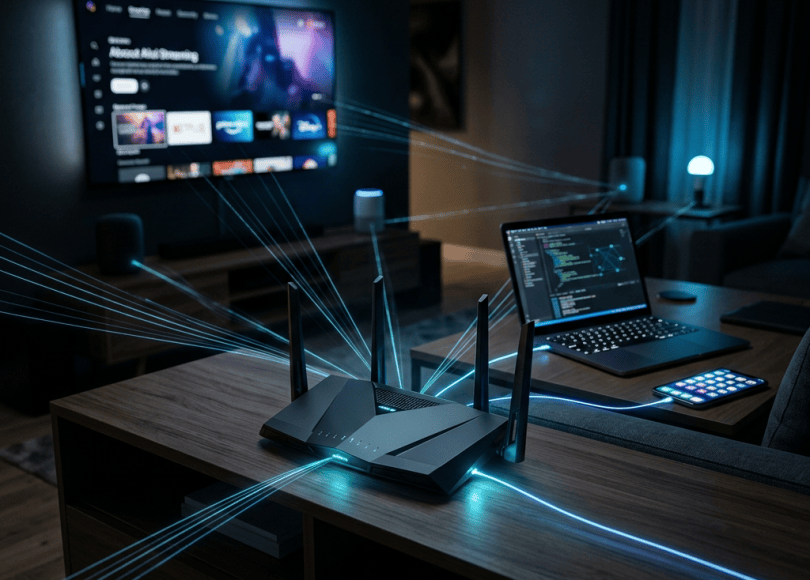
 Your Wi-Fi Router Is the Front Door to Your Digital Home
You probably think of your router as:
The box that gives you internet.
That’s it.
But your router sits between the internet and almost everything connected inside your home.
Your:
- Laptop
- Phone
- Smart TV
- Gaming console
- Printer
- Smart speaker
- Cameras
- IoT devices
may all communicate through it.
That makes your router one of the most important pieces of security equipment in your house.
And here’s the uncomfortable part:
Many people spend ₹80,000 on a laptop and almost zero minutes securing the router protecting it.
What If Someone Gets Into Your Router?
A compromised router can potentially give an attacker visibility or control over network configuration and connected devices, depending on the vulnerability and level of access obtained.
They may potentially attempt to:
- Change DNS settings
- Change Wi-Fi credentials
- Redirect traffic
- Disable security settings
- Modify firewall rules
- Access router administration
- Target connected devices
- Monitor network metadata
The exact impact depends on the router and attack.
But the principle is simple:
If your network’s gateway is compromised, the rest of your network deserves investigation.
Your Router Is Your Digital Front Door
Think about your house.
You lock:
Front door.
You lock:
Windows.
You might install:
CCTV.
But your digital home has another entrance:
Your router.
If that entrance has:
Default credentials
Outdated firmware
Weak Wi-Fi encryption
Remote administration exposed
Poor configuration
you’re leaving a digital door open.
First: Change the Router Admin Password
This is different from your Wi-Fi password.
Many routers have two important credentials:
Wi-Fi password
Used by devices to join your network.
Router administrator password
Used to configure the router itself.
People often change the first and forget the second.
Change both.
Never Leave Default Admin Credentials
Your router might have originally shipped with something like:
admin / admin
or another manufacturer-provided credential.
Default credentials are widely documented.
If an attacker can reach the administration interface, defaults are a terrible security boundary.
Your Wi-Fi Password Should Be Unique
Don’t use:
Your name
Phone number
House number
Birthday
password123
12345678
Don’t reuse a password from another website.
Use a long, unique passphrase.
Long Beats Clever
Instead of:
P@ssw0rd!
use something much longer and unique.
For example, a memorable passphrase generated specifically for your Wi-Fi.
The goal is:
Hard to guess + easy enough for you to manage.
Don’t Put Your Wi-Fi Password on a Public Sticker
Some routers come with the Wi-Fi password printed on a label.
That’s convenient.
But if you’ve changed it to something unique, don’t casually post it online.
Avoid uploading photos showing:
- Wi-Fi password
- Router admin password
- QR credentials
The Wi-Fi QR Code Problem
Many phones can share Wi-Fi using a QR code.
Convenient.
But remember:
A Wi-Fi QR code is effectively a credential-sharing mechanism.
Anyone who can scan it may be able to obtain the network credentials depending on the device and format.
Don’t post your home Wi-Fi QR code publicly.
Use WPA2 or WPA3
Modern home networks should generally use:
WPA2-Personal
or preferably:
WPA3-Personal
where supported.
Avoid outdated security protocols such as:
WEP.
If your router only supports obsolete encryption:
It’s time to consider replacing it.
What About WPA3?
WPA3 provides newer security improvements over WPA2.
If your router and devices support it, use an appropriate WPA3 mode.
Some older devices may require a compatibility mode.
Check your router manufacturer’s documentation.
Turn Off WPS If You Don’t Need It
WPS was designed to make connecting devices easier.
But unnecessary convenience can create unnecessary attack surface.
If you don’t use WPS:
Disable it.
What Is WPS?
WPS can allow devices to join a wireless network using mechanisms other than manually entering the Wi-Fi password.
Depending on the implementation, WPS has historically introduced security weaknesses.
You don’t need it if:
You can simply enter your Wi-Fi password.
Update Your Router Firmware
This is one of the most neglected security tasks.
Your phone gets updates.
Your laptop gets updates.
But your router?
“It still works, so I never touch it.”
That’s dangerous thinking.
Router vulnerabilities are discovered over time.
Manufacturers release firmware updates to fix them.
Your Router Could Be Years Behind
Imagine:
Router purchased: 2020
Last firmware update: 2021
Current year: 2026
The device is still functioning.
But it’s potentially missing years of security fixes.
Functional doesn’t mean secure.
Check Your Router’s Firmware Today
Log into the router’s official administration interface.
Look for:
Firmware
Software update
System update
Administration
The exact menu depends on the manufacturer.
Install updates from the legitimate manufacturer source.
Don’t Download Router Firmware From Random Websites
You may find:
router-firmware-free-download.example
Don’t.
Router firmware has enormous control over your network.
Use:
The manufacturer’s official firmware.
Disable Remote Administration Unless You Need It
Some routers allow:
Administration from the internet.
This can be useful in specific situations.
But for ordinary home users:
Why expose the router’s administration interface to the internet if you don’t need it?
Disable remote administration unless there’s a clear reason to keep it.
Your Router Admin Page Shouldn’t Be Public
Your router’s management interface is meant for administration.
It shouldn’t normally be something:
Anyone on the internet can reach.
Exposing management services unnecessarily increases attack surface.
Don’t Assume “Nobody Knows My IP”
Your public IP isn’t a secret.
Websites see it.
Servers see it.
Services can log it.
Attackers may scan public IP ranges.
Your defense should not be:
“Nobody knows my IP.”
Your defense should be:
“Even if someone knows my IP, my router isn’t unnecessarily exposed.”
Turn Off Unused Services
Your router may offer features such as:
- Remote management
- FTP
- Telnet
- UPnP
- VPN services
- Cloud administration
- Port forwarding
Don’t enable things simply because they exist.
If you don’t need a feature:
Disable it when practical.
What Is Port Forwarding?
Port forwarding tells your router:
Traffic arriving at this port should be sent to this device.
It’s useful for legitimate services.
But every exposed service can increase your attack surface.
If you once created:
Port 25565 → gaming PC
and stopped using it:
Remove the rule.
Check Your Port Forwarding Rules
Log into your router.
Look for:
Port Forwarding
NAT
Virtual Server
Review every rule.
Ask:
Do I still need this?
If you don’t recognize a rule:
Investigate it.
Don’t automatically delete something required by your ISP or a service you actually use.
UPnP Can Create Automatic Port Mappings
UPnP can allow devices to request network configuration automatically.
That’s convenient.
But it can also make it harder to maintain strict control over which devices expose services.
If you don’t need UPnP:
Consider disabling it.
Some applications and consoles may depend on it, so understand the consequences before turning it off.
Your Router DNS Settings Matter
DNS translates names such as:
example.com
into network addresses.
Your router may use DNS servers configured by:
- Your ISP
- You
- A security service
- Another network administrator
If an attacker changes your DNS settings, they may potentially redirect DNS lookups.
Imagine Typing the Correct Website
You enter:
yourbank.com
You expect:
Your bank.
But a malicious DNS configuration could potentially direct you somewhere else.
Modern HTTPS protections can help detect some forms of interception, but malicious DNS configuration remains a serious security concern.
Check Your DNS Configuration
Look at your router’s:
WAN / Internet / DNS settings.
If you don’t recognize the configured DNS servers:
Investigate.
Don’t change them randomly.
Your ISP may legitimately provide them automatically.
HTTPS Is Still Important
Suppose DNS sends you somewhere unexpected.
If you’re connecting to a legitimate HTTPS site, certificate validation can help detect that you’re not talking to the expected service.
But users shouldn’t rely on this as their only defense.
Always verify:
Domain
and:
Certificate/security warnings.
Never ignore browser certificate warnings.
Never Click “Proceed Anyway” on Certificate Warnings
Your browser says:
Your connection isn’t private.
Don’t think:
“I’ll just continue.”
If this happens on a website where you expect secure access:
Stop.
Investigate why.
Your Router’s Firewall Should Usually Stay Enabled
Most consumer routers include firewall functionality.
For typical home use:
Don’t disable the firewall just because a game or application says to.
If something doesn’t work, troubleshoot the specific networking requirement instead.
Don’t Put Your Computer Directly on the Internet
A router’s NAT/firewall architecture provides an important layer between typical home devices and the public internet.
Avoid configurations that unnecessarily expose your computer directly.
Your Guest Network Is Useful
Suppose guests visit.
They ask:
“What’s the Wi-Fi password?”
You give them your main network password.
Now their:
Phone
is on the same network as:
Your NAS
Laptop
Printer
Smart home
That’s unnecessary.
Use:
Guest Wi-Fi
where practical.
Give Guests Guest Wi-Fi
Your guest network should ideally isolate guests from your private devices.
This means visitors can use:
Internet
without necessarily getting unrestricted access to:
Your internal network.
The exact isolation behavior depends on your router.
IoT Devices Belong on a Separate Network When Possible
As discussed in the smart-device security article:
Put less-trusted IoT devices on:
IoT/Guest network
when your router supports appropriate isolation.
Examples:
- Smart bulbs
- Smart TVs
- Robot vacuums
- Cheap IoT devices
- Smart plugs
Keep sensitive devices on your main network.
Your Printer Doesn’t Need Your Laptop’s Trust
A printer is useful.
But you don’t necessarily want every random IoT device to be able to communicate freely with your laptop.
Network segmentation can reduce unnecessary lateral access.
What If Someone Gets Your Wi-Fi Password?
Maybe you gave it to:
A friend.
Then:
Another friend.
Then:
A neighbor.
Now you have no idea who has it.
Change the password.
Yes, everyone will need to reconnect.
That’s the cost of restoring control.
Don’t Use the Same Wi-Fi Password Forever
You don’t need to change it every week.
But if you believe the password has been shared widely or exposed:
Change it.
Your Wi-Fi Password Is a Secret
Treat it like one.
Don’t:
- Post it publicly
- Put it on social media
- Send it to strangers
- Use it for other accounts
Don’t Name Your Wi-Fi After Yourself
SSID examples:
RahulHome
SharmaFamily
Amit_5G
can reveal personal information.
Use a neutral network name.
It doesn’t provide strong security by itself, but it reduces unnecessary information disclosure.
Don’t Use “Hidden SSID” as Your Main Security Strategy
Some people think:
Hide my Wi-Fi name = nobody can hack me.
Not really.
Hidden SSIDs aren’t a substitute for:
- Strong encryption
- Strong passwords
- Updated firmware
- Proper configuration
Security should come from actual controls.
Your Router Can Reveal Your Devices
If someone has access to your network, they may potentially identify connected devices through normal network discovery and traffic analysis.
They might see devices such as:
Laptop
Phone
Printer
TV
Camera
That’s another reason to segment sensitive devices.
Don’t Panic If You See an Unknown Device
Your router may show:
android-1234
or:
ESP32
or:
unknown
That doesn’t automatically mean:
Hacker.
It could be:
- Your TV
- Watch
- Printer
- Guest device
- Smart bulb
- Streaming device
Identify before assuming compromise.
Create a Device Inventory
Write down:
Device NetworkLaptop MainPhone MainTV IoTPrinter IoTGuest phone Guest
Now unknown devices become much easier to spot.
The “Unknown Device” Investigation
If you see something unfamiliar:
1. Check the MAC address.
2. Identify the manufacturer.
3. Check your own devices.
4. Disconnect devices one at a time.
5. See which entry disappears.
This is often easier than immediately assuming you’ve been hacked.
MAC Addresses Can Be Randomized
Modern phones and computers may use randomized/private MAC addresses.
So:
MAC address manufacturer lookup
isn’t always enough to identify a device.
Again:
Don’t panic based on one router entry.
Change the Router Admin Username If Supported
Some routers allow changing the administrator username.
If yours does, using a non-obvious administrator identity can reduce exposure to simplistic automated attacks.
But:
Password strength is more important.
Disable Telnet and Other Legacy Services
If your router exposes legacy management services such as:
Telnet
disable them unless you specifically need them.
Modern secure administration should generally use encrypted protocols.
Don’t Run a Web Server From Your Home Network Without Understanding It
Maybe you’re learning:
Python
Flask
Node.js
PHP
and you run:
0.0.0.0:8000
inside your home network.
That’s fine for development.
But don’t expose it to the internet accidentally through:
Port forwarding.
Understand exactly what is reachable.
Development Servers Are Not Automatically Production Servers
A common mistake:
“It works locally.”
Then:
Port forward 8000.
Now your development application is publicly reachable.
Before exposing anything:
Understand authentication, updates, logging and attack surface.
Your NAS Can Be a Major Target
If you have a:
NAS
it may contain:
- Photos
- Backups
- Documents
- Videos
- Business files
Don’t expose NAS administration directly to the internet unless you know exactly what you’re doing.
Prefer secure remote-access mechanisms designed by the vendor or a properly configured VPN.
Don’t Expose RDP Directly to the Internet
If you use Windows Remote Desktop:
Avoid casually forwarding:
TCP 3389
directly to the internet.
Internet-exposed remote-access services are heavily targeted.
Use safer architecture such as:
VPN
or a trusted remote-access solution with strong authentication.
Same Rule for SSH
If you run an SSH server:
Don’t assume:
“Nobody will find it.”
Public services are routinely scanned.
Use:
- Strong authentication
- Keys where appropriate
- Updated software
- Restricted exposure
- Firewall controls
The Internet Is Constantly Scanned
You don’t have to be famous.
You don’t have to be a corporation.
Public IP ranges are routinely scanned by:
- Security researchers
- Automated bots
- Criminal infrastructure
- Internet measurement systems
So:
“I’m just a normal person” isn’t a security control.
Your Router Logs Can Be Useful
If your router provides logs, they can help identify:
- Connection attempts
- Device activity
- Configuration changes
- Errors
You don’t need to stare at logs every day.
But if something strange happens:
Logs can provide clues.
Don’t Ignore Unexpected Router Configuration Changes
If you notice:
Wi-Fi password changed
DNS changed
Port forwarding added
Remote management enabled
Unknown administrator
that’s worth investigating.
What If You Think Your Router Has Been Compromised?
Don’t start randomly changing 50 settings.
First:
Disconnect suspicious devices if necessary.
Record current configuration.
Update firmware.
Change admin credentials.
Change Wi-Fi credentials.
Disable unnecessary services.
Review DNS.
Review port forwarding.
Review connected devices.
If compromise is strongly suspected:
Factory reset the router and rebuild its configuration from scratch.
Use the manufacturer’s instructions.
Don’t Restore a Suspicious Configuration Blindly
If you have an old router backup and believe the router was compromised:
Don’t automatically restore every setting.
A malicious or incorrect configuration could potentially be carried back into the device.
Reconfigure deliberately.
Protect Your Router Physically
Don’t leave it somewhere:
Anyone can press reset.
Someone with physical access may be able to reset the device.
Place it somewhere appropriate and restrict unnecessary physical access.
The Reset Button Isn’t a Hacker’s Magic Button
Physical reset usually returns the router to factory configuration.
That doesn’t necessarily mean:
“Attacker gets everything.”
But it can disrupt your network and potentially create a security/configuration emergency if you don’t control what happens afterward.
Secure the Router After Reset
If you reset your router:
- Update firmware.
- Change admin credentials.
- Configure WPA2/WPA3.
- Set a strong Wi-Fi password.
- Disable unnecessary services.
- Configure DNS deliberately.
- Configure guest/IoT networks.
- Update connected devices.
Don’t Use Public Wi-Fi for Router Administration
If you’re configuring your home router:
Do it from your trusted home network.
Don’t administer sensitive network infrastructure from an unknown public network unless you have a secure, intentional setup.
Your ISP Router Isn’t Automatically Secure Forever
Your ISP may provide the router.
That doesn’t mean:
You never need to check it.
Ask:
- Is firmware updated automatically?
- Can I change admin credentials?
- Is remote management enabled?
- What security modes are available?
- Can I create guest Wi-Fi?
- Can I isolate IoT devices?
Replace End-of-Life Routers
If the manufacturer says:
No more security updates
and the device remains internet-facing:
Consider replacing it.
A cheap router can become one of the weakest components of your network.
Your Home Network Security Checklist
🔐 Router
- Strong admin password
- Strong Wi-Fi password
- WPA2/WPA3
- Firmware updated
- Remote administration disabled if unnecessary
- WPS disabled if unnecessary
🌐 Network
- Guest network
- IoT network where appropriate
- Firewall enabled
- Unused port forwarding removed
- Unnecessary services disabled
📱 Devices
- Device inventory
- Updated operating systems
- No unknown devices
- Sensitive devices segmented
🧠 Accounts
- Unique passwords
- MFA
- No default credentials
The 10-Minute Router Audit
Minute 1
Check:
Firmware
Minute 2
Check:
Admin password
Minute 3
Check:
Wi-Fi encryption
Minute 4
Check:
WPS
Minute 5
Check:
Remote administration
Minute 6
Check:
DNS
Minute 7
Check:
Port forwarding
Minute 8
Check:
Connected devices
Minute 9
Check:
Guest/IoT networks
Minute 10
Check:
Router logs/configuration changes
Ten minutes can dramatically improve your network hygiene.
The Biggest Home Wi-Fi Mistakes
❌ Default router password
❌ Weak Wi-Fi password
❌ WEP
❌ Outdated firmware
❌ Remote administration unnecessarily enabled
❌ WPS unnecessarily enabled
❌ Random port forwarding
❌ Exposed RDP
❌ Exposed NAS
❌ One network for every IoT device
❌ Giving Wi-Fi credentials to everyone
❌ Ignoring unknown devices
❌ Using router settings you don’t understand
❌ Keeping unsupported hardware online
Your Home Network Doesn’t Need to Be “Unhackable”
Nothing connected to the internet can honestly be promised to be:
100% unhackable.
The goal is different.
You want to make attacks:
Harder.
Less profitable.
More detectable.
More contained.
That’s cybersecurity.
Think in Layers
Your security should look something like:
             INTERNET
                 │
          ┌──────▼──────┐
          │    ROUTER   │
          │   Firewall  │
          └──────┬──────┘
                 │
       ┌─────────┼─────────┐
       ▼         ▼         ▼
     MAIN       IoT      GUEST
      │          │         │
   Laptop       TV      Visitors
   Phone       Camera
   NAS         Bulbs
If one IoT device gets compromised:
You don’t want it automatically having access to everything else.
Final Thoughts
Your router is one of the most overlooked pieces of cybersecurity equipment in your home.
People buy:
Antivirus.
Password manager.
Expensive laptop.
Security camera.
Then leave the device connecting everything together with:
The default password.
Don’t do that.
You don’t need to become a network engineer.
Start with the basics:
Change the admin password.
Use WPA2/WPA3.
Use a strong unique Wi-Fi password.
Update firmware.
Disable unnecessary remote administration and WPS.
Review port forwarding.
Use guest/IoT networks where appropriate.
Keep an inventory of connected devices.
Replace unsupported routers.
And remember:
Your Wi-Fi password isn’t your entire network security.
Your router configuration matters.
Your firmware matters.
Your connected devices matter.
Your accounts matter.
Your segmentation matters.
Because when you connect your entire home to the internet, you’re not just building a convenient network.
You’re building a digital perimeter around your life.
Make sure the front door has a lock.
Discover more from Spyboy blog
Subscribe to get the latest posts sent to your email.
