
 Posted by
 Your Windows computer is running things you never opened.
You don’t see them in the taskbar.
You didn’t click them.
You may not even know their names.
Yet they can start automatically when Windows boots, run continuously in the background, communicate with the network, access files, and operate under powerful security contexts.
These are Windows Services.
Services are essential to Windows.
They power everything from:
- Networking
- Security software
- Printing
- Updates
- Databases
- VPN clients
- Backup software
- Enterprise applications
- Hardware-related functionality
But there’s a reason Windows Services are interesting to cybersecurity researchers.
A service can be configured to start automatically.
A service can run under a powerful account.
A service can launch an executable.
And service configuration is protected by Windows security controls.
That combination makes services an important area for:
- Threat hunting
- Malware analysis
- Incident response
- Windows hardening
- Privilege-boundary analysis
- Persistence detection
Microsoft’s Service Control Manager (SCM) maintains the database of installed services and controls their startup and operation.
The key idea is simple:
A Windows Service is legitimate infrastructure. But a badly configured or malicious service can become a security problem.
What Is a Windows Service?
A Windows Service is a program designed to perform background work without requiring a user to manually launch it.
Think about a normal application:
You click Chrome ↓Chrome starts ↓You use Chrome ↓You close Chrome ↓Chrome exits
A service works differently:
Windows starts ↓Service Control Manager ↓Service starts ↓Background process ↓Keeps performing its job
Some services start automatically.
Others start only when needed.
Microsoft documents both automatic and trigger-start service models.
The Service Control Manager
At the center of Windows service management is the:
Service Control Manager
or:
SCM
The SCM maintains information about installed services, starts services, stops services, tracks their status, and handles service-control requests.
Conceptually:
                    Windows
                       |
                       v
              Service Control
                 Manager
                       |
        ┌──────────────┼──────────────┐
        ↓              ↓              ↓
     Service A      Service B      Service C
        ↓              ↓              ↓
     Process        Process        Process
This is one of the reasons services are so important.
They are not simply random programs running in the background.
They are managed through a dedicated Windows subsystem.
Why Do Services Exist?
Because computers need background functionality.
Imagine a server running:
Web serverDatabaseSecurity softwareVPNBackup systemMonitoring agent
You don’t want an administrator manually opening each application every time the machine starts.
Services solve this.
For example:
Server boots ↓Database service starts ↓Database becomes available
Or:
Windows starts ↓Security service starts ↓Endpoint protection becomes active
This automation is one of the core reasons services exist.
Services Can Start Automatically
One of the most important service properties is its startup configuration.
A service can be configured to start:
- Automatically
- Automatically with delayed startup
- On demand
- Based on a trigger
- Disabled
This matters for security because an automatically started service can provide reliable execution across system restarts.
That is also why MITRE ATT&CK tracks Windows Service under its persistence techniques.
Services vs Normal Applications
Here’s the simplest comparison.
| Feature | Normal Application | Windows Service |
|---|---|---|
| Usually launched by user | ✅ | ❌ |
| Background execution | Possible | Designed for it |
| Can start at boot | Sometimes | ✅ |
| Managed by SCM | ❌ | ✅ |
| Can run without user logged in | Depends | ✅ |
| Can use service accounts | ❌ | ✅ |
| Common in servers | Yes | Very common |
| Can be abused for persistence | Yes | Yes |
Open Windows Services
The easiest way to inspect services is:
Press:
Win + R
Then type:
services.msc
Press Enter.
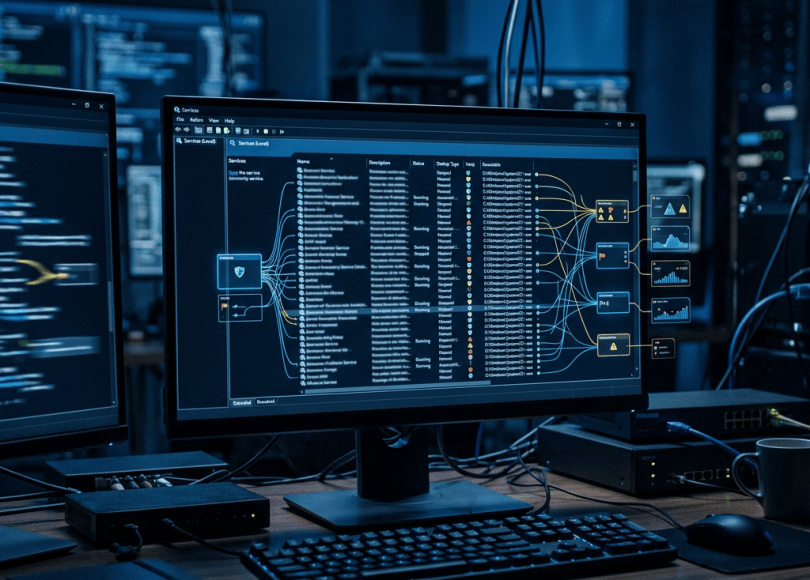
You’ll see the Windows Services management console.
You may see entries such as:
Service NameDisplay NameStatusStartup TypeLog On As
Don’t start stopping random services.
First understand what you’re looking at.
PowerShell Makes Investigation Easier
You can list services with:
Get-Service
For a more useful view:
Get-Service | Select-Object Name, DisplayName, Status
You can filter running services:
Get-Service | Where-Object {$_.Status -eq "Running"}
This gives you a quick inventory.
Get More Information About a Service
Get-Service doesn’t expose every configuration field you may want.
You can query Windows service configuration using:
Get-CimInstance Win32_Service
For example:
Get-CimInstance Win32_Service | Select-Object Name, DisplayName, State, StartMode, StartName, PathName
Now you can start seeing something much more interesting:
NameDisplayNameStateStartModeStartNamePathName
These fields are extremely useful for security analysis.
The Five Questions to Ask About Every Suspicious Service
Whenever you investigate a service, ask:
1. What is it?
Service nameDisplay name
2. What does it execute?
Executable path
3. When does it execute?
Startup configuration
4. Under which account?
Service account
5. Who can modify it?
Service permissions
Those questions can reveal far more than the service name alone.
The Service Executable Path
Suppose you find:
PathName:C:\Program Files\Vendor\Product\service.exe
That could be completely normal.
Now suppose you find:
PathName:C:\Users\User\AppData\Local\Temp\service.exe
That deserves investigation.
But remember:
A suspicious path is a clue, not proof.
Some legitimate applications use unusual locations.
You need additional evidence.
Look at the Digital Signature
If you have identified a service executable, check its signature.
For example:
Get-AuthenticodeSignature "C:\Path\service.exe"
You may see information such as:
StatusSignerCertificatePath
A valid signature can provide useful evidence about the file’s publisher.
But a signature isn’t an absolute guarantee of safety.
You should still investigate:
PublisherPathHashCreation timeParent processNetwork behaviorService configuration
Calculate the File Hash
You can generate a SHA-256 hash:
Get-FileHash "C:\Path\service.exe" -Algorithm SHA256
This gives you an exact identifier for the file you examined.
For example:
Algorithm : SHA256Hash : ABC123...Path : C:\Path\service.exe
A hash is useful for:
- Incident response
- Evidence preservation
- Comparing systems
- Threat-intelligence checks
- Tracking file changes
The Most Important Part: Service Accounts
Here’s where services become particularly interesting from a security perspective.
A service runs in a security context associated with an account.
Microsoft explains that the service logon account determines the service’s security identity and therefore what local and network resources it can access.
In other words:
Service ↓Service Account ↓Security Token ↓Permissions
This determines what the service can do.
LocalSystem
One important built-in service account is:
LocalSystem
Microsoft describes LocalSystem as having extensive privileges on the local computer and acting as the computer’s identity on the network.
That’s why services running under LocalSystem deserve careful security review.
Consider:
Service ↓LocalSystem ↓Highly privileged process
If the service is poorly designed or its executable can be manipulated by an unauthorized user, the security consequences can be significant.
Other Service Accounts
Windows can also use accounts such as:
LocalServiceNetworkServiceLocalSystem
and administrators can configure services with user or managed service accounts depending on the environment.
Microsoft also documents modern managed service-account options such as:
- sMSA
- gMSA
- dMSA
- Virtual accounts
These are designed to improve service identity and credential management in appropriate environments.
Why Least Privilege Matters
Imagine two services.
Service A
Needs access to one folder ↓Runs with only required permissions
Service B
Needs access to one folder ↓Runs with extremely powerful privileges
If both services perform the same job, the second configuration creates a larger security boundary.
The principle is:
Give a service only the privileges it actually needs.
This is the same least-privilege principle used throughout cybersecurity.
How Attackers Abuse Services
MITRE ATT&CK documents Create or Modify System Process: Windows Service (T1543.003) as a technique adversaries can use for persistence and privilege escalation.
At a high level, an attack chain can look like:
Initial Access ↓Execution ↓Malicious executable ↓Service created/modified ↓Automatic execution ↓Persistence
The important part isn’t that Windows Services are inherently dangerous.
It’s that attackers can sometimes manipulate legitimate system mechanisms.
Why Services Are Useful for Persistence
Suppose malware executes once.
After reboot:
Malware ↓Gone
But if an attacker manages to establish a malicious service:
Malicious Service ↓Windows reboot ↓SCM starts service ↓Malicious component executes
The mechanism survives the reboot.
That’s the basic persistence concept.
Don’t Confuse “Service” With “Malware”
This is critical.
A Windows machine may have:
100+
services depending on the operating system and installed software.
Many are completely legitimate.
For example:
Windows servicesMicrosoft softwareAntivirusVPNGPU driversPrinter softwareCloud applicationsDatabase softwareEnterprise agents
So:
Unknown service ≠ Malware
Instead:
Unknown service+Unusual path+Unsigned executable+Unexpected account+Recent creation+Suspicious network activity
is much more interesting.
Service Names Can Be Deceptive
Don’t trust a service simply because its name looks legitimate.
An attacker might choose a name resembling:
Windows UpdateSecurity UpdateSystem MaintenanceMicrosoft Helper
The name is just one field.
Check the actual:
Service nameDisplay nameBinary pathPublisherHashAccountStartup modeDependenciesCreation/modification timeline
Service Name vs Display Name
Windows services have different identifying properties.
For example:
Service Name:ExampleSvc
while:
Display Name:Example Background Service
These are not necessarily identical.
During incident response, record the actual service name.
It is more useful than relying only on what appears in the graphical interface.
Investigate the Binary Path
The PathName field is particularly useful.
Try:
Get-CimInstance Win32_Service | Select-Object Name, StartMode, StartName, PathName
You can then inspect unusual paths.
For example:
C:\Windows\System32\...C:\Program Files\...C:\Program Files (x86)\...
may be perfectly normal depending on the software.
But investigate unexpected locations such as:
C:\Users\Public\C:\Users\<user>\Downloads\C:\Users\<user>\AppData\Local\Temp\
again remembering that location alone is not proof.
Command-Line Arguments Matter
A service may launch:
service.exe
or:
service.exe --config C:\ProgramData\App\config.json
The arguments can affect behavior.
Therefore, collect the complete PathName, not just the executable filename.
Service DLLs
Not every Windows service is represented by a simple standalone executable.
Some services operate through shared service-hosting mechanisms.
Microsoft documents that svchost.exe can host internal Windows services.
Therefore, seeing:
svchost.exe
doesn’t automatically mean you’ve identified the actual service implementation.
You need to determine which services are hosted and what configuration applies.
This is another reason process-name-only detection can produce false positives.
A Simple Investigation Example
Imagine you find:
Name:UpdaterServiceState:RunningStartMode:AutoStartName:LocalSystemPathName:C:\ProgramData\Updater\update.exe
Don’t immediately conclude:
“Malware!”
Instead investigate:
Step 1
Does the software exist on the machine legitimately?
Step 2
Who installed it?
Step 3
Is the executable digitally signed?
Step 4
What is its SHA-256 hash?
Step 5
When was the service created?
Step 6
When was the executable created?
Step 7
What network connections does it make?
Step 8
Who can modify the executable?
Step 9
Who can modify the service configuration?
Now you’re performing an actual investigation.
The Dangerous Combination: Privilege + Weak Permissions
Here’s one of the most important concepts in service security.
Suppose:
Service ↓Runs with powerful account
and:
Executable ↓Writable by an unauthorized user
You now have a potentially dangerous security boundary.
Conceptually:
Low Privilege User ↓Can modify executable ↓Privileged Service starts ↓Modified executable runs
That is fundamentally different from merely discovering a service.
Microsoft specifically notes that granting certain users excessive service-object rights, such as the ability to change service configuration, can allow interference with service execution and potentially lead to applications being run under LocalSystem.
Service Permissions Matter
Windows service objects themselves have security descriptors.
These determine who can perform operations such as:
- Start
- Stop
- Query
- Modify configuration
- Delete
- Change security
Microsoft documents that service objects receive security descriptors and that access rights control what users can do with them.
Therefore, a proper audit examines both:
Service permissions
and:
Executable/file permissions
Service Security Is a Chain
A useful mental model is:
             SERVICE
                 |
        ┌────────┼────────┐
        ↓        ↓        ↓
      Account   Action   Startup
        |
        ↓
    Executable
        |
        ↓
    Directory
        |
        ↓
    Permissions
        |
        ↓
    Resources
A vulnerability can exist at any point in this chain.
A Safe Windows Service Lab
You don’t need malware to learn service security.
Create a Windows VM.
Then install a harmless test application or create a legitimate service for your lab.
Your goal should be to understand:
Service ↓Executable ↓Account ↓Startup configuration ↓Permissions
Then inspect the configuration.
Lab: Inspect Existing Services
Start with:
Get-CimInstance Win32_Service | Select-Object Name, DisplayName, State, StartMode, StartName, PathName
Save the output:
Get-CimInstance Win32_Service | Select-Object Name, DisplayName, State, StartMode, StartName, PathName | Export-Csv "$env:USERPROFILE\Desktop\services.csv" -NoTypeInformation
Now you have a baseline.
Compare the Baseline Later
This is a very useful defensive technique.
Day 1:
services.csv
Day 30:
services-new.csv
Now compare them.
You may identify:
New serviceChanged serviceChanged executableChanged startup modeChanged account
This is much more useful than trying to memorize hundreds of service names.
PowerShell: Find Automatic Services
You can filter services configured for automatic startup:
Get-CimInstance Win32_Service | Where-Object {$_.StartMode -eq "Auto"} | Select-Object Name, StartName, State, PathName
Now investigate unusual entries.
Check a Specific Service
For example:
Get-CimInstance Win32_Service ` -Filter "Name='Spooler'"
Replace the service name with one you’re investigating.
This gives you a more detailed configuration record.
Check the Executable Signature
Once you’ve extracted the executable path, check:
Get-AuthenticodeSignature "C:\Path\service.exe"
Then:
Get-FileHash "C:\Path\service.exe" -Algorithm SHA256
Record both.
Check File Permissions
You can inspect Windows ACLs with:
Get-Acl "C:\Path\service.exe" | Format-List
For the parent directory:
Get-Acl "C:\Path\" | Format-List
You’re trying to answer:
Who can modify the file?
That question can be more important than the service name itself.
What About Registry Configuration?
Windows service configuration is associated with the Windows Registry.
MITRE notes that service configuration information, including executable paths, is stored in the Registry.
The service configuration area is generally under:
HKLM\SYSTEM\CurrentControlSet\Services
For example:
HKLM\SYSTEM\CurrentControlSet\Services\<ServiceName>
You can inspect a service’s registry configuration with:
Get-ItemProperty ` "HKLM:\SYSTEM\CurrentControlSet\Services\Spooler"
Do not modify registry values during a learning exercise unless you know exactly what you’re doing.
Registry + Service + Executable
During forensic analysis, these three pieces can be connected:
Registry ↓Service Configuration ↓Executable Path ↓File ↓Process
This can help investigators reconstruct how a service operates.
Windows Event Logs
Services also generate useful telemetry.
Depending on the system and configuration, useful sources can include:
SystemService Control ManagerSecurityPowerShellSysmonEDR
The important point isn’t memorizing every event ID.
It’s correlating events.
For example:
New executable appears ↓Service configuration changes ↓Service starts ↓Process launches ↓Network connection occurs
That timeline can be extremely valuable.
What Should Threat Hunters Look For?
Instead of:
"Find bad service names"
use behavioral questions.
Question 1
Was a new service created unexpectedly?
Question 2
Did an existing service’s binary path change?
Question 3
Did the service account change?
Question 4
Did the startup configuration change?
Question 5
Is the executable unsigned or unexpected?
Question 6
Can an ordinary user modify the executable?
Question 7
Does the service communicate externally?
Question 8
Did these changes happen immediately before or after another suspicious event?
Common Red Flags
1. Newly created service
Especially during an unexplained incident.
2. Executable in an unusual directory
For example:
TempDownloadsPublicUnexpected AppData directory
3. Powerful service account
Especially when the service doesn’t appear to need those privileges.
4. Unsigned executable
Not automatically malicious, but worth checking.
5. Recently modified service
Especially if the machine was already showing suspicious activity.
6. Service points to a missing executable
Could indicate a broken application — or be a useful forensic clue.
7. Service executable has suspicious network behavior
Correlate with endpoint and firewall telemetry.
8. Weak service or file permissions
This is particularly important during security audits.
Services vs Scheduled Tasks
You just learned about Scheduled Tasks.
Here’s the difference:
| Feature | Scheduled Task | Windows Service |
|---|---|---|
| Managed by | Task Scheduler | Service Control Manager |
| Time/event triggers | Excellent | Supported through triggers |
| Long-running process | Possible | Common use |
| Automatic startup | Yes | Yes |
| Service account | Not the same model | Central security concept |
| Common enterprise use | Yes | Extremely common |
| Can be abused for persistence | Yes | Yes |
| Main investigation focus | Trigger + action | Account + binary + permissions |
Both are legitimate Windows technologies.
Both can become security-relevant.
But the security questions differ.
How to Harden Windows Services
Organizations should:
Use least privilege
Run services with only the permissions they need.
Protect service executables
Unauthorized users should not be able to replace or modify privileged service binaries.
Protect service configuration
Limit who can create, delete, or modify services.
Prefer managed identities where appropriate
Microsoft provides managed service account technologies that can reduce manual credential-management requirements.
Monitor new services
Unexpected service creation should be investigated.
Monitor configuration changes
A legitimate service suddenly pointing to a different binary deserves attention.
Maintain baselines
Know which services are normally present on your systems.
Don’t Disable Services Just Because They Look Strange
This is an important warning.
You may find:
SomethingYouDon'tRecognize
and immediately want to stop it.
Don’t.
First determine:
Who installed it?What software owns it?What executable does it use?What account runs it?What does it communicate with?
Stopping an important Windows or enterprise service can cause outages.
Security investigation should be:
Observe ↓Identify ↓Correlate ↓Validate ↓Contain
not:
See strange thing ↓Delete
A Professional Windows Service Investigation
If you’re doing incident response, collect:
Service nameDisplay nameDescriptionStatusStartup modeService accountBinary pathArgumentsDependenciesExecutable hashDigital signatureFile timestampsFile permissionsService permissionsRegistry configurationRelevant event logsNetwork connectionsProcess tree
That creates a defensible evidence trail.
The Bigger Security Lesson
Windows Services are a perfect example of why cybersecurity isn’t about memorizing suspicious filenames.
A service can be:
Legitimate + Secure
or:
Legitimate + Misconfigured
or:
Legitimate Technology + Abused
or:
Malicious + Persistent
The mechanism itself doesn’t tell you which one you’re looking at.
You need context.
The Service Security Mental Model
Whenever you encounter a service, think:
WHO?Which account runs it? ↓WHAT?Which executable does it launch? ↓WHERE?Where is that executable stored? ↓WHEN?When does the service start? ↓WHO CAN CHANGE IT?Who can modify the service? ↓WHO CAN CHANGE THE FILE?Who can modify the executable? ↓WHAT DOES IT DO?What resources and network destinations does it access?
This model is useful for:
- Blue teams
- SOC analysts
- Malware analysts
- Pentesters
- Windows administrators
- Bug bounty researchers working in authorized environments
- Digital forensics investigators
Windows Service Security Checklist
Discovery
- Enumerate installed services
- Record service names
- Record executable paths
- Record startup modes
- Record service accounts
File Security
- Verify digital signatures
- Calculate hashes
- Review file timestamps
- Check file permissions
- Check parent-directory permissions
Service Security
- Review service-object permissions
- Check who can modify configuration
- Check who can start/stop the service
- Review service account privileges
Monitoring
- Monitor new service creation
- Monitor service configuration changes
- Correlate service events with process creation
- Monitor unusual network connections
- Maintain service baselines
Incident Response
- Preserve service configuration
- Hash the executable
- Record timestamps
- Capture relevant event logs
- Investigate related processes
- Investigate related registry changes
- Contain only after evidence is collected when practical
Frequently Asked Questions
What is a Windows Service?
A Windows Service is a background program managed by the Windows Service Control Manager. Services can start automatically, on demand, or in response to supported triggers.
Can hackers use Windows Services?
Yes. MITRE ATT&CK documents Windows Service creation or modification as a technique used for persistence and privilege escalation.
Does finding a suspicious service mean my computer is hacked?
No.
You need to investigate the service’s executable, publisher, account, permissions, startup configuration, timestamps, and behavior.
What is LocalSystem?
LocalSystem is a predefined Windows service account with extensive privileges on the local computer.
How do I list Windows Services?
PowerShell:
Get-Service
For deeper information:
Get-CimInstance Win32_Service
How do I open the Windows Services manager?
Press:
Win + R
and run:
services.msc
Where are Windows Service configurations stored?
Service configuration is associated with the Registry, commonly under:
HKLM\SYSTEM\CurrentControlSet\Services
MITRE documents the Registry as a location for Windows service configuration information.
Can a normal user modify a Windows Service?
That depends on the permissions assigned to the service object and related files. Properly configured services should restrict sensitive operations to authorized principals.
Why are service permissions important?
Because excessive permissions can allow unauthorized users to interfere with service execution or configuration. Microsoft specifically warns that certain service rights granted to untrusted users can create serious security consequences.
Final Thoughts
Windows Services are everywhere.
They quietly run in the background while you browse the internet, play games, develop software, run servers, connect to VPNs, use security tools, and perform everyday tasks.
That’s exactly why they matter to cybersecurity.
An attacker doesn’t necessarily need to invent a new persistence mechanism.
Sometimes the operating system already provides one.
But remember the most important lesson:
A Windows Service isn’t suspicious simply because it runs automatically or has powerful privileges.
The real questions are:
Who created it?What does it execute?Where is the executable?Which account runs it?Who can modify it?When did it appear?What does it communicate with?
Answer those questions and you can move from:
"I found a weird service."
to:
"I understand exactly why this service exists,what it does, who controls it,and whether its security boundary makes sense."
That’s the difference between simply using Windows and actually understanding Windows security.
Understand the service.
Understand the account.
Understand the permissions.
Understand the executable.
Then investigate the behavior.
Think Like an Attacker. Investigate Like a Defender. Secure Like a Pro.
Discover more from Spyboy blog
Subscribe to get the latest posts sent to your email.
