
 Posted by
 You click an application.
It launches normally.
You see the familiar interface.
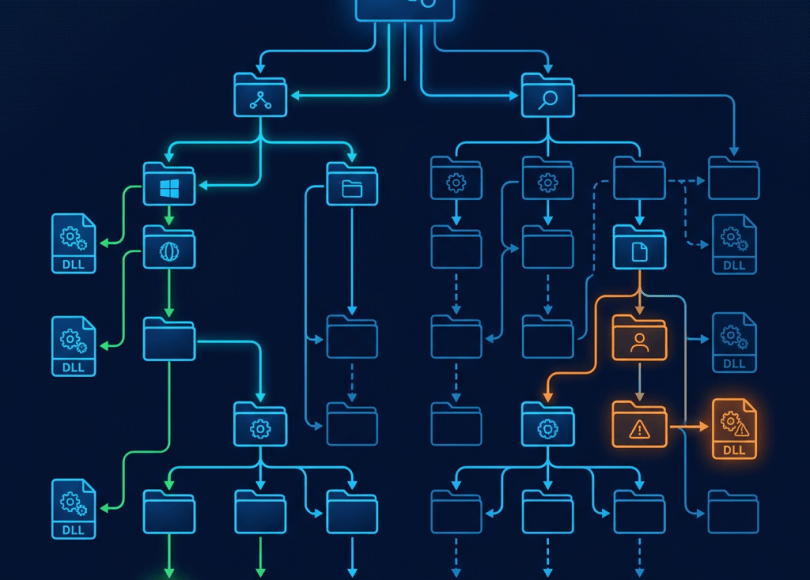
But behind the scenes, Windows may be searching through multiple locations to find the libraries that application needs.
Those libraries are often:
.dll
files.
And here’s where Windows security gets interesting.
What happens if an application expects:
example.dll
but the DLL it loads isn’t the one the developer intended?
What if an attacker can place a malicious or modified DLL somewhere Windows searches first?
The application may load it.
The application may still appear completely normal.
And the unexpected code may execute inside the application’s process.
This class of attack is commonly known as:
DLL Hijacking
It’s one of the most interesting Windows security concepts because it combines:
- Windows internals
- File-system behavior
- Application security
- Process execution
- Privilege boundaries
- Malware analysis
- Reverse engineering
- Defensive monitoring
And unlike some vulnerabilities that require exploiting a complicated memory corruption bug, DLL hijacking can arise from something much simpler:
An application doesn’t specify exactly where a required DLL should come from.
Let’s break down how it works.
⚠️ Important: Use This Only in Your Own Lab
DLL loading is a legitimate Windows mechanism.
The same mechanism can be abused to execute unauthorized code.
For this reason, the practical examples below focus on:
- Understanding DLL search behavior
- Identifying vulnerable applications
- Defensive analysis
- Benign test DLLs in a VM
- Process monitoring
- Secure application development
Do not replace DLLs inside software you don’t own or don’t have permission to test.
For experimentation, use a Windows virtual machine.
What Is a DLL?
DLL stands for:
Dynamic Link Library
A DLL is a Windows library containing code and/or resources that applications can use.
Instead of putting everything inside one executable:
application.exe
a program can use:
application.exe ↓example.dll ↓additional functionality
This allows multiple applications or components to share functionality.
Windows itself relies heavily on DLLs.
You’ll find them throughout:
C:\Windows\System32\
and other application directories.
Why Do Applications Use DLLs?
Imagine a program needs functionality for:
NetworkingGraphicsEncryptionAudioDatabase accessUser interfaceFile handling
Instead of implementing everything inside one executable, developers can use libraries.
Conceptually:
                  application.exe
                        │
          ┌─────────────┼─────────────┐
          │             │             │
          ▼             ▼             ▼
      graphics.dll   network.dll   crypto.dll
This makes software modular.
But it also creates a security boundary:
How does Windows find each DLL?
The Problem: DLL Search Order
Suppose an application requests:
example.dll
The application doesn’t necessarily specify:
C:\Program Files\Company\App\example.dll
It might simply request:
example.dll
Windows then has to determine where that DLL should be loaded from.
The exact DLL resolution behavior depends on the application, APIs used, Safe DLL Search Mode, packaging, manifests, loader configuration, and other factors.
But conceptually, the process looks like:
Application ↓Requests example.dll ↓Windows searches eligible locations ↓Finds a matching DLL ↓Loads it
If an attacker can influence where the DLL is found first, the application may load the wrong library.
What Is DLL Hijacking?
DLL hijacking occurs when an application loads an unintended DLL because of how DLL resolution is configured or because an attacker can influence a searched location.
A simplified scenario:
Legitimate application ↓Needs example.dll ↓Windows searches for it ↓Unexpected DLL found first ↓DLL loaded
If the unexpected DLL contains attacker-controlled code, that code may execute with the privileges of the process loading it.
That’s the core idea.
A Simple Mental Model
Think about a restaurant.
The application says:
“Bring me
example.dll.”
Windows asks:
“Where is it?”
If the application doesn’t clearly specify the trusted source, Windows may search according to its DLL resolution rules.
An attacker who can place a file in an earlier search location may try to make Windows load that file.
So:
Weak DLL resolution +Attacker-controlled search location ↓Unexpected DLL loaded
DLL Hijacking vs DLL Side-Loading
These terms are often mixed together.
They’re related, but not identical.
DLL Hijacking
The attacker takes advantage of DLL resolution behavior so an application loads an unintended library.
DLL Side-Loading
A legitimate application loads a malicious DLL because the application is tricked or designed into loading a DLL from an attacker-controlled location.
A common side-loading scenario conceptually looks like:
Legitimate EXE +Malicious DLL ↓Legitimate process loads unexpected DLL
The distinction isn’t always used consistently across security literature, so focus on the underlying behavior rather than arguing over terminology.
Why Attackers Like DLL Hijacking
There are several reasons this technique is interesting.
The malicious code may execute:
Inside a legitimate process
rather than as an obviously suspicious standalone executable.
Depending on the scenario, the process may also inherit:
- User privileges
- Network access
- Environment
- Application trust relationships
This can make investigation more complicated.
But don’t make the common mistake of assuming:
“A legitimate executable loaded a DLL, therefore the DLL is malicious.”
Legitimate applications load DLLs constantly.
The important question is:
Which DLL was loaded, from where, and was that location expected?
What Does a Normal DLL Load Look Like?
Suppose:
C:\Program Files\Example\App.exe
expects:
example.dll
and the intended DLL is:
C:\Program Files\Example\example.dll
That’s normal.
The suspicious situation might be:
C:\Users\Public\example.dll
or another unexpected writable directory being selected instead.
Again, the exact security significance depends on the application’s loading behavior and permissions.
Why Writable Directories Matter
Imagine an application searches:
C:\SomeDirectory\
for a DLL.
Now imagine a normal user can write files there.
If the application runs with higher privileges and loads DLLs from that directory, you potentially have a privilege-boundary problem.
Conceptually:
Low-privileged user ↓Can write DLL ↓Privileged application ↓Loads DLL ↓Code executes with application privileges
That’s where DLL hijacking can become much more serious.
DLL Hijacking Isn’t Automatically Privilege Escalation
This distinction is critical.
Suppose a normal user runs:
application.exe
and a hijacked DLL executes.
If the application is also running as the same normal user, you haven’t necessarily achieved privilege escalation.
You may have demonstrated code execution in the application’s context.
For privilege escalation, you need something like:
Low privilege ↓DLL placement/control ↓Privileged process loads DLL ↓Higher privilege execution
The actual privileges of the target process matter.
The Interesting Question
When researching DLL hijacking, don’t simply ask:
“Can I get a DLL loaded?”
Ask:
“Who loads it, from where, and with what privileges?”
That is the security question.
How to Find Potential DLL Hijacking
If you’re performing authorized research, one useful methodology is:
Application ↓Observe DLL loads ↓Identify missing/unresolved DLLs ↓Determine search locations ↓Check directory permissions ↓Determine whether a controlled DLL can be loaded ↓Assess process privileges
The safest way to study this is inside a VM.
Process Monitor Is Your Friend
Microsoft Sysinternals Process Monitor (Procmon) is extremely useful for studying Windows file and process activity.
It can show file-system operations such as:
CreateFileQueryOpenLoad Image
among many other events.
For DLL research, Procmon can help you see the application’s attempts to locate libraries.
Conceptually:
App.exe ↓Looks for example.dll ↓Path A → NOT FOUND ↓Path B → NOT FOUND ↓Path C → FOUND ↓DLL loaded
That sequence is incredibly useful.
A Typical Procmon Investigation
Suppose you start:
example.exe
and filter Procmon for:
Process Name = example.exe
Then look for operations involving:
.dll
You may discover something like:
NAME NOT FOUNDC:\Example\example.dllNAME NOT FOUNDC:\Windows\example.dllSUCCESSC:\Example\example.dll
The exact paths depend on the application and Windows configuration.
The important thing is learning to observe the resolution process.
What Does “NAME NOT FOUND” Mean?
In Procmon, a:
NAME NOT FOUND
result generally means that an attempted file-system lookup did not find an object at that location.
That’s not automatically a vulnerability.
Applications frequently look for optional files.
The interesting pattern is:
Missing DLL ↓Search continues ↓Writable location ↓Unexpected DLL successfully loaded
That combination can indicate a security-relevant loading weakness.
Don’t Confuse DLL Search With a Vulnerability
This is one of the biggest mistakes beginners make.
Suppose you see:
example.dllNAME NOT FOUND
That does not mean:
“DLL hijacking found!”
It simply means Windows or the application attempted to access something that wasn’t found.
You need to establish:
- The application actually loads the library.
- A user-controlled location can influence the result.
- The loaded DLL can be controlled.
- The behavior is reproducible.
- There is meaningful security impact.
A Safe DLL Lab
The safest way to learn DLL hijacking is to build your own intentionally vulnerable program.
You can create a simple Windows application that requests:
lab.dll
without specifying an absolute trusted path.
Then observe the loading process.
For example:
C:\DLL-Lab\ lab.exe
and:
C:\DLL-Lab\ lab.dll
You can use Procmon to observe how the application locates the library.
This teaches the fundamental behavior without modifying third-party software.
A Simple Conceptual Lab
Your lab structure can be:
DLL-Lab│├── lab.exe└── lab.dll
The executable loads:
lab.dll
When you launch it:
lab.exe ↓Requests lab.dll ↓Windows resolves DLL ↓lab.dll loaded
Now change the experiment by placing the application and library in different controlled directories.
Observe what happens with Procmon.
Why Building Your Own Lab Is Better
You might find tutorials online telling you:
“Download this old vulnerable application.”
Don’t blindly download random executables.
You don’t know:
- Whether the software is actually vulnerable
- Whether the download is trustworthy
- Whether the sample has been modified
- Whether the tutorial is outdated
- Whether the technique works on current Windows
A small local lab gives you complete control.
DLL Search Order Is More Complicated Than One List
You will often find articles online showing a simple sequence like:
Application directorySystem directoryWindows directoryPATH...
But don’t memorize a single universal list.
DLL resolution behavior can vary depending on:
- API used
- Safe DLL Search Mode
- Application manifest
- Known DLLs
- Package identity
- Loader flags
- Absolute vs relative paths
- Windows version
- Application architecture
The important security lesson is:
Never assume every DLL lookup follows exactly the same search order.
Observe the actual application behavior.
Absolute Paths vs Bare DLL Names
Compare these conceptual approaches.
Less specific
LoadLibrary("example.dll")
The loader must resolve the DLL name.
More specific
LoadLibrary("C:\\TrustedApp\\example.dll")
The developer has specified the intended location.
The second approach can reduce ambiguity, although secure DLL loading requires considering more than simply using an absolute path.
DLL Search Path Hardening
Modern Windows applications have multiple ways to control DLL loading behavior.
Developers can use safer loading patterns and APIs that explicitly define trusted directories or restrict search behavior.
The general principle is:
Don't make Windows guess where security-sensitive code should come from.
Specify trusted locations.
Why Current Working Directory Can Matter
Applications sometimes load resources relative to their current working directory.
That can create security problems if the application assumes:
“The current directory is trusted.”
But the current directory can sometimes be influenced by how an application is launched.
This is why secure software should carefully control where it loads executable code from.
The Dangerous Pattern
Conceptually:
Application ↓Searches broad locations ↓User-controlled directory ↓Loads matching DLL
The security problem is the trust boundary.
The Safer Pattern
A better model is:
Application ↓Known trusted directory ↓Expected DLL ↓Signature / integrity validation where appropriate ↓Load
The exact implementation depends on the application architecture.
DLL Hijacking and Signed Applications
Here’s another interesting security concept.
Imagine:
TrustedApp.exe
is digitally signed.
Does that mean everything it loads is trustworthy?
Not necessarily.
A signed executable can load external libraries.
So defenders shouldn’t only ask:
Is the EXE signed?
They should also ask:
Which DLLs did it load?Where did they come from?Are they signed?Are their paths expected?
This is particularly important in threat hunting.
DLL Side-Loading and Legitimate Applications
Attackers have historically abused legitimate applications as loaders for malicious DLLs.
Conceptually:
Legitimate.exe +Unexpected.dll ↓Legitimate.exe loads DLL
The legitimate executable itself may be completely genuine.
That’s why file reputation alone isn’t enough.
The relationship between:
EXE+DLL+Path+Parent process+User
matters.
How Defenders Detect DLL Hijacking
Security teams can monitor:
1. DLL load paths
Was a DLL loaded from:
TempDownloadsPublicUser profileNetwork shareUnusual writable directory
?
2. Signature status
Is the DLL digitally signed?
3. File location
Does the DLL live where the application normally expects it?
4. Process relationships
Which process loaded it?
5. Timing
Was the DLL created immediately before execution?
6. Network behavior
Did the process suddenly communicate externally?
A Simple Defensive Investigation
Suppose you see:
App.exe ↓loads:C:\Users\Public\example.dll
Don’t immediately conclude:
Malware!
Instead investigate:
Is this the application's expected directory?Is the DLL signed?Who created it?When was it created?What software installed it?Does the application documentation reference it?Does the DLL match the expected version?
That is proper analysis.
Use PowerShell to Inspect DLLs
You can examine a DLL file’s basic metadata with PowerShell.
For example:
Get-Item "C:\Path\example.dll" |Select-Object Name, Length, CreationTime, LastWriteTime
You can inspect version information:
(Get-Item "C:\Path\example.dll").VersionInfo |Select-Object FileDescription, FileVersion, ProductName, CompanyName
You can also calculate a hash:
Get-FileHash "C:\Path\example.dll" -Algorithm SHA256
A hash doesn’t prove a file is malicious.
But it gives you a stable identifier for comparison and investigation.
Check a DLL’s Digital Signature
PowerShell can also inspect Authenticode signatures:
Get-AuthenticodeSignature "C:\Path\example.dll"
You may see a status such as:
Valid
or:
NotSigned
or another status.
Again:
Unsigned does not automatically mean malicious.
Many legitimate DLLs may not have a signature.
Signature status is one piece of evidence.
Build a DLL Investigation Script
Create:
dll-check.ps1
param( [Parameter(Mandatory=$true)] [string]$Path)if (-not (Test-Path $Path)) { Write-Host "File not found: $Path" exit}$file = Get-Item $PathWrite-Host "================================="Write-Host " DLL SECURITY CHECK"Write-Host "================================="Write-Host "`n[File]"Write-Host "Name: $($file.Name)"Write-Host "Path: $($file.FullName)"Write-Host "Size: $($file.Length)"Write-Host "`n[Hashes]"Get-FileHash $file.FullName -Algorithm SHA256Write-Host "`n[Version Information]"$file.VersionInfo |Select-Object FileDescription, FileVersion, ProductName, CompanyNameWrite-Host "`n[Digital Signature]"Get-AuthenticodeSignature $file.FullName |Select-Object Status, StatusMessage, SignerCertificate
Run:
.\dll-check.ps1 -Path "C:\Path\example.dll"
Now you have a basic DLL triage tool.
DLL Hijacking and Privilege Escalation
This is where researchers become particularly interested.
Suppose:
Normal User ↓Can write DLL ↓Privileged Service ↓Loads DLL
If the privileged service loads that attacker-controlled DLL, the attacker may gain code execution under the service’s account.
That can potentially become a privilege-escalation vulnerability.
But it needs to be demonstrated.
A Security Researcher’s Checklist
If you think you’ve discovered a DLL hijacking issue in software you’re authorized to test, verify:
1. Missing DLL
Does the application genuinely attempt to load the DLL?
2. Search path
Where does it look?
3. Write access
Can the relevant lower-privileged user actually place a file there?
4. Load
Does the application load the controlled library?
5. Privileges
What account runs the application?
6. Reliability
Does it happen consistently?
7. Impact
Does it result in code execution, privilege escalation, or another security consequence?
Don’t Use a Real Malware DLL for Testing
You don’t need malware to demonstrate a DLL-loading problem.
For authorized testing, a harmless proof-of-concept DLL can simply:
Display a messageWrite a benign test markerRecord a timestamp in a lab directory
The goal is to demonstrate:
Controlled DLL ↓Loaded by target application
not to deploy malware.
Why “Proof of Execution” Matters
Imagine your application:
test.exe
attempts to load:
missing.dll
You place a controlled test DLL where the application can find it.
If your harmless DLL produces an obvious lab-only marker:
DLL_TEST_SUCCESS
you’ve demonstrated that the application loaded your library.
That’s enough to establish the core behavior.
You don’t need destructive actions.
DLL Hijacking in Bug Bounties
If you’re testing desktop software under a legitimate vulnerability disclosure program, reports should clearly explain:
Affected applicationAffected versionDLL nameExpected DLL pathObserved search behaviorAttacker-controlled locationRequired permissionsProof of loadingSecurity impactRecommended remediation
A good report doesn’t say:
“I can hack this application.”
Instead:
“The application loads a DLL from a user-writable search location, allowing a lower-privileged user to execute code in the application’s security context.”
That is much more precise.
Common DLL Hijacking Mistakes
❌ Mistake 1: “Any missing DLL is vulnerable.”
No.
A missing DLL may simply indicate optional functionality.
❌ Mistake 2: “Unsigned DLL = malware.”
No.
Signature status is only one signal.
❌ Mistake 3: “DLL hijacking always means SYSTEM.”
Absolutely not.
The privileges depend on the process that loads the DLL.
❌ Mistake 4: “A signed EXE is automatically safe.”
Not necessarily.
It can load external libraries.
❌ Mistake 5: “The search order is always identical.”
No.
Windows DLL resolution depends on the API and configuration.
❌ Mistake 6: Testing on random third-party software.
Don’t.
Use software you own or an authorized security program.
DLL Hijacking vs Other Windows Attacks
| Technique | Core Problem |
|---|---|
| DLL Hijacking | Application loads unintended DLL |
| DLL Side-Loading | Legitimate application loads attacker-controlled DLL |
| DLL Search Order Hijacking | Search resolution favors attacker-controlled location |
| DLL Proxying | Malicious/replacement DLL forwards functionality while adding behavior |
| Process Injection | Code is inserted into another process |
| Registry Persistence | Startup/configuration mechanism abused |
| WMI Persistence | WMI event mechanism abused for persistence |
These techniques can overlap in real-world malware, but they are conceptually different.
Why This Matters for Malware Analysis
When analyzing a suspicious Windows executable, don’t just inspect:
.exe
Also inspect:
.dll
dependencies.
Ask:
Which libraries does it load?Where are they loaded from?Are they expected?Are they signed?Were they created recently?Are they located in unusual directories?
A suspicious DLL alongside a legitimate executable can be a major clue.
Your Windows Security Learning Path Is Getting Interesting
You’ve now covered several pieces:
BAT ↓CMD ↓Registry ↓Event Viewer ↓WMI ↓NTFS ADS ↓DLL Loading
These aren’t random Windows tricks.
They’re pieces of the operating system’s security model.
Next, you can move toward:
PowerShellWindows ServicesTask SchedulerActive DirectoryWindows AuthenticationSysinternalsEDRMalware AnalysisThreat Hunting
10-Minute DLL Investigation Lab
You can start learning immediately.
Step 1
Install a legitimate test application in a Windows VM.
Step 2
Start Process Monitor.
Step 3
Filter:
Process Nameisyour-test-application.exe
Step 4
Observe .dll file activity.
Step 5
Look for:
NAME NOT FOUND
and:
SUCCESS
events involving DLLs.
Step 6
Record:
DLL namePathResultProcessTimestamp
Step 7
Determine whether the loaded DLL came from the expected application directory.
That’s a legitimate Windows security investigation.
A Simple DLL Hunting Workflow
Use this mental model:
        APPLICATION
             │
             ▼
       DLL REQUEST
             │
             ▼
       DLL RESOLUTION
             │
       ┌─────┴─────┐
       │           │
    Expected    Unexpected
       │           │
       ▼           ▼
    Trusted     Investigate
       │           │
       └─────┬─────┘
             ▼
        DLL LOADED
             │
             ▼
       PROCESS CONTEXT
             │
             ▼
          IMPACT
This is the real security workflow.
Frequently Asked Questions
What is DLL hijacking?
DLL hijacking is a class of Windows vulnerabilities where an application loads an unintended DLL because of how DLL resolution is configured or because an attacker can influence a location from which the application searches.
What is DLL side-loading?
DLL side-loading generally describes situations where a legitimate executable loads an attacker-controlled or otherwise unintended DLL, often because of how the executable resolves its dependencies.
Is DLL hijacking a Windows vulnerability?
Not necessarily. It can result from application design, deployment configuration, writable directories, or insecure DLL-loading behavior.
Does DLL hijacking always give administrator access?
No. The resulting code executes with the privileges of the process that loads the DLL.
How can I detect DLL hijacking?
Tools such as Microsoft Sysinternals Process Monitor can help observe DLL lookup and loading behavior. Security teams can also inspect DLL paths, signatures, hashes, process relationships, and file creation activity.
Is an unsigned DLL malicious?
No. Many legitimate libraries may be unsigned. Signature status is only one piece of evidence.
Can DLL hijacking be used for persistence?
It can potentially be involved in persistence depending on the application and execution conditions, but DLL hijacking and persistence are separate concepts.
Can I learn DLL hijacking without malware?
Absolutely. A controlled Windows VM and a small test application are enough to understand the fundamentals.
Final Takeaway
A Windows application might appear to be:
application.exe
But underneath it may depend on:
application.exe │ ├── library1.dll ├── library2.dll ├── library3.dll └── library4.dll
The application has to find those libraries somehow.
And when developers don’t properly control that process, the DLL-loading mechanism can become a security boundary.
That’s the fundamental idea behind DLL hijacking.
For hackers and vulnerability researchers, the interesting questions are:
Which DLL is being requested?
Where does Windows look for it?
Can an unauthorized user influence one of those locations?
Who runs the application?
What happens when the DLL is loaded?
For defenders, the questions become:
Which DLLs did this process load?
Were they expected?
Where did they come from?
Are they signed?
Who created them?
What happened immediately afterward?
That’s why DLL hijacking is much more than a “hacking trick.”
It teaches one of the most important principles in Windows security:
Never trust a file simply because a trusted application loaded it.
Understand the loader.
Understand the search path.
Understand the process.
Understand the privileges.
And always investigate the complete chain.
Think Like an Attacker. Investigate Like a Defender. Secure Like a Pro.
Discover more from Spyboy blog
Subscribe to get the latest posts sent to your email.
